

1. A Few Unexpected Free Days
As I already mentioned in one of my recent posts, I suddenly found myself with a few free days toward the end of the year. Days that really shouldn’t go to waste. Between the holidays, New Year discounts, and a rare pause in work, I decided to do something I hadn’t done in a while — play some games 😅.
Steam’s Christmas and New Year sales helped a lot. They always do.
And one name immediately caught my eye.
Assassin’s Creed.
It’s one of those series I remember very clearly. Long evenings, slow exploration, historical cities, and that special feeling Ubisoft used to do so well. I also had a very specific reason to revisit it: I wanted to see how these games would behave on my new GPU and my budget AI server — a machine never designed to be a gaming PC, yet powerful enough to make things interesting.
2. Basic Games information:
| Game | Year | Original Platform | Why I love it |
|---|---|---|---|
| Assassin’s Creed Black Flag | 2013 | PC, PS3/360 | Swash‑buckling pirate adventure in the Caribbean |
| Assassin’s Creed Unity | 2014 | PC, PS4/Xbox One | First‑person melee in revolutionary Paris |
| Assassin’s Creed Origins | 2017 | PC, PS4/Xbox One | Birth of the Brotherhood in ancient Egypt |
3. Checking Compatibility on ProtonDB
Before launching, I consulted ProtonDB for each title:
| Game | ProtonDB rating (as of Dec 2025) | Main issues |
|---|---|---|
| Black Flag | ★★★★ (Gold) | Slight UI scaling problems |
| Unity | ★★★ (Platinum) | Requires CPU core limiting |
| Origins | ★★★★ (Gold) | Needs custom launch options for fullscreen |
All three games launch through Ubisoft Connect, which adds an extra layer of indirection. That turned out to be the source of the biggest headache.
4. Back to Where It All Started
The very first Assassin’s Creed I played was the one set in the Middle East — Jerusalem, Acre, and the surrounding regions. If my memory serves me right, I actually completed it back in the day. It left a strong impression on me: atmosphere, music, and a world that felt serious and grounded.
So when I noticed that Black Flag, Unity, and Origins were all available on Steam with a solid discount, I didn’t hesitate for long. Even knowing the risk — Linux, Proton, Ubisoft Launcher… what could possibly go wrong? — I bought all three.
Worst case, I thought, it would turn into a debugging adventure.
5. Installation: Surprisingly Boring (In a Good Way)
To my surprise, the installation phase was almost boring.
After the purchase, all three games appeared in my Steam library immediately. One click on Install, and that was it. No missing dependencies, no weird installers, no manual tweaks. Steam did its job.
- Buy the games during the sale.
- Steam automatically adds them to your library.
- Click “Install” – everything downloads to the default
~/.steam/steam/steamapps/common/folder.
Before launching anything, I checked ProtonDB. The games were released in different years, had different engines, and different system requirements. That already suggested I shouldn’t expect identical behavior from all three.
Still, Proton ratings looked reasonable enough to give it a try.
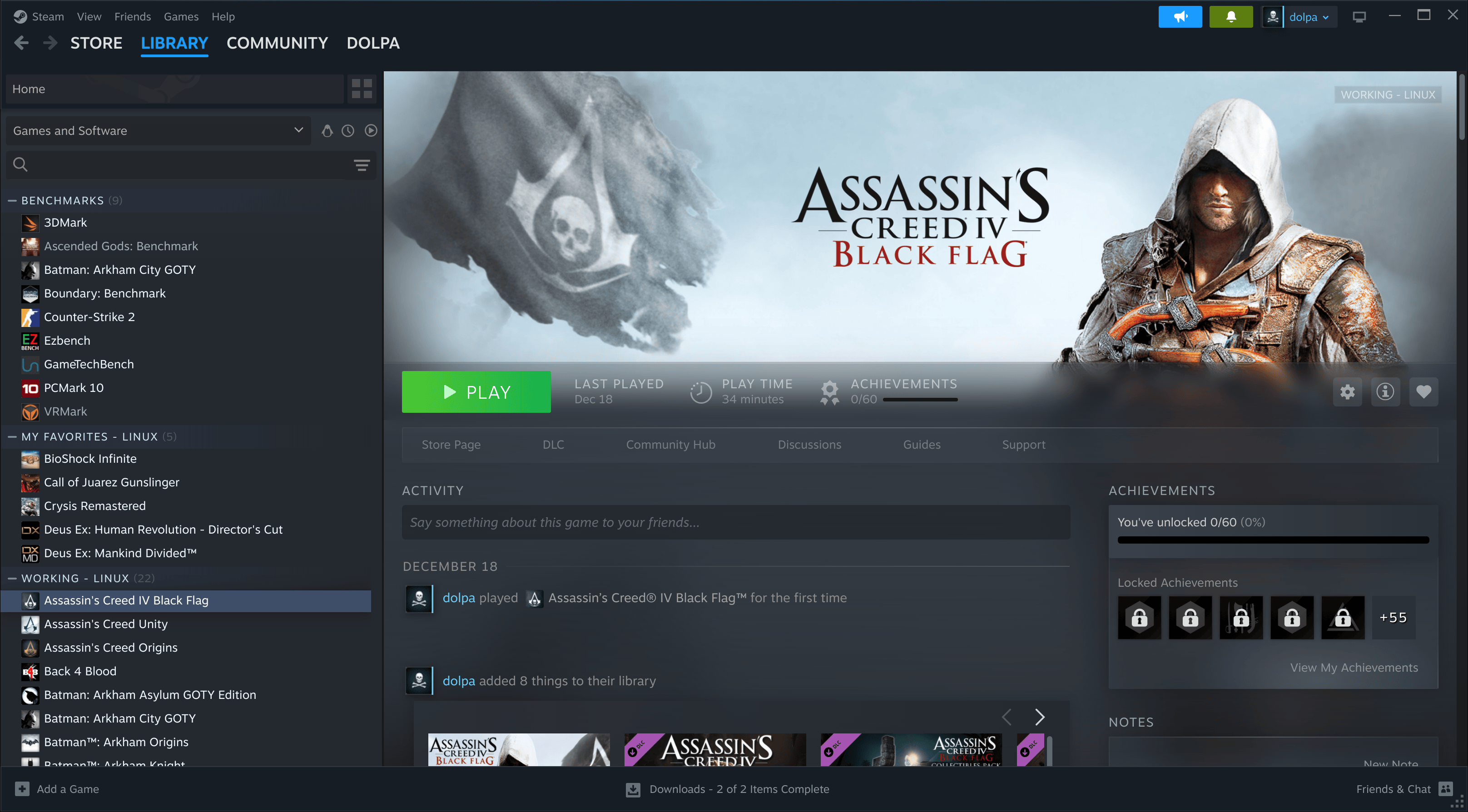
No installation errors at all – the Steam client is blissfully simple on Linux.
6. The First Wall: Ubisoft Connect
All three games shared the same first problem.
When I started any of the games, the following happened:
- Ubisoft Connect launched (a small window with the logo).
- After a few seconds the launch screen of the game appeared, but then disappeared.
- No game window ever showed up – it seemed the process hung forever.
6.1 Why It Happened
All three titles share a common launch pattern:
Steam → Proton → Ubisoft Connect → Game executable
Proton spawns Ubisoft Connect in a separate sandbox. The game then inherits whatever CPU affinity and display settings Ubisoft Connect used.
On my server, the OS sees 88 logical CPUs. The older AC engines apparently choke when they are exposed to too many cores at once. The result? The game never proceeds past the splash screen.
When you launch them, Ubisoft Connect starts first — and that part worked perfectly. No crashes, no errors. The launcher opened, logged in, synced, and looked ready.
The problem was what happened after that.
The game splash screen appeared…
…waited for a few seconds…
…and then vanished.
No error.
No crash window.
No full-screen takeover.
Just silence.
7. When Old Games Meet Too Many CPU Cores
Because these games are not exactly new, my first suspicion was CPU topology. Old games often don’t know what to do when they suddenly see a modern system with a ridiculous number of logical cores.
So I tried the simplest and oldest trick in the book:
👉 Limit the number of CPU cores visible to the game.
7.1 Fix #1 – Limiting Visible CPUs with taskset
The solution is surprisingly simple: mask the process so it “sees” only a subset of cores. Using taskset, I restricted the game to 8 cores.
# Example: limit the game to the first 8 logical CPUs (0‑7)
taskset -c 0-7 %command%
7.2 How I Applied It
- Right‑click the game in Steam → Properties → Launch Options.
- Insert the
tasksetcommand before%command%.
For Black Flag the final line looked like this:
taskset -c 0-7 %command%
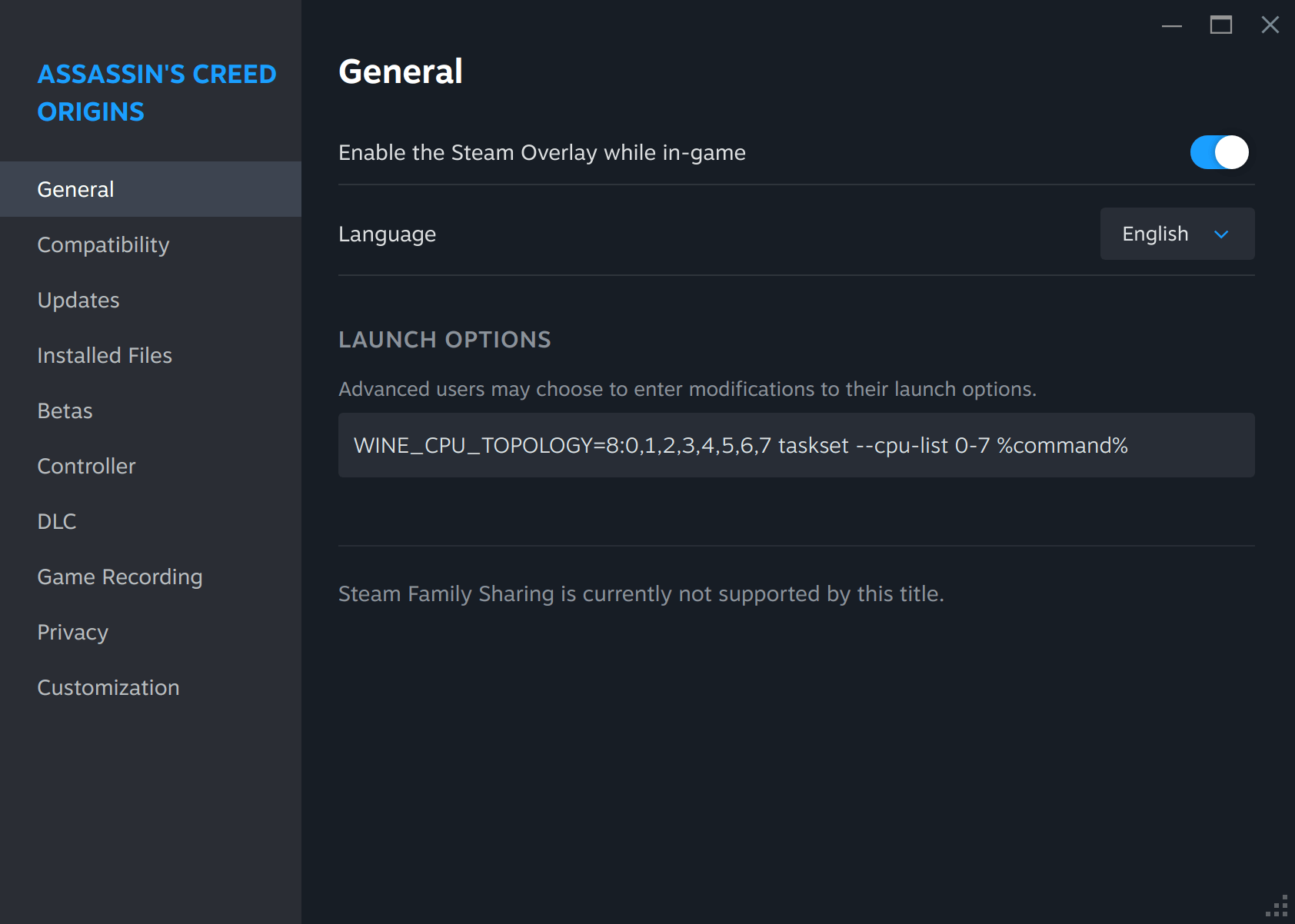
Result: The game window finally appeared! The splash screen stayed, and the game continued to load.
After this change, the game window actually appeared. The engine started correctly, and it finally felt like the game was trying to run.
But of course… that only revealed the next problem.
8. Forcing Fullscreen & Correct Resolution
The next issue was resolution and fullscreen handling.
Even after the CPU fix, the games stubbornly opened in borderless windowed mode at a tiny 800×600 resolution. Changing the resolution inside the game menus did nothing, and the classic -screen-width / -screen-height (or -w and -h) launch parameters (which worked for Crysis) were ignored.
8.1 Enter GameScope
This is where Gamescope saved the day.
GameScope is a lightweight Wayland compositor that can launch a game in a dedicated “virtual monitor” with any resolution and refresh rate you desire. It works perfectly with Proton games because it wraps the whole process, not just the window.
Installing GameScope
sudo apt update
sudo apt install gamescope
Using GameScope with a Custom Resolution
# Launch Assassin's Creed Black Flag in 1920×1080 fullscreen
gamescope -W 1920 -H 1080 -f -- %command%
-W/-H– width and height of the virtual monitor-f– fullscreen (takes over the whole physical screen)
8.2 Adding GameScope to Steam
Again, go to Properties → Launch Options and prepend the GameScope command:
taskset -c 0-7 gamescope -W 1920 -H 1080 -f -- %command%
Now each title launches directly into 1080p fullscreen with no UI scaling glitches.
More about GameScope here.
9. Choosing the Right Proton Version
Each game behaved slightly differently under Proton, so I experimented with a few builds:
| Game | Best Proton version | Why |
|---|---|---|
| Black Flag | GE-Proton9-27 (GloriousEggroll) |
No crashes, smooth UI |
| Unity | GE-Proton9-27 (GloriousEggroll) |
Better handling of the old DirectX 9 code |
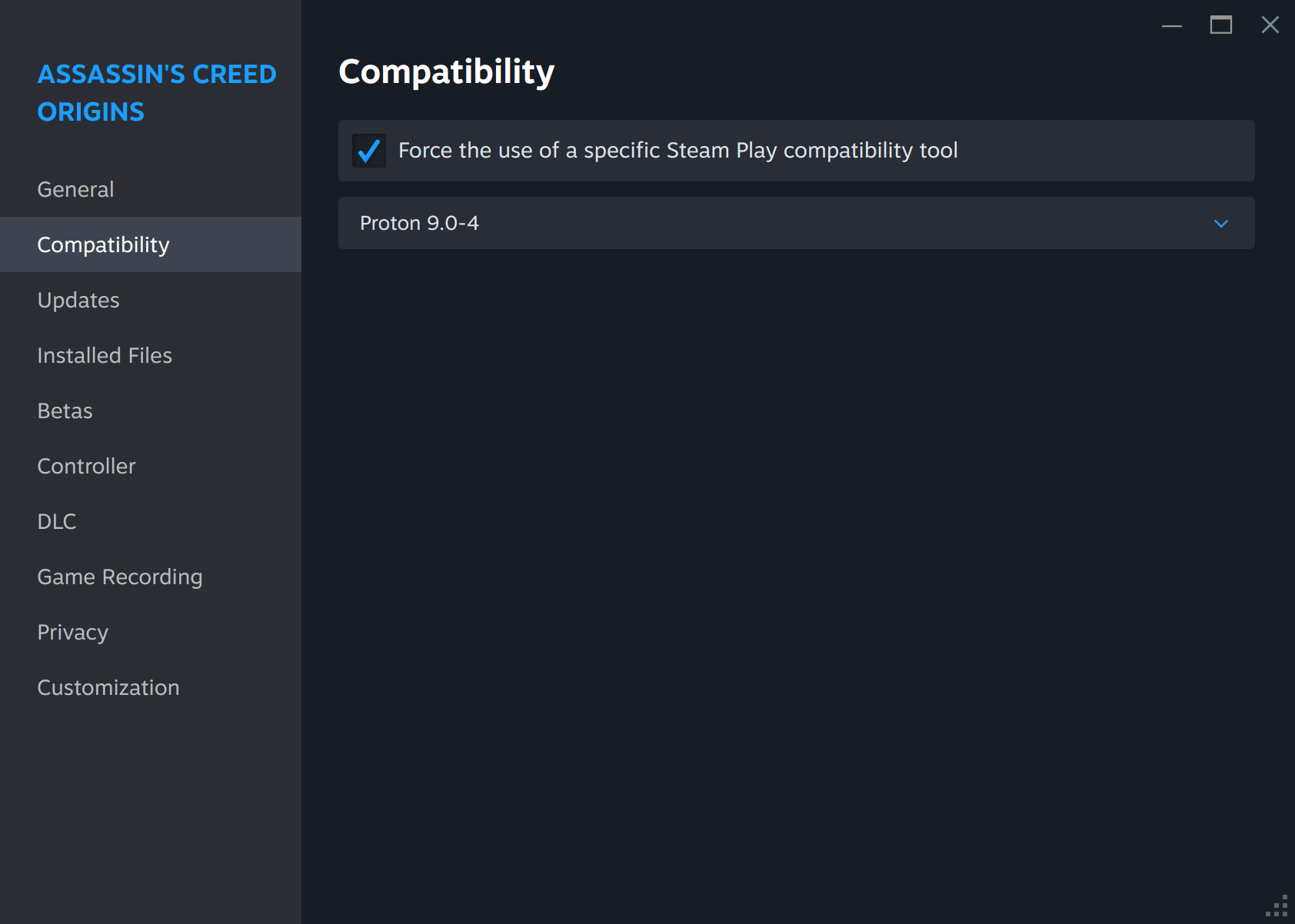
| Origins | Proton 9.0‑4 |
Fixes a small memory‑leak that caused stutters |
You can set the version per‑game in Steam → Properties → Compatibility.
10. Three Games, One Pattern
What really surprised me is that all three games — Black Flag, Unity, and Origins — ended up having almost the same root problems, even though they were released years apart.
In the end, the solution for all of them looked like this:
- Limit the number of CPU cores visible to the game
- Force resolution and fullscreen using Gamescope
- Choose the right Proton version per game
Each title preferred a slightly different Proton build, but once that was tuned, they ran reliably.
11. Final Thoughts
These Assassin’s Creed games were, without exaggeration, the most difficult games to launch I’ve dealt with so far on Linux, not because of performance, but because of how fragile they are when it comes to modern systems.
Still, once configured properly, they run well — even on a machine that was never meant to be a gaming PC.
And honestly?
That makes the experience even more satisfying. Until then — happy hacking, and happy gaming 🎮
And remember: if a game doesn’t start, it’s probably not your fault.