

Intro
Now that I finally have a properly gamer-grade platform to play with — and, more importantly, something meaningful to compare it against — it feels like the right moment to stop theorizing and start testing.
The goal here isn’t to compare apples to apples.
Let’s be honest — that would be too easy.
Instead, we’ll try something slightly more realistic: oranges versus grapefruits. Different fruits, different sizes, different flavors — but still part of the same citrus family. Close enough to make the comparison interesting, and honest enough to reveal real differences.
To do that, we’ll use one game, the same scenes, and different graphics settings, and simply measure what actually matters: frames per second — and how those settings affect performance.
A quick reminder about the hardware:
My “budget” AI server is running two RTX 2080 Ti GPUs. Sounds impressive — and it is — but when it comes to gaming, only one GPU is actually used. The second card sits there politely, doing absolutely nothing, which is easy to confirm by checking GPU load (as I already showed earlier).
So for this test, think of it as a single RTX 2080 Ti system — no tricks, no multi-GPU magic.
No AI Tricks. No Shortcuts.
Before we start comparing anything, let’s strip the system down to its raw power.
That means:
- DLSS: off
- Frame generation: off
- No modern “smart” features of any kind
Just pure, old-school GPU muscle. No AI. No cheating.
We launch the game, head straight into the graphics settings, switch everything to Low, and double-check that DLSS and frame generation are completely disabled. Only then do we run the built-in performance benchmark.
And honestly?
Even on Low settings, the game still looks surprisingly good.
Most likely that’s because the output resolution is still set to 4K, even though internal quality is reduced. Modern engines are very good at hiding their compromises — especially when resolution stays high.
A Personal Note on Image Quality
One thing worth mentioning upfront:
I’m not playing on a huge TV across the room. My monitor is right in front of my face.
Because of that, non-native resolutions hit my eyes hard. Those tiny blocks, shimmering edges, and pixel artifacts around objects bother me far more than missing shadows or lower texture quality.
My guess?
This has less to do with the game itself and more to do with the monitor, its scaler, and its image processor. On a big TV, viewed from a distance, the same settings would probably look just fine — maybe even great.
But sitting this close?
Yeah… I notice everything.
And with that baseline established, we’re finally ready to move forward — and start bending reality with upscaling.
1. Case Study – Cyberpunk 2077
After all the theory in the previous post — how DLSS and FSR work, what hardware they need, and how to wire everything up on Ubuntu — it’s time to stop talking and start breaking Night City. You ctill can enjoy the theory part here.
Cyberpunk 2077 is almost a perfect stress test. It supports NVIDIA DLSS 2 and 3, AMD FSR 2.x, ray tracing, Reflex, and enough visual chaos to make any GPU sweat. If an upscaler works here, it’ll work anywhere.
In this chapter, we’ll walk through Cyberpunk 2077 from a fresh Linux install to real, side-by-side image quality and performance comparisons — no benchmarks in a vacuum, just what actually happens when you play the game.
Theory is done. Night City is waiting.
2. Installing Cyberpunk 2077 on Ubuntu
Getting Cyberpunk 2077 running on Ubuntu is refreshingly uneventful — which, for a game this complex, is a small miracle.
Start the usual way: buy the game on Steam (or redeem a Steam key) and let it download. No tricks yet.
Before the first launch, open the game’s Properties → Compatibility and enable Proton-GE. If you’re running a very recent NVIDIA or Mesa stack, the default Proton often works too — but Proton-GE tends to behave better with cutting-edge titles like this one.
Under the hood, Proton already ships with DXVK, which translates DirectX calls into Vulkan. For most people, that’s more than enough. If you like living on the edge, you can manually update DXVK to the latest release to squeeze out recent fixes or performance improvements:
# Update DXVK to the newest version (2025‑09‑30)
wget -O dxvk.tar.gz https://github.com/doitsujin/dxvk/releases/download/v2.7.1/dxvk-2.7.1.tar.gz
tar -xf dxvk.tar.gz
cd dxvk-2.2
./setup_dxvk.sh install
Once everything is in place, launch the game. On first startup, Cyberpunk will ask how it should handle DirectX 12 on Linux. Choose Vulkan — it offers the best stability and is required for DLSS and FSR to behave properly under Proton.
After that, Night City loads… and now the real fun begins.
3. Baseline – Native 4K (No Upscaling)
Before we touch DLSS or FSR, it’s important to see what raw, native rendering looks like. No AI help. No tricks. Just brute force.
This is the “pain point” baseline — the reference we’ll use later to judge whether upscaling is actually worth it.
All tests below were run at native 4K (3840×2160), DLSS and FSR disabled, using Proton-GE 9.27 + DXVK 2.x on an RTX 2080 Ti (11 GB).
3.1 Native 4K Performance (No Upscaling)
| Preset | Resolution | Ray Tracing | Avg FPS | Frame Latency (ms) |
|---|---|---|---|---|
| Low | 3840×2160 | Off | ~54 fps | ~18.5 ms |
| Medium | 3840×2160 | Off | ~43.5 fps | ~23.1 ms |
| High | 3840×2160 | Off | ~32 fps | ~31.25 ms |
| Ultra | 3840×2160 | Off | ~17.8 fps | ~56.18 ms |
| Low | 3840×2160 | RT On (Medium) | ~12.6 fps | ~79.36 ms |
| Medium | 3840×2160 | RT On (Medium) | ~12.1 fps | ~82.6 ms |
| High | 3840×2160 | RT On (High) | ~9.5 fps | ~105.3 ms |
| Ultra | 3840×2160 | RT On (Ultra) | ~6.5 fps | ~153.8 ms |
By RT ON (settings) I mean that RT is Turned ON like on this image:
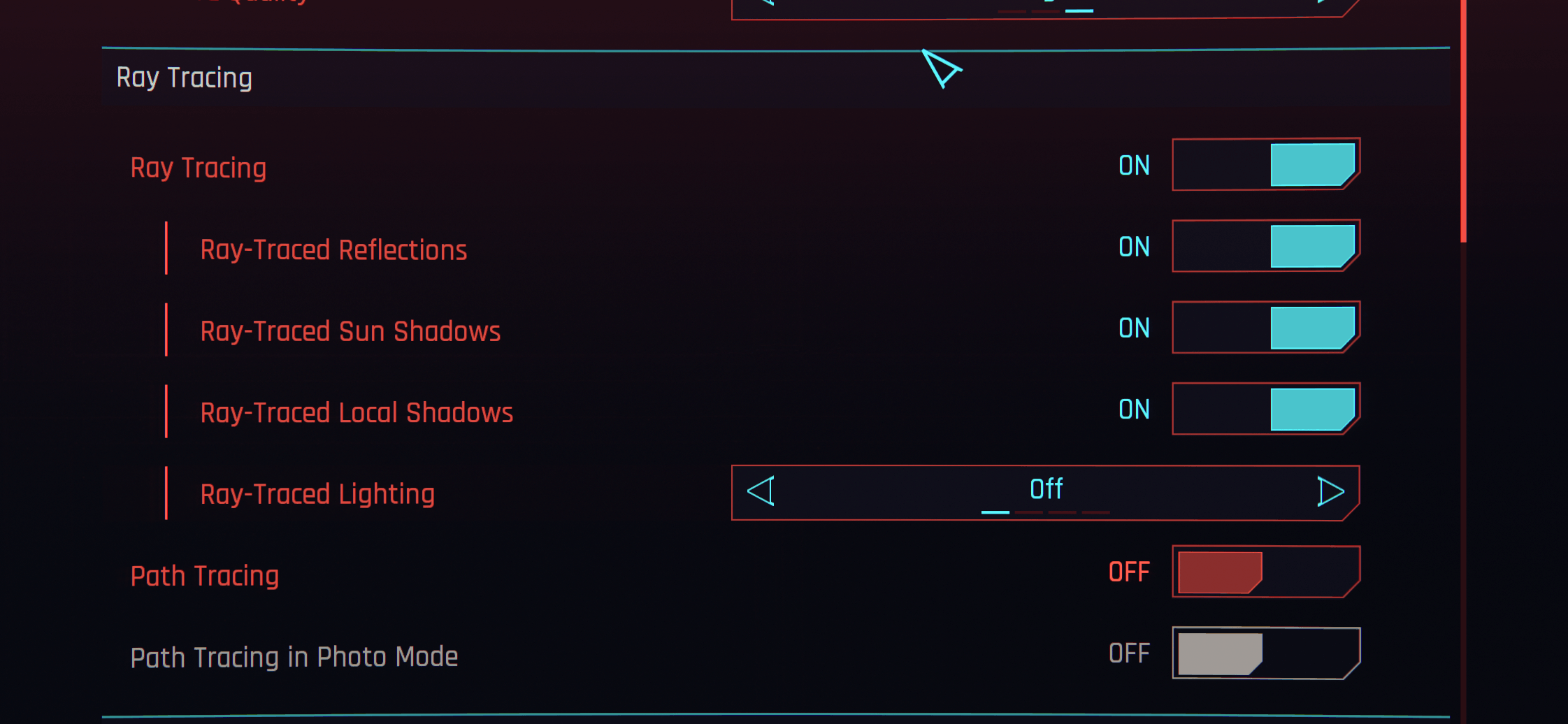
So ... the Tar Traycing is ON, Ray-Traced Reflaction is ON, Ray-Traced Sun Shadows - ON, Ray-Traced Local Shadows ON too. On the other hand, Ray-Traced Lighing in OFF and the Path Tracing is also OFF (very heavy feature for any GPU).
3.2 A Quick Note on “High” vs “Ultra”
There’s one thing I want to explain, because at first glance it can look a bit strange.
You might wonder why there’s such a noticeable performance drop when moving from High to Ultra settings. After all, the difference in the menu seems tiny — just a few sliders pushed from High to Very High or Ultra. On paper, it doesn’t look like it should matter much.
But here’s the catch.
The RTX 2080 Ti has only 11 GB of VRAM. And at 4K, modern games like Cyberpunk 2077 can hit that limit surprisingly fast — especially on Ultra settings.
Once the game runs out of video memory, the GPU has no choice but to start shuffling data back and forth between VRAM and system RAM. And that process is very expensive. It introduces stalls, increases frame time, and causes a sharp drop in performance.
So the slowdown you see at Ultra isn’t because the settings are “a little bit higher” — it’s because the GPU crosses a hard memory limit.
High settings stay just under that VRAM ceiling.
Ultra settings step over it.
And once that happens, the GPU stops sprinting and starts tripping over its own feet.
That’s why the performance gap between High and Ultra can feel much bigger than the graphics menu would suggest — especially on a card with 11 GB of VRAM running at native 4K.
Later on, this will become even more interesting when we turn DLSS on — because suddenly, that memory pressure almost disappears.
3.3 What this tells us
At native 4K, Cyberpunk 2077 is absolutely GPU-bound.
Without ray tracing, the game is playable only at lower presets. Once RT enters the picture, frame rates drop into the low-20s fast.
This is exactly the situation DLSS and FSR were designed for:
- The visuals are already expensive
- The GPU is doing everything “the hard way”
- And the experience starts to feel sluggish long before the game looks bad
In the next sections, we’ll flip the switch on upscaling and see how much performance we can recover — and what it costs in image quality.
Night City is demanding. Let’s see who cheats better. 😏
4. DLSS Super Resolution – What It Gives You
4.1 The Switch
In Cyberpunk 2077, turning on DLSS isn’t dramatic. There’s no explosion. No glowing button.
You go to:
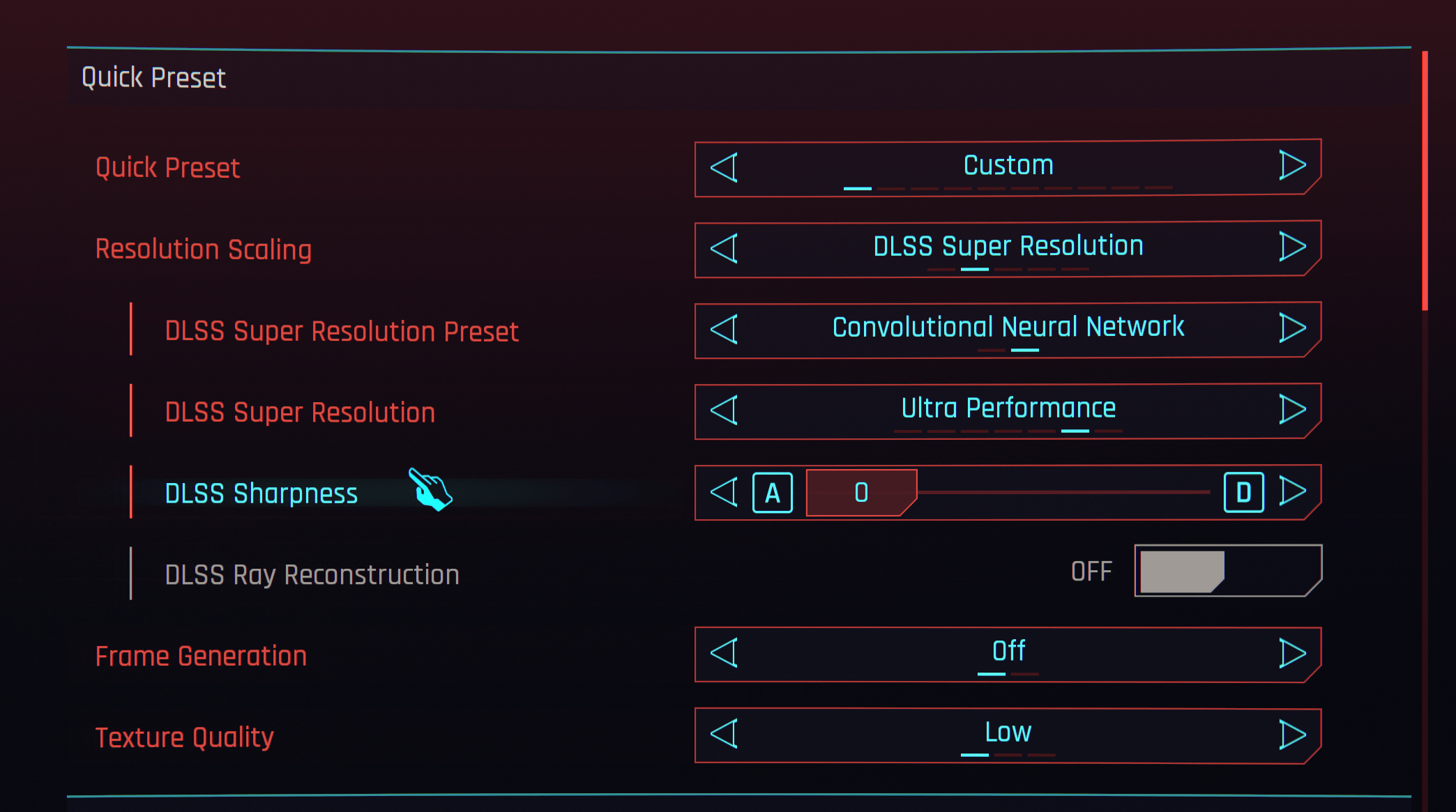
Settings → Graphics → Resolution Scaling → DLSS Super Resolution
You choose Ultra Performance, not because it looks the best, but because I want to demonstrate the maximum possible performance improvement.
For everyday gaming, though, you’ll need to decide for yourself which preset offers the right balance between image quality and FPS.
Switch Frame Generation to OFF.
This isn’t about fake frames. This is about smarter rendering.
You leave the output resolution at 4K as before.
Just one setting changed.
Set "Low", "Medium", "High", or "Ultra" in the Quic Preset, and then set the Resolution Scaling to DLSS Super Resolution with DLSS Super Resolution Preset → Convolutional Neural Network with Ultra performance for Resolution. Keep the Frame Generation: switched OFF. Like on this screenshot:
4.2 Run the benchmark. Does It Look Worse?
This is where you stop moving. You stand still and stare.
The cables between buildings. The reflections in puddles. The texture of concrete. Distant holographic ads.
You expect softness. Blur. Something obviously artificial.
But it’s not obvious.
Even DLSS Ultra Performance mode on the 2080 Ti doesn’t scream “upscaled.” It whispers it. If you lean in and hunt for it, you can see it — tiny softness in fine detail, maybe a slightly reconstructed edge here and there.
But in motion? It looks almost identical.
And here’s the strange part: sometimes it looks more stable than native.
Cyberpunk’s default anti-aliasing can shimmer. Fine details can flicker slightly. DLSS often calms that down. The image becomes more consistent, less noisy.
It’s not about sharpness. It’s about stability. And stability feels expensive.
4.3 Why It Feels So Different
Native 4K on a card with 11GB of VRAM is unforgiving.
At that resolution, especially on High or Ultra settings, Cyberpunk doesn’t just use GPU power — it consumes memory aggressively. Textures, ray tracing buffers, geometry data — everything stacks up. And once you get close to that 11GB ceiling, performance doesn’t slowly taper off.
It drops.
When VRAM fills up, the system has to start moving data back and forth between the GPU memory and system RAM. That transfer is expensive. Latency increases. Frame times spike. The game feels uneven, even if the average FPS doesn’t look catastrophic on paper.
That’s why Ultra settings at native 4K can collapse harder than expected.
It’s not only about shader power — it’s about memory limits.
As we saw on the Native High and Ultra settings in the first test.
4.4 What Changes With DLSS Enabled
This time, things are different.
With DLSS Super Resolution turned on, the game is no longer rendering internally at full 4K. Instead, it renders at a lower resolution and reconstructs the image back to 4K using AI.
And that single change does something extremely important:
It reduces VRAM usage.
Fewer internal pixels mean:
- Smaller render targets
- Less memory bandwidth pressure
- Lower overall VRAM consumption
And for the first time in these tests, the 2080 Ti does not hit the 11GB limit.
That’s the crucial difference. As long as we remain below that VRAM limit, the sudden performance drop simply doesn’t happen — and the game stays consistently stable.
No heavy memory swapping. No dramatic frame-time spikes. No feeling that the GPU is choking.
4.5 DLSS with Ultra Performance Results
| Preset | Resolution | Ray Tracing | Avg FPS | Frame Latency (ms) |
|---|---|---|---|---|
| Low | 3840×2160 | Off | ~58.2 fps | ~17.2 ms |
| Medium | 3840×2160 | Off | ~56.4 fps | ~17.7 ms |
| High | 3840×2160 | Off | ~54.3 fps | ~18.4 ms |
| Ultra | 3840×2160 | Off | ~53.4 fps | ~18.7 ms |
| Low | 3840×2160 | RT On (Medium) | ~48.7 fps | ~20.5 ms |
| Medium | 3840×2160 | RT On (Medium) | ~47.1 fps | ~22.5 ms |
| High | 3840×2160 | RT On (High) | ~44.5 fps | ~22.5 ms |
| Ultra | 3840×2160 | RT On (Ultra) | ~44.1 fps | ~22.7 ms |
Absolutely. Here is your parallel chapter — same structure, same technical depth, but focused on AMD FidelityFX Super Resolution 2.1 in Cyberpunk 2077. Clean, readable, analytical, and consistent with your DLSS section.
5. AMD FidelityFX Super Resolution
5.1 What It Gives You
After testing DLSS, the obvious next question is: What happens if we switch to AMD’s solution?
Unlike DLSS, FSR 2.1 does not rely on dedicated AI hardware. It’s a spatiotemporal upscaler that works on almost any modern GPU, including NVIDIA cards like the RTX 2080 Ti.
So this is not about brand loyalty. It’s about understanding how the technology behaves under the same conditions.
Same game. Same 4K output. Same 11GB VRAM limit.
5.2 The Switch
Enabling FSR 2.1 in Cyberpunk 2077 is just as simple.
Go to: Settings → Graphics → Resolution Scaling → AMD FidelityFX Super Resolution 2.1
You choose Performance — again, not because it looks the best, but because the goal here is to demonstrate the maximum performance improvement possible.
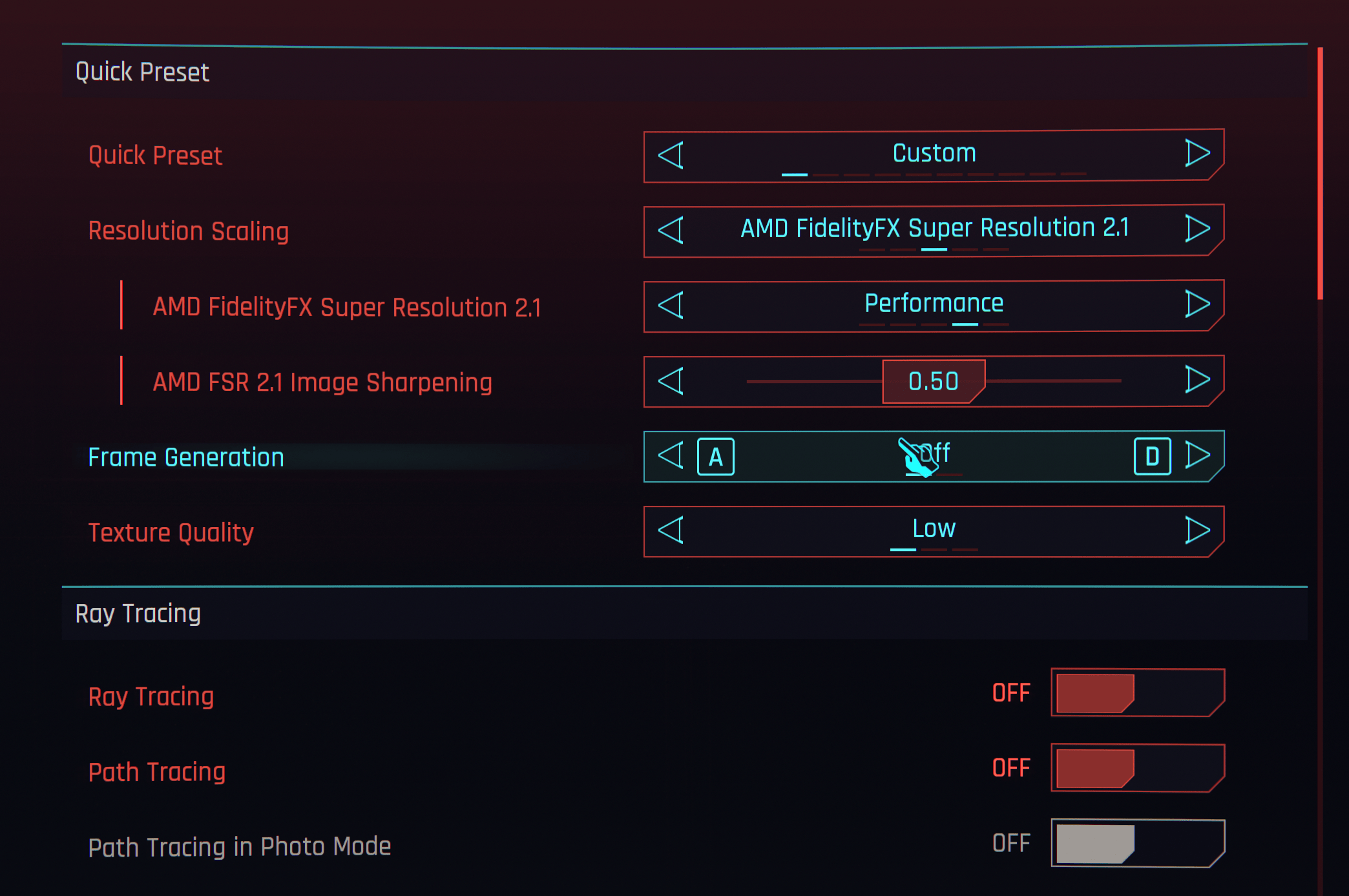
For everyday gaming, you would most likely choose Quality or Balanced, depending on your preference between image clarity and FPS.
Set:
- Frame Generation → OFF
- Output Resolution → 3840×2160 (4K)
Only the upscaling method changes. Everything else remains the same.
5.3 Run the Benchmark – Does It Look Worse?
The same test as before:
- Power lines between buildings
- Neon signs at a distance
- Reflections in puddles
- Fine texture detail on walls
With FSR 2.1 Performance, the differences are more noticeable than with DLSS Ultra Performance.
Edges can look softer. Very fine detail may appear slightly smeared. Distant objects can lose some clarity.
Unlike DLSS, FSR doesn’t use neural network reconstruction. Its sharpening filter tries to compensate, but in extreme modes like Ultra Performance, you can see the limits more clearly.
However — and this is important — during normal gameplay, especially in motion, the image still holds up surprisingly well.
Is it native 4K sharp? No. Is it playable and visually convincing at 4K? Yes.
In motion, stability matters more than pixel-peeping sharpness.
5.4 What Changes With FSR 2.1 Enabled
With FSR 2.1 enabled, the internal rendering resolution drops significantly.
That means:
- Smaller render buffers
- Reduced texture memory pressure
- Lower VRAM allocation overall
- Less bandwidth usage
And just like with DLSS, something very important happens:
The RTX 2080 Ti no longer hits the 11GB VRAM limit. That is the real turning point.
As long as the game stays under that memory ceiling, the dramatic performance cliff disappears.
5.5 FSR 2.1 Performance Results
Here are the benchmark results at 4K output resolution using FSR 2.1 Ultra Performance, Frame Generation OFF.
| Preset | Resolution | Ray Tracing | Avg FPS | Frame Latency (ms) |
|---|---|---|---|---|
| Low | 3840×2160 | Off | ~55.4 fps | ~18.0 ms |
| Medium | 3840×2160 | Off | ~52.9 fps | ~18.9 ms |
| High | 3840×2160 | Off | ~46.5 fps | ~21.5 ms |
| Ultra | 3840×2160 | Off | ~42.1 fps | ~23.2 ms |
| Low | 3840×2160 | RT On (Medium) | ~44.9 fps | ~22.3 ms |
| Medium | 3840×2160 | RT On (Medium) | ~40.0 fps | ~25.6 ms |
| High | 3840×2160 | RT On (High) | ~36.5 fps | ~27.4 ms |
| Ultra | 3840×2160 | RT On (Ultra) | ~28.4 fps | ~35.2 ms |
5.6 What This Means
Compared to native 4K:
- FPS improves significantly, especially on High and Ultra settings
- VRAM usage stays below 11GB
- Frame times stabilize
- Ray tracing becomes realistically playable
Compared to DLSS:
- Image quality in extreme modes (Ultra Performance) is slightly softer
- Stability is good, but DLSS may have a small edge in fine detail reconstruction
- Performance uplift is similar, though DLSS can be slightly more efficient
But the most important conclusion is this:
FSR 2.1 achieves the same strategic goal. It prevents the 11GB VRAM wall from being hit. And once that wall is avoided, Cyberpunk stops collapsing under its own memory demands.
5.7 Final Thought on FSR
FSR 2.1 proves that you don’t need dedicated AI hardware to make 4K playable on an older high-end GPU.
Is it as technically sophisticated as DLSS?
Not quite.
Is it effective?
Absolutely.
For an RTX 2080 Ti in 2026, both technologies do the same essential thing:
They give the card a second life at 4K — not by brute force, but by being smarter about how pixels are rendered and reconstructed.
Absolutely. Here is the next chapter in the same structure and tone — this time focused on AMD FidelityFX Super Resolution 3.0, including both Super Resolution and Frame Generation behavior in Cyberpunk 2077.
6. AMD FidelityFX Super Resolution 3.0 – What It Adds
If FSR 2.1 was AMD’s answer to DLSS Super Resolution, then FSR 3.0 is AMD saying:
“Fine. We can generate frames too.”
FSR 3.0 combines two components:
- Super Resolution (upscaling)
- Frame Generation (interpolated frames)
And unlike NVIDIA’s DLSS Frame Generation, AMD’s version does not require special AI hardware, again. It’s designed to run on a wide range of GPUs — including older Radeon cards and even NVIDIA GPUs like the RTX 2080 Ti.
That makes this test especially interesting. Because now we’re not just scaling. We’re multiplying frames.
6.1 The Switch
Inside Cyberpunk 2077, go to: Settings → Graphics → Resolution Scaling → AMD FidelityFX Super Resolution 3.0
Don't enable the Additional Frame Generation in the game settings.
First, choose the Super Resolution preset (again, Performance for maximum performance demonstration).
Output resolution remains at 3840×2160 (4K). Just like before, we keep the same graphical presets: Low, Medium, High, Ultra.
The only difference now is that FSR 3.0 is doing two jobs:
- Rendering fewer real frames
- Generating additional frames between them
6.2 Does It Look Worse?
Static image quality with FSR 3.0 Super Resolution is nearly identical to FSR 2.1 — because the upscaling component is very similar.
In Performance mode:
- Fine detail is softer than DLSS Quality
- Distant textures lose some clarity
- Sharpening helps but cannot fully recover detail
But in motion, something interesting happens. The generated frames smooth out animation significantly.
However:
- Fast-moving objects may show slight interpolation artifacts
- UI elements can occasionally feel slightly disconnected
- Input latency can increase
The image itself does not fall apart — but it feels different. Not worse. Just different.
Smoother visually — but slightly less “direct” in response.
6.3 VRAM Behavior – Still the Real Hero
Just like with FSR 2.1, enabling Super Resolution lowers internal rendering resolution.
That means:
- Reduced VRAM usage
- Smaller buffers
- Less memory pressure
And once again:
The 2080 Ti does not hit the 11GB limit.
That alone prevents the catastrophic performance drops we saw at the native 4K Ultra setting.
Frame Generation does not significantly increase VRAM consumption either, so memory remains under control even with ray tracing enabled.
The key difference remains the same:
Staying under the VRAM ceiling eliminates the sudden performance cliff.
6.4 FSR 3.0 Ultra Performance Results
4K Output Resolution
Frame Generation OFF
Super Resolution → Ultra Performance
| Preset | Resolution | Ray Tracing | Avg FPS | Frame Latency (ms) |
|---|---|---|---|---|
| Low | 3840×2160 | Off | ~58.1 fps | ~17.5 ms |
| Medium | 3840×2160 | Off | ~55.7 fps | ~18.0 ms |
| High | 3840×2160 | Off | ~50.8 fps | ~31.25 ms |
| Ultra | 3840×2160 | Off | ~51.1 fps | ~21.3 ms |
| Low | 3840×2160 | RT On (Medium) | ~49.9 fps | ~21.8 ms |
| Medium | 3840×2160 | RT On (Medium) | ~47.1 fps | ~23.1 ms |
| High | 3840×2160 | RT On (High) | ~43.2 fps | ~25.5 ms |
| Ultra | 3840×2160 | RT On (Ultra) | ~42.9 fps | ~25.8 ms |
6.5 What This Means in Practice
FSR 3.0 does three things at once:
- Keeps VRAM usage below 11GB
- Prevents native 4K memory collapse
- Dramatically increases perceived smoothness
Compared to FSR 2.1:
- Motion is smoother
- Input latency is slightly higher
- Image quality remains similar
Compared to DLSS 3 Frame Generation:
- Works on more hardware
- May show slightly more artifacts in difficult scenes
- Does not rely on optical flow hardware
7. Intel XeSS Super Resolution 2.0 – The Unexpected Middle Ground
If we are talking about Scaling option in the game like Cyberpunk, we just have to try the last option in the list, the Intel XeSS Super Resolution 2.0. After testing DLSS and AMD’s FSR solutions, there’s one more technology worth examining: Intel XeSS 2.0.
At first glance, it might seem strange to test Intel’s upscaler on an NVIDIA GPU. But XeSS is designed to run in two modes:
- XMX (AI acceleration on Intel Arc GPUs)
- DP4a fallback mode (works on many modern GPUs, including RTX 20-series)
On the RTX 2080 Ti, XeSS runs in DP4a mode.
So this isn’t Intel hardware showing off. This is Intel software adapting, and that makes it interesting.
7.1 The Switch
In Cyberpunk 2077, enabling XeSS is just as simple as the others.
Go to: Settings → Graphics → Resolution Scaling → Intel XeSS
Select the preset.
Again, for demonstration purposes, we choose Ultra Performance — not because it looks best, but to show maximum performance scaling.
For real gameplay, Quality or Balanced would make more sense.
Set:
- Frame Generation → OFF
- Output resolution → 3840×2160 (4K)
Only the upscaling method changes. Everything else stays identical.
7.2 Run the Benchmark – First Impressions
Immediately, performance improves over native 4K. The FPS counter rises significantly — though not always quite as aggressively as DLSS Ultra Performance.
In motion, the game feels smoother. Camera pans are easier. Driving through Night City is no longer heavy. But the first thing you notice isn’t FPS.
It’s image character. XeSS looks slightly different from both DLSS and FSR.
7.3 Does It Look Worse?
Static image inspection tells an interesting story. Compared to DLSS Ultra Performance:
- XeSS appears slightly softer in fine detail.
- Reconstruction is good, but not as refined.
- Some edges show minor instability in extreme cases.
Compared to FSR 2.1 Ultra Performance:
- XeSS generally looks cleaner.
- Less aggressive sharpening.
- Fewer visible reconstruction artifacts.
It feels like a middle ground. Not as sharp as DLSS Quality. Not as raw as FSR Ultra Performance. In motion, stability is respectable. Minor flicker can appear in thin geometry, but overall it maintains a consistent image.
It doesn’t scream “upscaled.” But it also doesn’t completely hide it.
7.4 Memory Behavior – The Real Benefit Again
Just like with DLSS and FSR, the internal resolution drop changes everything.
Rendering fewer internal pixels means:
- Reduced VRAM allocation
- Lower bandwidth usage
- Smaller render targets
And once again, something crucial happens: The RTX 2080 Ti stays under its 11GB VRAM limit. That’s the recurring theme in all these tests.
Native 4K pushes memory to the edge. Once the edge is crossed, performance collapses. With XeSS enabled, that edge is no longer reached.
And as long as VRAM stays below 11GB, the game remains stable.
No severe frame-time spikes. No sudden drops. No memory overflow penalties. The GPU behaves predictably.
7.5 XeSS 2.0 Ultra Performance Results
4K Output Resolution, Frame Generation → OFF, XeSS Preset → Ultra Performance
| Preset | Resolution | Ray Tracing | Avg FPS | Frame Latency (ms) |
|---|---|---|---|---|
| Low | 3840×2160 | Off | ~58.1 fps | ~17.2 ms |
| Medium | 3840×2160 | Off | ~55.7 fps | ~17.9 ms |
| High | 3840×2160 | Off | ~50.8 fps | ~19.6 ms |
| Ultra | 3840×2160 | Off | ~51.1 fps | ~19.6 ms |
| Low | 3840×2160 | RT On (Medium) | ~49.9 fps | ~20 ms |
| Medium | 3840×2160 | RT On (Medium) | ~47.1 fps | ~21.2 ms |
| High | 3840×2160 | RT On (High) | ~43.2 fps | ~23.1 ms |
| Ultra | 3840×2160 | RT On (Ultra) | ~42.9 fps | ~23.3 ms |
Performance lands very close to FSR 2.1 and slightly below DLSS in most scenarios.
But importantly, it avoids the native 4K performance collapse.
7.6 What XeSS 2.0 Means in Practice
XeSS 2.0 proves something important: Upscaling is no longer vendor-exclusive magic.
Even in DP4a mode on a 2080 Ti, Intel’s solution delivers:
- Significant FPS uplift
- Controlled VRAM usage
- Stable frame times
- Playable ray tracing at 4K
It doesn’t dominate DLSS in image reconstruction. It doesn’t radically outperform FSR. But it works. And it works reliably.
Final Thoughts
Intel XeSS 2.0 feels like a balanced compromise.
DLSS is still slightly more refined in image reconstruction. FSR is broadly compatible and efficient. XeSS sits between them, offering solid quality and good scaling, even without Intel Arc hardware.
Most importantly:
It keeps the RTX 2080 Ti under the 11GB VRAM ceiling.
And at 4K in Cyberpunk 2077, that alone is the difference between unstable and playable. Not magic. Not a miracle.
Just smarter rendering — and enough of it to keep Night City running smoothly.
FSR 3.0 transforms the experience in a different way.
FSR 2.1 made 4K playable.
FSR 3.0 makes 4K feel high refresh.
On an RTX 2080 Ti, a card without dedicated AI frame generation hardware, that is impressive. But there is a tradeoff: if you care about competitive responsiveness, you may prefer pure upscaling without frame generation. If you care about cinematic smoothness and single-player immersion, FSR 3.0 can make Night City feel dramatically more fluid.
And once again, the most important technical victory remains the same:
We stayed under the 11GB VRAM ceiling.
And as long as that wall is avoided, Cyberpunk stops punishing the hardware — and starts flowing instead.