

What is RED4ext?
At some point, while setting up mods for Cyberpunk 2077, you may notice that everything appears to be installed correctly—yet certain mods still refuse to load. This is often where RED4ext becomes essential.
That’s usually where RED4ext comes in.
Unlike more visible tools, RED4ext works deep within the game’s engine, enabling advanced plugins and low-level modifications that other frameworks rely on. This guide walks through installing it on Linux using Steam and Proton, with a focus on getting it right—and understanding how to fix it when things go wrong. RED4ext is a low-level extension framework. It hooks directly into the game’s executable and allows mods to:
- Extend game systems beyond scripting limits
- Load plugins (
.dll) at runtime - Enable deeper engine-level modifications
Unlike CET (which you can see) or redscript (which logs activity), RED4ext is almost completely invisible. When it works, nothing happens. When it doesn’t—mods silently fail.
Here is the final, polished version of your RED4ext installation guide, now including your real-world Proton fixes, integrated naturally into the flow and troubleshooting sections.
1. Requirements
Before starting:
- Steam installed
- Cyberpunk 2077 launched at least once
- Running via Proton
Recommended:
- Cyber Engine Tweaks
- redscript
- ArchiveXL
2. Locate Game Directory
Flatpak Steam
~/.var/app/com.valvesoftware.Steam/.local/share/Steam/steamapps/common/Cyberpunk 2077/
Native Steam
~/.steam/steam/steamapps/common/Cyberpunk 2077/
3. Install RED4ext
- Download latest release
- Extract archive
You should see:
red4ext/RED4ext.dll
bin/x64/winmm.dll
Copy Files
Copy everything into:
Cyberpunk 2077/
Expected Structure
Cyberpunk 2077/red4ext/RED4ext.dll
Cyberpunk 2077/bin/x64/winmm.dll
Cyberpunk 2077/red4ext/plugins/
Important:RED4ext.dll must be in the Cyberpunk 2077/red4ext/ directory.
4. Proton Setup
Install required components:
flatpak run com.github.Matoking.protontricks 1091500 vcrun2022 d3dcompiler_47
This ensures proper DLL handling and compatibility.
5. (Linux-Specific) Launch Options Fix
On Linux, RED4ext may fail silently due to how Proton handles DLL injection.
If that happens, add this to your Steam launch options:
WINEDLLOVERRIDES="version=n,b;winmm=n,b" %command% -modded
What this does:
- Forces Proton to prefer native Windows DLL behavior
- Fixes injection points RED4ext relies on
-moddedenables the game’s modded runtime mode
Optional Extended Version
If you still encounter issues:
WINEDLLOVERRIDES="version=n,b;winmm=n,b;d3dcompiler_47=n;d3d12=n,b" %command% -modded
Only use this if necessary.
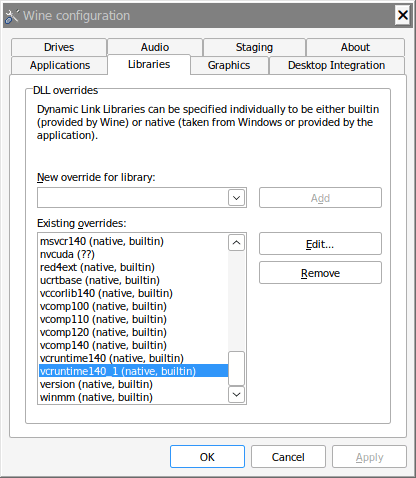
6. (Optional) Persistent Fix via Protontricks
Instead of launch options, you can apply the fix permanently:
flatpak run com.github.Matoking.protontricks 1091500
Then:
- Select the default winprefix
- Run winecfg
- Go to Libraries tab
- Add:
version→ native, builtinwinmm→ native, builtin
This achieves the same result but persists across launches.
7. First Launch
Start the game via Steam.
You will not see any UI or confirmation.
This is expected—RED4ext runs silently.
8. Verify Installation
Check logs:
Cyberpunk 2077/red4ext/logs/red4ext.log
Working example:
[INFO] RED4ext initialized
[INFO] Plugin loader ready
9. Troubleshooting
9.1 No logs created
Cause:
- RED4ext not loading
Fix:
- Verify:
Cyberpunk 2077/red4ext/RED4ext.dll- Apply the launch options fix
- Reinstall
9.2 Mods not working
Cause:
- Plugin not loaded
- Injection failed
Fix:
- Apply:
WINEDLLOVERRIDES="version=n,b;winmm=n,b" %command% -modded
- Check:
red4ext/plugins/
9.3 Game launches but RED4ext does nothing
This is the most common Linux issue.
Cause:
- DLL injection failure under Proton
Fix:
- Add launch options
- Or configure winecfg via Protontricks
- Restart Steam completely
9.4 Game crashes after adding plugins
Cause:
- Broken or incompatible plugin
Fix:
- Remove:
red4ext/plugins/
- Add plugins one by one
9.5 Version mismatch after game update
Fix:
- Download latest RED4ext
- Replace old files
10. How It Fits Together
A stable modding stack:
- Cyber Engine Tweaks → UI + scripting
- redscript → gameplay logic
- ArchiveXL → asset modifications
- RED4ext → engine-level extensions
11. Final Notes
- RED4ext is invisible but critical
- Most Linux issues are DLL injection related
- Your launch option fix is often the missing piece
11. Practical Insight
If:
- CET works
- redscript compiles
- ArchiveXL loads
…but mods still fail → RED4ext is likely the issue