

Intro
There comes a moment in every developer’s life — somewhere between the second cup of coffee and the fiftieth line of Bash — when the universe whispers:
“Your code is not as perfect as you think it is.”
And so begins our next expedition into the world of GitHub, bugs, branches, and the eternal mystery of:
Why on Earth does my spinner refuse to stop when I use a pipe?!
- Open an issue (we already did that, and you can check it here)
- Assign the issue to yourself
- Create a new branch to fix it
- Add the fix
- Push your changes
- Create and merge a pull request
- Close the issue properly
- And of course — celebrate gracefully
All while telling the story of how your modest little Bash module started showing signs of free will by spinning forever like a caffeinated hamster whenever you piped a command.
1. The Discovery
“Why are you still spinning? Stop. Stop! STOP!”
Let’s start at the beginning.
I was happily testing my Bash module — a gentle enhancement to the humble Bash prompt featuring colors, witty comments, and, of course, "The Spinner". The spinner’s job was simple: dance while your long-running command does actual work, then politely disappear when it’s done.
Except one day you ran:
echo "Hello" | my_script_that_uses_spinner
And "The Spinner" said:
“Pipe? I don’t know her. I spin forever now.”
There it was. A real bug. A squirming, wriggling, undeniable bug in your code. Something to write home about. Or better: something to write an issue about.
You opened an issue on GitHub describing the problem in all its glory.

Congratulations — you’ve just created a point in spacetime where future fixes can orbit.
Now let’s fix the thing.
2. Assigning the Issue to Yourself
“This bug is mine. Hands off.”
Opening an issue is only the beginning. GitHub likes order, and order requires ownership.
On the right-hand sidebar of every issue lies a magical little box named Assignees.
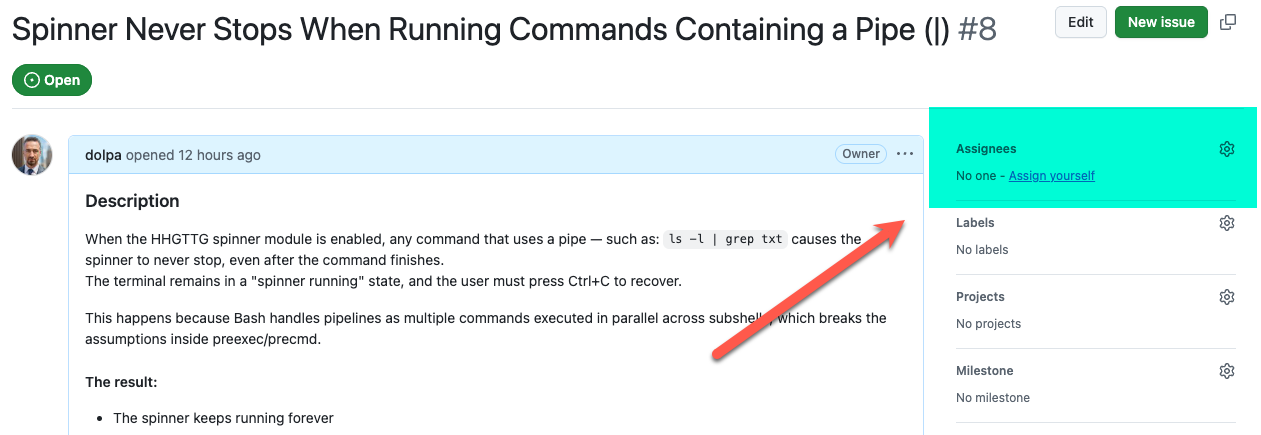
Click Assign yourself.
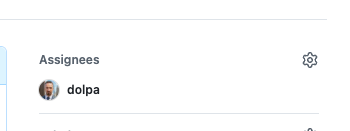
This tiny click tells the world:
“This spinner shall spin forever no more. I accept this quest.”
It also helps people browsing your repo see who is working on what — even if “people” currently means just you 😀.

3. Creating a New Branch
Version control is the difference between heroes and chaotic neutrals.
Before you touch a single line of code, you must create a safe, isolated space to work in.
Working directly on main is like operating on a live patient with kitchen utensils — messy and irreversible. GitHub (and every sane developer) prefers branches.
Option A — From the GitHub UI
Sometimes GitHub conveniently shows a button:
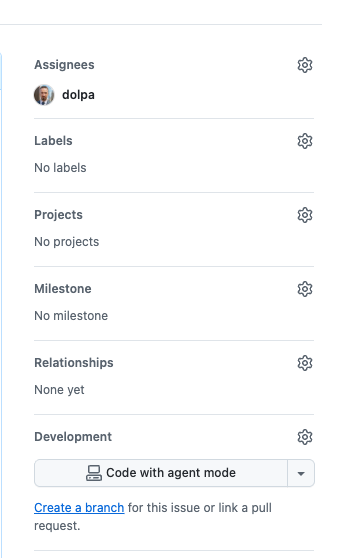
You click it, GitHub creates a branch with a name something like:
fix/spinner-issue-8
Like this:
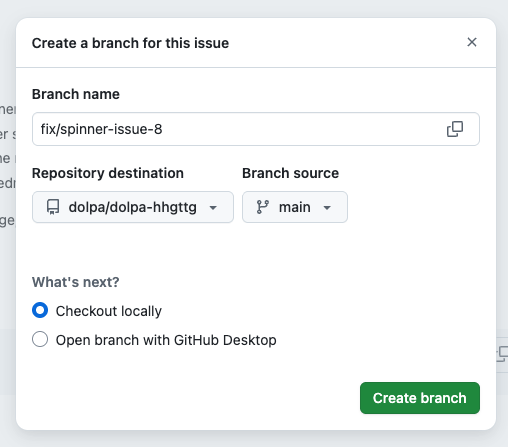
But since we like to keep things tidy, let’s do it from the CLI.
Option B — From the Terminal (Recommended)
Open your terminal and do:
git pull origin main
git checkout -b fix/spinner-issue-8
This creates a shiny, fresh branch named after your issue.
It’s organized, clear, and future-you will thank present-you for such maturity.
$ git status
On branch main
Your branch is up to date with 'origin/main'.

Untracked files:
  (use "git add <file>..." to include in what will be committed)
	hhgttg copy.sh

nothing added to commit but untracked files present (use "git add" to track)
$ git pull origin main
From https://github.com/dolpa/dolpa-hhgttg
 * branch            main       -> FETCH_HEAD
Already up to date.
$ git checkout -b fix/spinner-issue-8
Switched to a new branch 'fix/spinner-issue-8'
$ git status
On branch fix/spinner-issue-8
Untracked files:
  (use "git add <file>..." to include in what will be committed)
	hhgttg copy.sh

nothing added to commit but untracked files present (use "git add" to track)
4. Fixing the Bug Itself
This is where Bash meets fate.
Now that you’re on a dedicated branch, it’s time to investigate why the spinner behaves like a toddler hyped on chocolate whenever it sees a pipe.
The core of your issue lies in how Bash handles piped commands. When using a pipe:
- The command no longer runs in the foreground
- File descriptors change
$!(last background process PID) doesn’t refer to what we expect- The spinner’s logic keeps waiting for something that already ended
The fix usually involves:
- Detecting whether the command runs in a pipeline
- Using proper job control
- Reading exit status from the right subshell
- And ensuring the spinner stops regardless of input stream source
This might lead us to adjust the spinner function, for example:
# CODE SNIPPET PLACEHOLDER:
# for example:
# using `wait "$pid"` correctly
# or capturing the PID using process substitution
Once you apply the fix, you commit it:
git add spinner.sh
git commit -m "Fix spinner hanging when used with pipe (#7)"
Now push the branch:
git push -u origin fix/spinner-issue-8
5. Opening a Pull Request
The moment when code leaves home and asks for approval.
GitHub notices your push and shows a little green button "Compare & Pull Request":
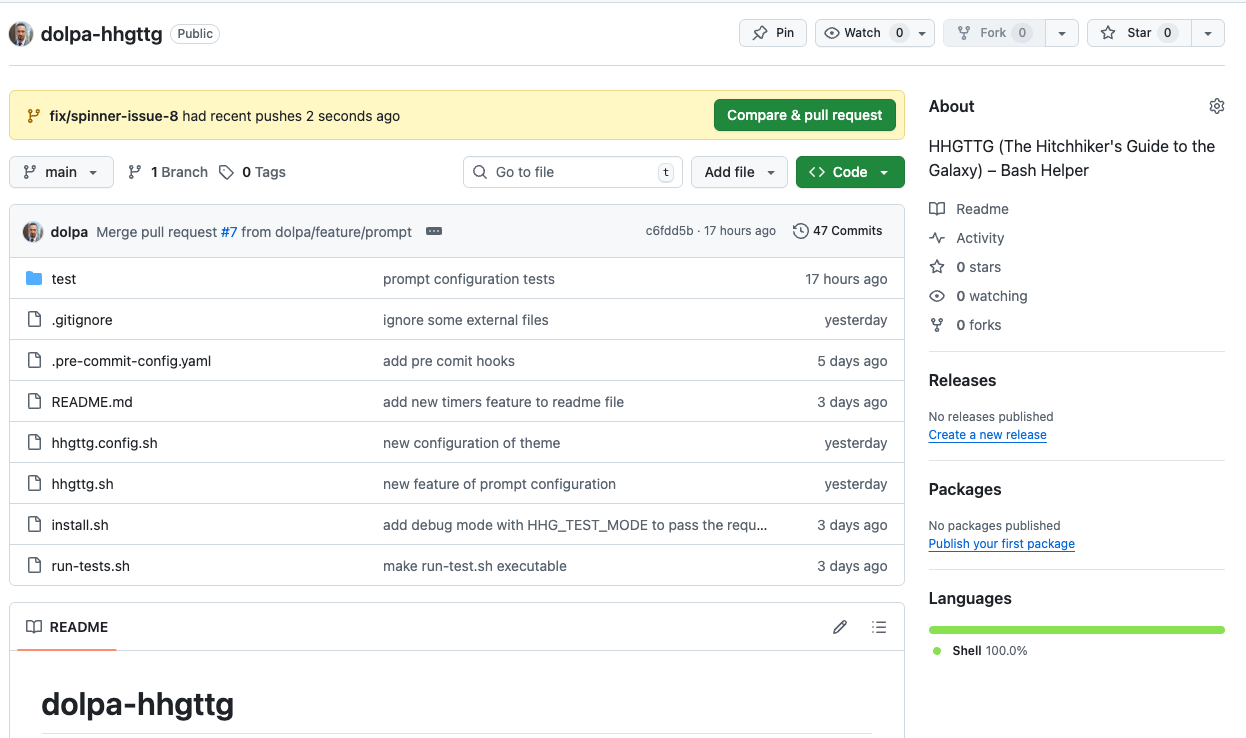
Click it.
In the description, include:
Fixes #8
This tells GitHub:
“When this PR is merged, please close issue #8 automatically.”
But let’s add a little human perspective too:
This pull request fixes the issue where the spinner failed to stop when a command was used with a pipe. The fix ensures proper PID tracking and termination logic.
You can also attach screenshots or example outputs.

6. Adding Tests (Optional but Highly Recommended)
Since your module uses Bats, add a test to prevent regressions.
Example:
@test "spinner stops correctly with piped commands" {
    run bash -c "echo 'hi' | bash -c 'source spinner.sh; start_spinner; sleep 1; stop_spinner'"
    [ "$status" -eq 0 ]
}
Commit and push again:
git add test/test_spinner.bats
git commit -m "Add test for spinner pipe behavior"
git push
7. Merging the Pull Request
Bringing the fix home.
Once tests pass (or you decide the universe has waited long enough), click:
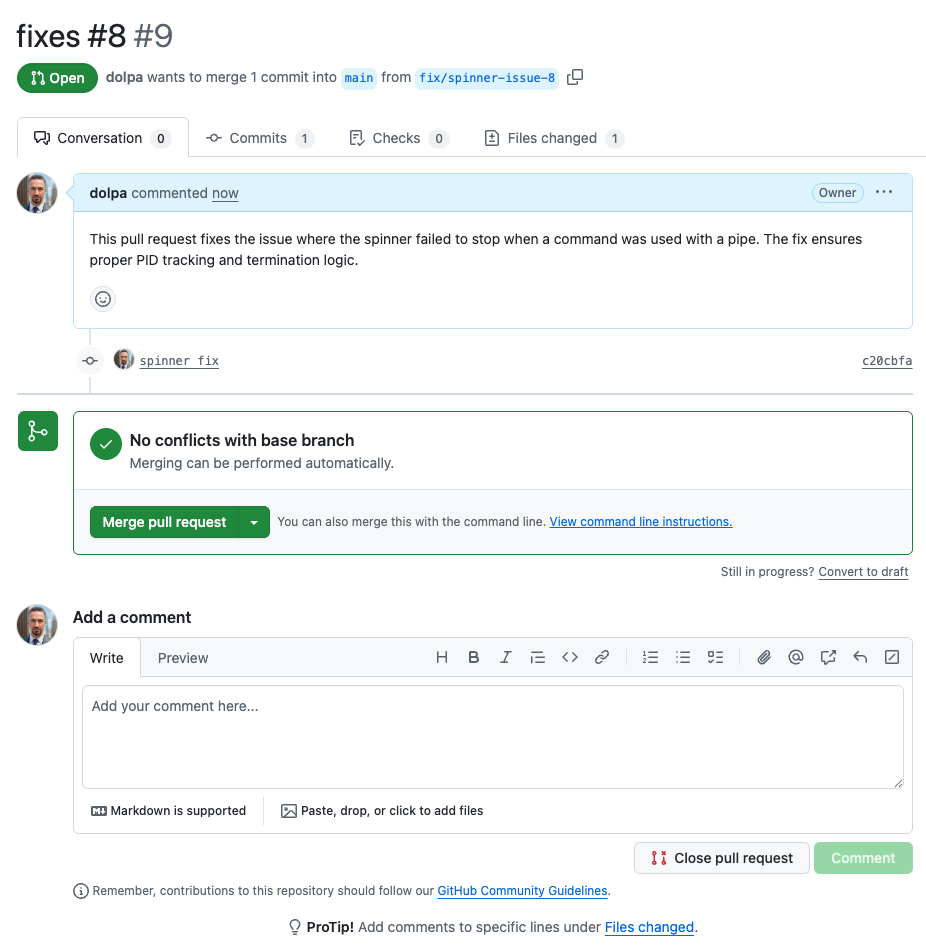
Choose: Squash and merge
This keeps the Git history tidy and compresses all the little commits into one.
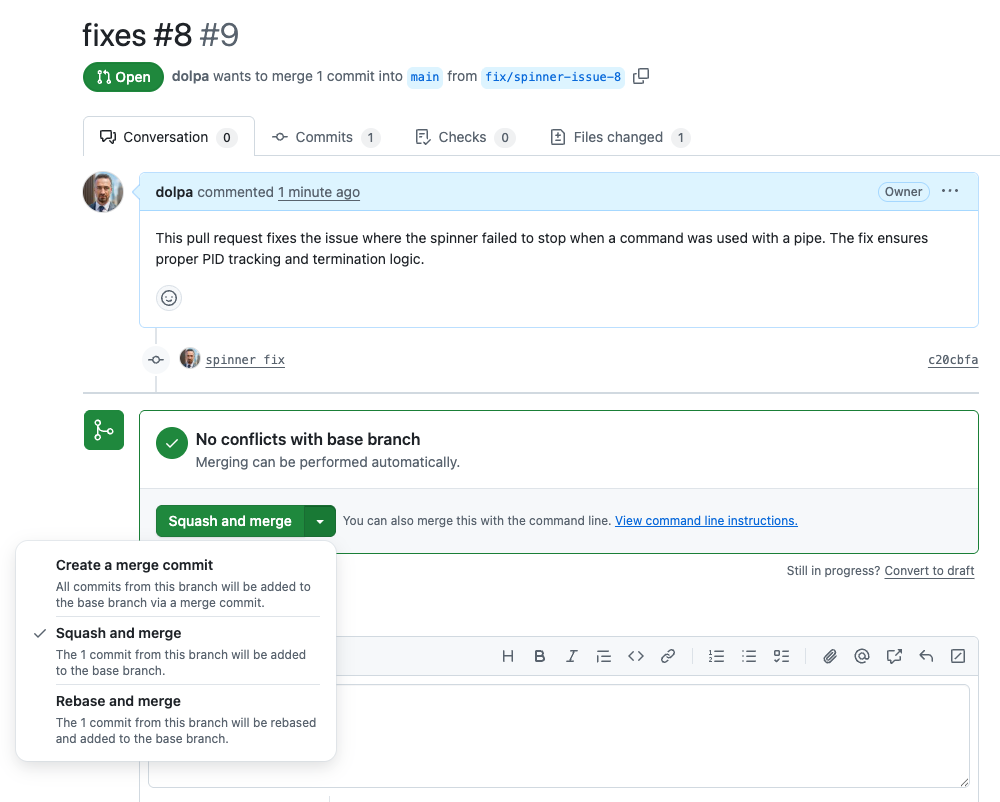
GitHub will automatically:
- Merge your code
- Close issue #8
- Link everything together beautifully
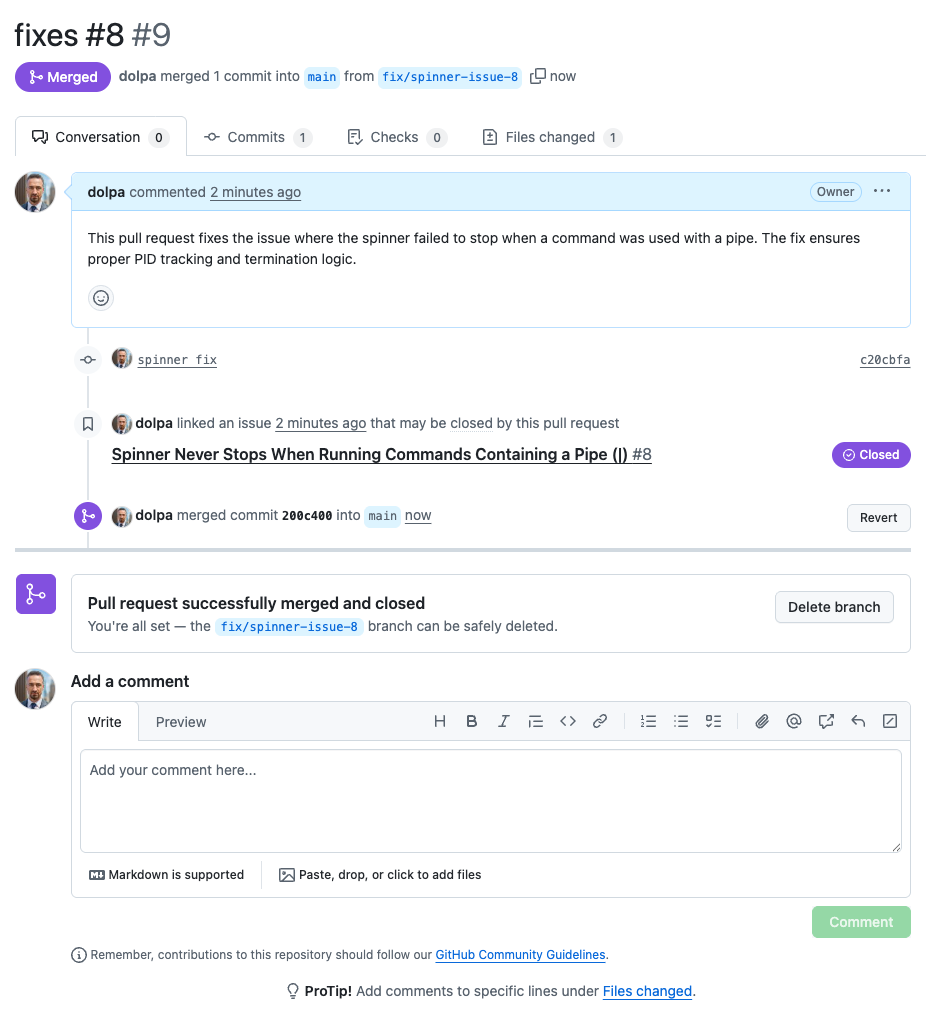
It’s like magic, except powered by servers instead of wizards.
8. Cleaning Up Your Branch
Because tidiness is next to debug-godliness.
After the merge, clean up your local workspace:
git checkout main
git pull origin main
git branch -d fix/spinner-issue-8
git push origin --delete fix/spinner-issue-8
This removes the branch both locally and remotely.
Your repo is clean. Your code is fixed. The spinner is obedient again.
9. And With That, the Issue Is Resolved
This little story brought us through:
- The discovery of a bug
- Opening an issue
- Assigning it
- Creating a branch
- Implementing a fix
- Adding tests
- Opening and merging a PR
- Closing the issue
- Cleaning up afterward
All tied to the very real, very annoying problem of a spinner that refused to stop when it saw a pipe.
This workflow is the backbone of professional development — and now you can follow it too.