

I run an budget “AI-server" with Ubuntu 25.04 (or any recent Ubuntu derivative) and I want to stream / play games from my Steam library.
How do you do it?
1. Pre-flight Checklist
“Is the system even capable of gaming?”
Before you take off into the world of Linux gaming, let’s make sure your jet actually has wings. Many brave souls have launched Steam on Ubuntu, only to discover their system is running on metaphorical bicycle pedals instead of a GPU. This section is your pre-flight checklist — a quick run-through to confirm that your gaming rig isn’t secretly plotting against you.
1.1 Symptom: No GPU Detected (only “llvmpipe” shows up)
What it means: Your system has decided to ignore that fancy graphics card and is using software rendering instead — basically drawing each frame by hand with crayons. Performance will range between “painful” and “why is my mouse lagging on the menu screen?”.
Quick sanity-check:
Open your terminal and type:
glxinfo | grep "OpenGL renderer"
If you see “llvmpipe”, that’s not your GPU — that’s your CPU pretending to be one. You’ll need to install or reconfigure your graphics drivers (NVIDIA, AMD, or Intel) before proceeding.
1.2 Symptom: Steam client crashes on start
What it means: Steam may have had a bad day — or more likely, it’s missing a few crucial libraries or got tangled in its own config files. This happens especially after distro upgrades or partial package updates.
Quick sanity-check:
Run it manually:
steam
Then read the angry red text it prints in the terminal like ancient runes of doom.
Common culprits:
- Outdated 32-bit libraries
- Corrupted
~/.steamor~/.local/share/Steamfolders - Steam installed from the wrong source (Flatpak vs .deb vs Snap wars — choose your fighter)
If you see a missing libGL.so, your graphics stack needs some attention. If you see segmentation fault, take a deep breath, maybe a coffee, and reinstall Steam cleanly.
1.3 Symptom: “Proton not found” or “Proton is disabled”
What it means: Steam Play (Proton) is what allows you to run Windows-only games on Linux. If it’s missing, you’ve basically removed the magic translator that lets your system understand what Windows games are saying.
Quick sanity-check:
Open (on the older versions) Steam → Settings → Steam Play and ensure both boxes are ticked:
- ✅ Enable Steam Play for supported titles
- ✅ Enable Steam Play for all other titles
Or open (on latest versions) Steam → Settings → Compatibility and ensure that Proton Experimental is selected as the Default compatibility tool, as shown in the picture:
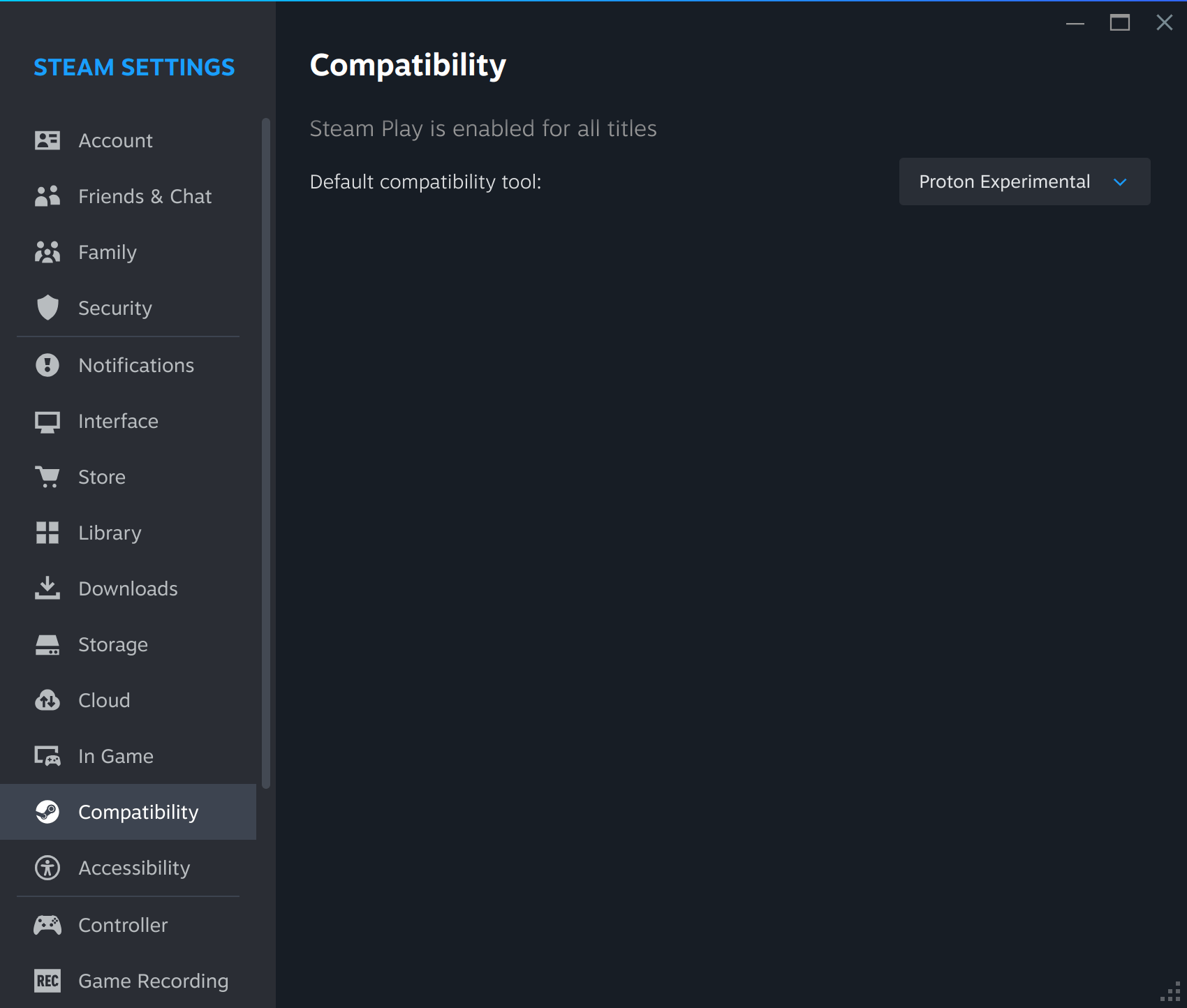
Then, make sure at least one Proton version is installed. You can choose between the official versions or the community favorite: Proton GE (Glorious Eggroll, yes that’s the actual name).
1.4 Why this matters
Linux gaming isn’t black magic — it’s a beautifully complicated stack of gears that must all spin in sync.
Here’s what happens when you launch a game:
- Your GPU driver renders the visuals (OpenGL or Vulkan).
- Proton translates the game’s DirectX calls into something Linux understands.
- Steam orchestrates the whole show and handles configuration, controller support, and other magic.
If any one of these layers goes rogue — for instance, your GPU driver isn’t loaded or Proton isn’t talking to Steam — the whole show falls apart faster than a cheap gaming chair.
1.5 Before we take off...
Run through this mini-checklist like a pilot before take-off:
| Checkpoint | How to verify | Expected result |
|---|---|---|
| GPU recognized | glxinfo or vulkaninfo |
Your actual GPU name (not llvmpipe) |
| Steam launches | steam |
Steam window appears, no crash logs of doom |
| Proton enabled | Steam → Settings → Steam Play | Both boxes ticked, Proton version selected |
| Basic game runs | Launch Portal 2 or CS 2 | Game launches, FPS > slideshow |
If all lights are green — congratulations, captain! Your system is cleared for takeoff.
If not — stay tuned. The following sections of this manual will help you diagnose why your Linux jet is still taxiing in circles instead of flying.
2Perfect — let’s continue your manual right where the Pre-flight Checklist left off.
Here’s the next whole chapter, written in the same witty, story-driven “Linux-pilot preparing for take-off” style, while keeping all your technical content intact and organized.
2. Graphics Sub-system
“The Beating Heart of Every Frame Per Second”
So your system passed the pre-flight check. Congratulations, your jet has engines!
Now let’s make sure they’re not made of cardboard.
Welcome to the graphics subsystem, the magical (and sometimes infuriating) layer where hardware drivers, Vulkan, OpenGL, and a dash of Linux wizardry decide whether your gaming session will soar or explode on the runway.
2.1 Identify Your GPU & Driver
Before you can optimize, you must identify the beast under the hood. Many Ubuntu gamers have discovered—usually in tears—that their fancy RTX card was quietly running on the nouveau driver, performing like an asthmatic toaster.
Let’s fix that before you join them.
Problem: NVIDIA GPU is using the open-source “nouveau” driver
Symptoms: Horrible performance, constant crashes, possibly the faint smell of despair.
How to check:
lspci -k | grep -A 3 -i VGA
If you see:
Kernel driver in use: nouveau
… congratulations, you’ve found the culprit. Nouveau is great for showing a desktop, but not for gaming.
Fix:
Install the proprietary NVIDIA driver:
sudo ubuntu-drivers autoinstall
Then reboot, because NVIDIA drivers only load properly after a restart (no shortcuts here, captain).
Problem: AMD GPU using the “radeon” driver instead of “amdgpu”
What it means: You’re using an older, legacy driver — missing modern features like Vulkan, better power management, and the ability to run new games without hiccups.
How to check:
Same command as before:
lspci -k | grep -A 3 -i VGA
If you spot:
Kernel driver in use: radeon
… it’s time to upgrade.
Fix:
sudo apt install xserver-xorg-video-amdgpu
Make sure the old one isn’t blacklisted:
grep -i "blacklist" /etc/modprobe.d/* | grep amdgpu
If it is, remove or comment out that line. Then reboot and enjoy your GPU’s full potential.
Problem: Intel integrated graphics are missing Vulkan
Intel GPUs are usually the quiet, reliable type — until Vulkan support decides to take a vacation.
Check it:
vulkaninfo | grep "apiVersion"
If you see something like “Failed to open device”, Vulkan isn’t working.
Fix:
Install Intel’s Vulkan drivers (if missing):
sudo apt install mesa-vulkan-drivers mesa-vulkan-drivers:i386
Reboot, again. Yes, reboots are part of Linux gaming — think of them as meditation breaks.
Verification after driver install
Now that you’ve yelled at your drivers and rebooted, let’s make sure everything’s alive.
OpenGL check:
glxinfo | grep "OpenGL renderer"
✅ Expected:
NVIDIA GeForce RTX 3060 / AMD Radeon / Intel Xe
🚫 Not okay:
llvmpipe (LLVM 15, 256 bits)
Vulkan check:
vulkaninfo | grep "deviceName"
✅ Expected: your GPU’s actual name
🚫 Not okay: “Unable to enumerate devices”
If all looks good, your graphics subsystem is officially operational. Time to move to the next boss fight.
2.2 Vulkan vs OpenGL – Which API Does the Game Need?
Here’s the thing: Linux gaming speaks two dialects — OpenGL (the old reliable uncle) and Vulkan (the cool new kid who runs circles around him).
Knowing which one your game needs can save you from many late-night troubleshooting rituals.
Problem: Game crashes with “Failed to create Vulkan device”
That’s Vulkan’s way of saying: “I can’t find your GPU!”
Check:
vulkaninfo
If it ends with:
ERROR: Unable to enumerate devices
… Vulkan is MIA.
Fix:
Reinstall the Vulkan packages for your GPU.
For NVIDIA users:
sudo apt install libvulkan1 libvulkan1:i386
For AMD/Intel:
sudo apt install mesa-vulkan-drivers mesa-vulkan-drivers:i386
Then reboot, because of course.
Problem: Game falls back to OpenGL and looks terrible
This happens when Proton (Steam’s compatibility tool) gets confused or uses an outdated version.
Check:
In Steam → Properties → Compatibility, look for “Force the use of a specific Steam Play compatibility tool.”
If it’s set to something ancient, that’s your problem.
Fix:
Select a newer Proton version — ideally Proton 9.0-2 or Proton GE (Glorious Eggroll) for maximum Vulkan goodness.
Problem: Only 32-bit OpenGL works
Some older games (think pre-2010) still cling to 32-bit libraries like a comfort blanket.
Fix:
sudo apt install libgl1-mesa-glx:i386
Restart Steam afterward to make sure it picks up the new libraries.
2.3 Multi-GPU and eGPU – Because One GPU Is Never Enough
Welcome to the jungle. You’ve got two GPUs, but your system seems determined to use the wrong one. This happens a lot on hybrid laptops with Intel integrated graphics and an NVIDIA dedicated GPU — like my old friend, the Dell XPS 15 9550. Let’s fix that before you rage-quit Ubuntu.
Symptom: Game always uses integrated GPU
Check:
For NVIDIA:
nvidia-smi
For AMD/Intel:
glxinfo | grep "OpenGL renderer"
If it says “Intel UHD” instead of your powerful discrete GPU — you’re gaming on the wrong chip.
Fix:
For hybrid AMD/Intel systems:
DRI_PRIME=1 %command%
Add that to Steam → Launch Options or to the Setting of specific game.
For NVIDIA Optimus:
sudo prime-select nvidia
Reboot, then run glxinfo again to verify.
Symptom: eGPU not recognized
Check:
lsusb
lspci
If your external GPU doesn’t show up, either the Thunderbolt connection isn’t talking or the kernel is too old.
Fix:
Ubuntu 25.04 ships with a good 6.8 kernel, but firmware matters too.
Update it via:
sudo fwupdmgr update
If you’re using NVIDIA, try reloading the driver:
sudo modprobe -r nouveau && sudo modprobe nvidia
Once your eGPU appears in nvidia-smi, you’re back in business.
Recap: What You’ve Learned So Far
- “llvmpipe” is your enemy.
- Proper drivers turn a slideshow into a smooth gaming experience.
- Vulkan is faster, sleeker, and occasionally more temperamental than OpenGL.
- Dual GPUs require diplomacy and patience.
- Rebooting is not defeat — it’s enlightenment.
If all of the above works, your graphics subsystem is fully operational, and your gaming rig is now ready to enter the real battlefield — game performance tuning and Proton deep-dives.
3. Steam Configuration, Settings & Tweaks
“Welcome Aboard, Commander – Time to Arm the Proton Drive”
At this point, your Linux machine is humming, Vulkan is awake, and your GPU drivers are no longer pretending to be potato firmware.
Now we step into the cockpit of Steam itself — the command center of all your gaming missions.
Here we’ll enable Proton, summon its more powerful cousin Proton-GE, and learn to read Proton’s logs like the ancient runes they are.
Let’s get your Steam deck (no, not that Steam Deck, not the Console) ready for battle.
3.1 Enable Steam Play for All Titles
Mission: Let Windows-only games believe they’re at home.
Steam Play is Valve’s secret sauce — a compatibility layer that allows you to run Windows games on Linux through a delightful cocktail of Wine + DXVK + vkd3d + other mysterious patches collectively known as Proton.
Without Proton, most Windows games won’t even launch. They’ll just stare at you like you brought a Mac to a LAN party.
Step-by-step:
- Open Steam → Settings → Steam Play.
- Tick both boxes:
- ✅ Enable Steam Play for supported titles
- ✅ Enable Steam Play for all other titles
- Choose your Proton version.
- If you’re not sure, the latest stable Proton is a safe bet (as of Ubuntu 25.04, that’s Proton 9.x).
That’s it. You’ve just told Steam to use its Windows-translation superpowers for every game in your library.
Now Windows-only games will stop acting shy — they’ll happily launch through Proton and translate DirectX calls into Vulkan or OpenGL, depending on your setup.
💬 Pro-tip: Think of Proton as a multilingual interpreter between your Linux system and games that only speak Windows.
Without it, your GPU just shrugs in binary.
3.2 Using Proton-GE (GloriousEggroll Edition)
Official Proton is great, but sometimes it’s a little too polite.
That’s where Proton-GE — the “Glorious Eggroll” community edition — swoops in, wearing sunglasses and holding a coffee.
Proton-GE adds experimental patches for:
- newer DirectX 12 support,
- anti-cheat bypasses (for games that won’t cooperate),
- better video playback,
- and sometimes, sheer magic.
It’s built by the community for the community — and yes, it works perfectly on Ubuntu 25.04.
Install Proton-GE
Step 1: Install dependencies
sudo apt install wget tar
Step 2: Download the latest Proton-GE release
(Check GitHub for the latest version — URL below is just an example)
wget -O proton-ge.tar.gz https://github.com/GloriousEggroll/proton-ge-custom/releases/download/GE-Proton10-20/GE-Proton10-20.tar.gz
Step 3: Extract it to Steam’s custom compatibility directory
mkdir -p ~/.steam/root/compatibilitytools.d
tar -xf proton-ge.tar.gz -C ~/.steam/root/compatibilitytools.d
Step 4: Restart Steam.
Then open any game’s Properties → Compatibility, check “Force the use of a specific Steam Play compatibility tool,” and select Proton-GE.
💬 Fun fact: “GE” doesn’t stand for Graphics Engine or Gamer Edition. It stands for Glorious Eggroll, the developer’s actual nickname — because of course it does.
3.3 Checking Proton Logs
Sometimes games don’t launch. Sometimes they launch and instantly crash. And sometimes they just sit there silently, judging you.
When that happens, the Proton logs are your only friend.
They live here:
~/.steam/steam/steamapps/compatdata/<APPID>/pfx/
and also:
~/.steam/steam/logs/
How to view them:
Replace <APPID> with your game’s Steam App ID (you can find it in the game’s store URL):
cat ~/.steam/steam/logs/steam_error_report.txt | grep -i "proton"
less ~/.steam/steam/steamapps/compatdata/123456/pfx/drive_c/users/steamuser/Local\ Settings/Application\ Data/CrashReportClient/CrashReportClient.log
Yes, it looks messy — but so does most Linux magic.
Common log entries
| Log snippet | Meaning | Typical fix |
|---|---|---|
DXVK: unable to open libvulkan.so.1 |
Vulkan driver missing (32-bit) | sudo apt install libvulkan1:i386 |
vkd3d-proton: failed to create Direct3D 12 device |
VKD3D not functional → DX12 games crash | Update Proton or use newer Proton-GE |
wine: cannot find L"C:\\windows\\system32\\d3d11.dll" |
Missing DirectX 11 components | sudo apt install libdxvk1 libdxvk1:i386 (or let Proton auto-install) |
💬 Note: Proton logs are like tea leaves — the more you stare at them, the more they reveal.
A missing Vulkan library, a bad shader cache, or sometimes… just existential dread.
3.4 “Black Screen / No Video” After Launch
You double-click. The game “launches.”
Your GPU fans wake up.
The monitor blinks — and then… pure darkness.
No panic, Commander. We’ve seen this void before.
Step 1: Enable verbose DXVK logs
In the game’s Steam Launch Options, add:
PROTON_LOG=1 %command%
Then launch the game again. When it inevitably fails, open:
~/.steam/steam/steamapps/compatdata/<APPID>/pfx/
Look for a file named dxvk.log.
If you see:
Failed to open Vulkan device
… your Vulkan driver is broken or missing.
Head back to Chapter 2: Graphics Subsystem for repairs.
Step 2: Check for SDL/GLX errors
Sometimes it’s not Vulkan’s fault — it’s your window manager having an identity crisis.
Run:
grep GLX /var/log/syslog
If you see errors like GLXBadDrawable, your compositor or GLX stack is misbehaving. Try switching to another desktop session (GNOME on X11 instead of Wayland, or vice versa).
💬 Pro-tip: 9 out of 10 “black screen” cases aren’t really black screens — they’re crashes so fast that the game never renders a frame. DXVK logs are your only breadcrumb trail.
Recap: Steam, Proton, and Sanity
- Enable Steam Play for all titles — otherwise, half your library stays locked behind Windows walls.
- Use Proton-GE for stubborn games or modern DX12 titles.
- Check logs — Proton always leaves breadcrumbs.
- Black screens usually mean Vulkan issues, not curses.
You’ve now officially mastered the Steam + Proton configuration layer.
Your games will run smoother, your troubleshooting will be faster, and you can finally stop blaming Ubuntu for everything (well, mostly).
4. Missing 32-bit Libraries & Runtime Dependencies
“When your 64-bit powerhouse forgets its 32-bit childhood.”
Welcome to one of the most common (and most annoying) causes of Proton failure. Even if your system is 64-bit and mighty, many Windows games still rely on 32-bit components under the hood — because nostalgia never dies. Proton needs those 32-bit libraries to emulate the environment these games expect. Without them, the result is predictable: black screens, cryptic errors, or Steam pretending the game “launched successfully” while absolutely nothing happens.
4.1 Enable the i386 Architecture
Ubuntu’s multi-arch support allows installing both 64-bit and 32-bit packages side-by-side — but server editions don’t enable it by default. To do that, run:
sudo dpkg --add-architecture i386
sudo apt update
This small act of kindness tells Ubuntu that yes, 32-bit software is still a thing.
4.2 Install the Common 32-bit Runtimes
Next, pull in the essential 32-bit graphics, sound, and runtime libraries — the bare minimum to make Proton happy and games functional:
sudo apt install \
    libgl1-mesa-glx:i386 \
    libgl1-mesa-dri:i386 \
    libvulkan1:i386 \
    libvulkan-dev:i386 \
    libncurses5:i386 \
    libasound2:i386 \
    libxslt1.1:i386 \
    libxml2:i386 \
    libjpeg62:i386 \
    libpng16-16:i386 \
    libtiff5:i386 \
    libxrandr2:i386 \
    libxcomposite1:i386 \
    libxcursor1:i386 \
    libxdamage1:i386 \
    libxi6:i386 \
    libxinerama1:i386 \
    libxrandr2:i386 \
    libxrender1:i386 \
    libxtst6:i386
Tip: If you see messages like E: Unable to locate package libgl1-mesa-glx:i386 don’t panic — the package name may vary slightly between Ubuntu versions. Use this to search for the right one:
apt search mesa | grep i386
4.3 Verify the 32-bit Vulkan Loader
After installing the libraries, check if both 64-bit and 32-bit Vulkan loaders are available:
ldconfig -p | grep libvulkan.so
You should see two entries — one for 64-bit and one for i386.
If the 32-bit one is missing, reinstall it manually:
sudo apt install libvulkan1:i386
Why this matters:
Without 32-bit Vulkan, DXVK, and vkd3d (the magic translators that turn DirectX into Vulkan) simply can’t work for older games. So, before diving into exotic tweaks or blaming Proton, make sure your system can actually run what it’s being asked to run — both in 64-bit and 32-bit.
5. Audio & Input Problems
“When your game runs perfectly, but your ears and hands give up.”
Ah, the classic Linux gaming paradox — everything’s configured, the GPU sings, FPS are smooth… but the sound is gone, the controller refuses to exist, and the mouse moves like it’s wading through molasses. Welcome to the world of audio and input troubleshooting, where the fixes are usually simple — if you know where to poke.
No Sound (“Audio device not found”)
You’ve launched your favorite game, and it’s eerily silent — not even a click in the menu. Before you blame Proton, let’s confirm your sound system works at all.
Check:
Try a native Linux game like SuperTuxKart. If that one also doesn’t produce audio, the problem lies deeper.
Fix:
Ensure that PipeWire (or PulseAudio, depending on your setup) is running:
systemctl --user status pipewire
If it’s inactive or failed, start it manually:
systemctl --user start pipewire
If you’re using PulseAudio, you can try:
systemctl --user restart pulseaudio
Once restarted, relaunch Steam and test again.
Garbled or Crackling Audio
When the soundtrack sounds like it’s being played through a dial-up modem, it’s time to check for buffer or driver issues.
Check:
Inspect your logs for PipeWire or PulseAudio errors:
journalctl -b | grep pipewire
Fix:
If you see XRUNs (buffer underruns) or latency warnings, try reducing the sample rate or switching to the Pro Audio profile in your desktop’s sound settings. Some users also find stability by editing /etc/pipewire/pipewire.conf and increasing the buffer size.
Controller Not Detected
Steam sometimes acts as if your controller never existed — even though it’s sitting right there, blinking angrily.
Check:
Run:
lsusb
to see if the system recognizes it. Then try:
jstest-gtk
to verify input events.
Fix:
If it’s missing, install the proper input packages:
sudo apt install joystick steam-devices
Restart Steam afterwards — it should now automatically detect most Xbox, PlayStation, and generic USB controllers.
Mouse or Keyboard Lag (Especially over Remote Desktop)
When your inputs feel like they’re traveling through time, the culprit is often remote rendering.
Check:
Run:
xinput list
and look for entries like “XTEST” or “Virtual core pointer” — both indicate virtualized input.
Fix:
Avoid using ssh -X or basic X11 forwarding for gaming (those are fine for terminals, not for real-time action).
For remote play, switch to Moonlight (NVIDIA) or Parsec (cross-platform) — they use low-latency streaming protocols that actually keep up with your reflexes.
Why this matters:
Audio and input layers sit at the very foundation of gaming immersion. Even if Proton, DXVK, and Vulkan are perfectly tuned, missing sound or laggy controls can ruin the entire experience.
Once your ears hear crisp explosions and your controller vibrates on cue — then you can call your Ubuntu gaming setup “ready for launch.”
6. Anti-Cheat & DRM Incompatibility
“Where good intentions meet kernel panic.”
You’ve tuned your drivers, configured Steam, and tamed Vulkan itself. The game finally launches — only to be stopped cold by an anti-cheat system that insists your Linux box is a threat to global gaming integrity. Welcome to the most ironic chapter of this guide: the world of anti-cheat and DRM, where software designed to stop cheaters also stops you.
6.1 Easy Anti-Cheat (EAC)
EAC has come a long way. Since Proton 8.0, Valve and Epic’s teams have made great strides — but a few stubborn titles still refuse to cooperate.
Symptoms:
“Failed to launch due to missing EasyAntiCheat.dll.”
What’s happening:
The EAC loader expects a Windows-native environment. Most games now ship with the Linux-compatible EAC runtime, but not all developers enable it.
Fix:
Use the latest Proton-GE build, which includes extra EAC compatibility patches.
In Steam, right-click your game → Properties → Compatibility → enable Force the use of a specific Steam Play compatibility tool, then select your Proton-GE version.
If the developer hasn’t updated the EAC configuration for Linux yet… well, consider sending them a polite but persistent bug report.
6.2 BattleEye
Ah, BattleEye — the slightly temperamental cousin in the anti-cheat family. Some games with BattleEye (like DayZ or Arma 3) work flawlessly, while others collapse faster than your FPS in Ultra settings.
Symptoms:
“BattleEye failed to initialize.”
Fix:
Try launching the game with one of the following environment variables:
PROTON_NO_ESYNC=1 %command%
or
PROTON_NO_FSYNC=1 %command%
These disable Proton’s async I/O optimizations, which BattleEye occasionally misinterprets as “suspicious activity.” It’s not elegant, but it works surprisingly often.
6.3 Vanguard (Riot Games)
Vanguard is less of an anti-cheat system and more of a full-time kernel bodyguard. It runs as a privileged driver in Windows, and Linux (sensibly) says, “No thanks.”
Symptoms:
“Vanguard could not be started.”
Fix:
There’s no real workaround — Vanguard’s kernel module cannot run inside Proton’s sandbox.
Your options:
- Play on native Windows.
- Experiment with Lutris + Wine-Staging, which has limited support (and an equal chance of breaking your system).
If you manage to get Valorant running on Linux, you’ve either rewritten Vanguard or opened a portal to another reality.
6.4 Steam DRM (SecuROM, Denuvo)
Digital Rights Management systems are another relic of gaming’s dark timeline — but thankfully, most modern Proton builds handle them fine.
Symptoms:
“Failed to open Denuvo DLL.”
Fix:
Switch to Proton-Experimental or Proton-GE, which include the newest DRM workarounds.
If you’re trying to run an older title with ancient SecuROM, you may need to add:
PROTON_OLD_GL_STRING=1 %command%
This helps certain legacy titles identify your GPU correctly and pass DRM validation.
Tip: The ProtonDB Lifeline
Before you dive into anti-cheat rabbit holes, visit ProtonDB.com.
Search for your game, filter by GPU or driver version, and scroll through community reports. You’ll often find step-by-step workarounds — everything from missing DLLs to exotic environment flags that magically make the unplayable playable.
Final Thought
Anti-cheat and DRM were built with one assumption: that everyone uses Windows. Linux gaming is slowly proving them wrong — one patched Proton build at a time. So if your game doesn’t work today, don’t lose hope. Tomorrow’s update might just turn “Failed to launch” into “Headshot achieved.”
7. Kernel & System-Level Issues
You’ve finally slain the anti-cheat dragon, only to find yourself facing the Linux kernel — the true boss fight of any gaming setup. Beneath every glorious 144 FPS run lies a ticking time bomb of system-level quirks, driver mismatches, and a kernel that’s just a bit too old to understand your shiny new GPU.
7.1 Secure Boot vs. Proprietary Drivers
If you’re using NVIDIA or AMD’s proprietary drivers and your game crashes faster than your patience, check your logs:
dmesg | grep -i "Secure Boot"
If you see “module verification failed”, congratulations — Secure Boot just told your driver to get lost.
Fix: Disable Secure Boot in BIOS or reinstall your drivers with Secure Boot support.
7.2 Kernel Too Old for the Party
Running an older kernel is like trying to run Cyberpunk 2077 on a potato — technically possible, but not pleasant.
Check your kernel version:
uname -r
If it’s below 6.5 and your drivers are demanding 560+, it’s time to upgrade:
sudo apt install linux-generic-hwe-6.8
Or if you like living dangerously, grab a mainline kernel from kernel.ubuntu.com.
7.3 Thunderbolt / USB-C eGPU Not Detected
Your eGPU sits there, glowing majestically… and doing absolutely nothing.
Check with:
dmesg | grep -i thunderbolt
If you see “authorized = 0”, the kernel refuses to talk to your eGPU.
Fix: Authorize it manually or enable Thunderbolt security in BIOS.
7.4 Case-Sensitivity Chaos
Some Windows-born games get deeply offended when they find out Linux cares about uppercase letters. Missing textures or “asset not found” errors? Yep, that’s case sensitivity.
Fix: Mount the game’s folder with case=off, or just use Proton-GE, which already patches this nonsense for you.
In short, when something weird happens and it doesn’t smell like Proton, it’s probably your kernel quietly judging your setup. Update, patch, reboot, and carry on gaming.
8. Game-Specific Known Issues & Fixes (Selected Titles)
After wrestling with drivers, kernels, and anti-cheat dragons, we now enter the land of individual quirks — where every game is a little snowflake with its own special way of breaking. Some crash instantly, some display black screens, and some (looking at you, Valorant) just stare coldly and refuse to even start.
Below is a field guide — a survival manual — for a few of the most notorious titles on Linux.
Cyberpunk 2077 (203770)
Symptom: “Failed to create DX12 device.”
Diagnosis: The game panics when it can’t find a working DirectX 12 path.
Fix: Use Proton-GE 9.23+ with launch option:
PROTON_USE_WINED3D=0 %command%
Also ensure vkd3d-proton is installed:
sudo apt install vkd3d-proton vkd3d-proton:i386
Red Dead Redemption 2 (1174180)
Symptom: Black screen, “DXVK error.”
Fix: Switch to Proton 8.0+ and add:
PROTON_NO_ESYNC=1 %command%
Sometimes RDR2 just needs a calm, synchronized environment.
The Witcher 3 (292030)
Symptom: Audio stutters and “Missing libvulkan.so.1.”
Fix: Install Vulkan libs and update your Mesa drivers:
sudo apt install libvulkan1:i386
If needed, add the Oibaf PPA for newer Mesa.
Valorant (216100)
Symptom: “Vanguard could not be started.”
Fix: None. Riot’s anti-cheat doesn’t play nice with Linux — yet. Consider this your reminder that even heroes have limits.
Mortal Kombat 11 (976310)
Symptom: Splash screen of doom. “EAC init failed.”
Fix: Use Proton-GE and add:
PROTON_NO_ESYNC=1 %command%
Now finish him — but only after finishing your Proton config.
Hades (1199390)
Symptom: None. Works flawlessly.
Fix: None. Hades just works — bless the indie gods.
Starfield (1716740)
Symptom: Unsupported (as of early 2024).
Fix: Wait for Proton-GE updates, or if you’re impatient, dust off your Windows partition.
Doom Eternal (782330)
Symptom: “BattleEye initialization failed.”
Fix: Launch with:
PROTON_NO_FSYNC=1 %command%
Rip and tear — but with FSync off.
Skyrim Special Edition (489830)
Symptom: Black screen, “EAC failed.”
Fix: Use Proton-GE with:
PROTON_NO_ESYNC=1 %command%
Fus Ro Dah your way past the errors.
Tip: Finding a Game’s AppID
Right-click the game in Steam → Properties → check the URL — for example:https://store.steampowered.com/app/203770/
The number after /app/ is the AppID.
Each game on Linux is a mini-adventure. When in doubt, consult ProtonDB — it’s the collective brain of the Linux gaming world. Chances are, someone’s already rage-crashed before you and left a breadcrumb trail of fixes.
9. Final Checklist for a Smooth Linux Gaming Experience
Before diving headfirst into another gaming marathon, take a deep breath — and this checklist. It’s your pre-flight sequence for launching games on Linux without random crashes, missing DLLs, or soul-crushing frame drops. Think of it as your “don’t rage before the first load screen” manual.
9.1 Enable Multiarch Support
Without 32-bit libraries, half your games will just stare blankly and refuse to start.
sudo dpkg --add-architecture i386
sudo apt update
9.2 Install GPU Drivers (and Their 32-bit Friends)
Whether you’re team NVIDIA or AMD, make sure both 64-bit and 32-bit drivers are installed. Missing the latter often means Proton silently combusts during launch.
9.3 Install Vulkan Loaders
Modern gaming on Linux practically runs on Vulkan.
sudo apt install libvulkan1 libvulkan1:i386
No Vulkan, no party — or at least no shaders.
9.4 Add Common 32-bit Runtimes
You already saw the list back in §4.2 — grab all of them. These runtime libraries act as translators between your shiny 64-bit OS and older 32-bit game components.
9.5 Check Your Audio Stack
Make sure PulseAudio or PipeWire is running properly. If you’re using remote streaming setups, one misconfigured audio daemon can turn your gaming session into a silent movie.
9.6 Pick the Right Proton Version
- Proton-GE – for the latest patches and anti-cheat workarounds.
- Proton-Experimental – for living on the edge.
When in doubt, start stable, then escalate into chaos.
9.7 Verify on ProtonDB
Before tweaking configs for hours, look up your game on ProtonDB. It’s the Linux gamer’s oracle — full of community tips, workarounds, and success rates (and a few broken hearts).
9.8 Fine-Tune Launch Options
Depending on the game and anti-cheat, you may need to sprinkle in some magic variables:
PROTON_NO_ESYNC=1
PROTON_USE_WINED3D=0
PROTON_LOG=1
They’re your debugging lights in the dark cave of compatibility.
9.9 Deal with Secure Boot
If your GPU drivers mysteriously refuse to load, check Secure Boot. Either disable it in BIOS or sign the drivers manually — your call. Just don’t let it block your frames.
9.10 Test a Native Game First
Before going full Cyberpunk, test something lightweight and native like SuperTuxKart. If it runs smoothly, your audio, video, and controller stack are ready for heavier titles.
9.11 Remote Play the Smart Way
If you’re streaming from another machine, use Moonlight or Parsec for low-latency gameplay. X11 forwarding is like trying to race on dial-up — technically possible, but not advisable.
9.12 You’re Ready for Takeoff
That’s it — your Linux gaming rig is tuned, patched, and Vulkan-infused. From here on, it’s all about experimentation, discovery, and the occasional dmesg panic. But with this checklist, you’re officially running with the penguins — and they’re surprisingly good at FPS.
10. Additional Resources
- ProtonDB – community compatibility reports.
- GitHub – ValveSoftware/Proton – changelogs for each Proton release.
- Proton‑GE GitHub – latest builds, pre‑compiled packages.
- Oibaf PPA – bleeding‑edge Mesa drivers.
- PipeWire PPA – newer audio/video stack.
- Arch Wiki – Gaming – excellent general guide (works for Ubuntu as well).
In summary:
To get a server‑grade Ubuntu installation ready for gaming, you must enable i386 multiarch, install the full set of 32‑bit graphics libraries, ensure your kernel and driver versions are compatible, and use the right Proton flavor (often Proton‑GE) for titles with anti‑cheat or DRM. With those steps, most modern games will launch and run smoothly, even on a headless server accessed via remote streaming.
If you encounter a specific error not covered here, paste the exact log snippet, and we can dive deeper!