

In virtual environments, networking is essential, connecting virtual machines (VMs) to each other and external networks. VMware Workstation offers multiple network adapter options, each with specific configurations, use cases, and benefits. This post will dive into the differences between each type of network adapter in VMware Workstation, helping you determine the best choice for various scenarios.
1. Overview of VMware Network Adapter Types
VMware Workstation supports several network adapter types for virtual machines:
- Bridged Network
- NAT (Network Address Translation)
- Host-Only
- Custom (VMnet) Networks
- LAN Segment
Each network type offers different ways to control VM communication with other VMs, the host, and external networks. The best choice depends on the level of isolation or connectivity you need.
2. Bridged Network
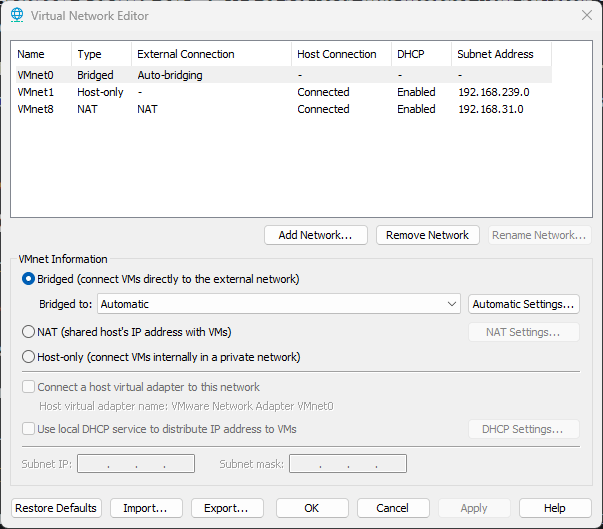
The Bridged Network mode connects the VM to the same network as the host machine, allowing it to interact directly with other physical devices on that network.
Features
- The VM acts as if it’s physically connected to the host’s network.
- The VM receives an IP address from the network’s DHCP server (or you can assign a static IP).
- Suitable for VMs that need direct access to network services and resources on the same LAN as the host.
Use Cases
- Testing in Networked Environments: Ideal when testing software or services that require interaction with devices on the local network.
- Access to Shared Network Resources: Great for sharing files or accessing printers, databases, or servers on the same LAN.
Pros and Cons
- Pros: High flexibility; can access all resources on the host network.
- Cons: Less secure as it fully exposes the VM to the LAN; potential IP conflicts if improperly configured.
3. NAT (Network Address Translation)
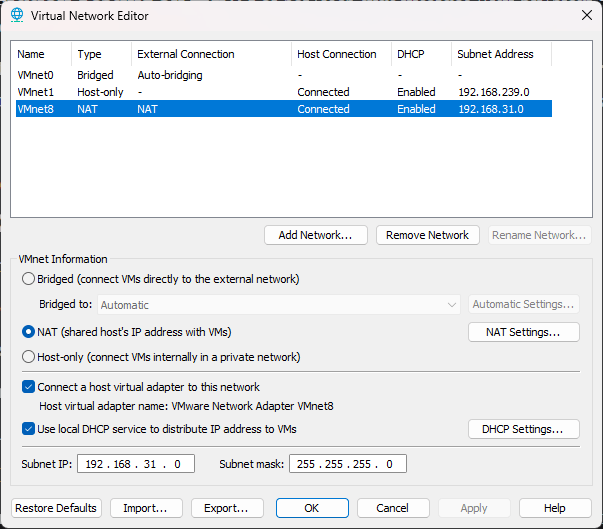
NAT Mode allows the VM to access external networks (like the internet) by sharing the host’s IP address, utilizing NAT to manage IP traffic.
Features
- The VM is assigned a private IP address by VMware and uses the host’s IP for outbound communication.
- Allows internet access without exposing the VM directly to external networks.
- External devices can’t directly access the VM.
Use Cases
- Development and Testing with Internet Access: Perfect for development environments needing internet access but not local network resources.
- Web Browsing and File Downloading: Secure for VMs accessing the internet without direct exposure.
Pros and Cons
- Pros: Adds a layer of security since external devices can’t access the VM directly; simplifies configuration.
- Cons: Limits direct communication with other VMs on different NAT networks.
4. Host-Only Network
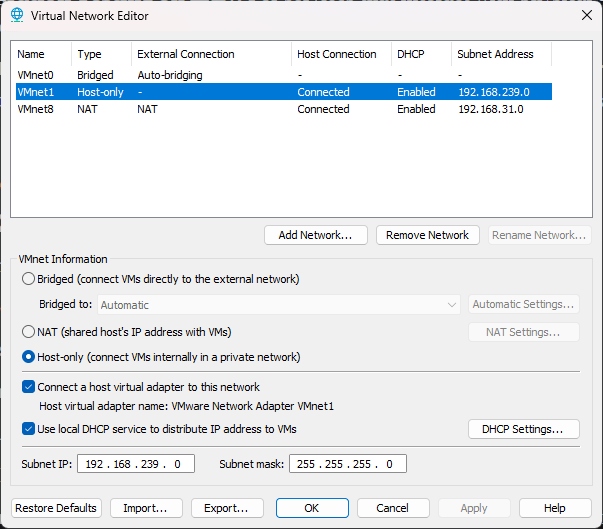
Host-Only mode isolates the VM from external networks and connects it only to the host.
Features
- The VM can communicate solely with the host machine and other VMs on the same Host-Only network.
- Receives a unique IP address in a subnet dedicated to Host-Only VMs.
- Ideal for scenarios needing isolated testing or internal VM-to-host interactions.
Use Cases
- Isolated Testing Environments: For isolated development environments that need no external connectivity.
- Internal Testing: Useful for applications needing a restricted test network, such as security testing or sandboxing.
Pros and Cons
- Pros: High security due to complete isolation; full control over the virtual network.
- Cons: No access to the external network; limited scope for applications needing internet or LAN resources.
5. Custom (VMnet) Networks
VMware Workstation’s Custom Networks (VMnet) offer a way to define unique networking parameters for VMs. Custom networks can be configured as bridged, NAT, or host-only types but exist separately from VMware’s default networks.
Features
- VMnet0 - Bridged
- VMnet1 - Host-Only
- VMnet8 - NAT
- Additional custom VMnets allow tailored network configurations for unique lab setups.
- Assign multiple VMs to a VMnet for controlled testing environments.
Use Cases
- Complex Lab and Testing Setups: Perfect for virtual labs where you need distinct, isolated network segments for specific VMs.
- Specialized Network Testing: Useful for testing network performance, firewall configurations, or segmented services.
Pros and Cons
- Pros: Flexibility to create unique networking environments; enables detailed control over isolated segments.
- Cons: More complex configuration; requires more manual setup compared to default networking options.
6. LAN Segment
LAN Segments enable VMs to connect to an isolated network segment with no default gateway, meaning they have no route to the host or external networks.
Features
- Used for VM-to-VM communication in a controlled, isolated environment.
- VMs on the same LAN segment can communicate with each other directly.
- No access to the host, LAN, or the internet by default, ensuring maximum isolation.
Use Cases
- Simulated Network Environments: Ideal for test environments needing highly controlled network setups, such as performance or multicast testing.
- Network Experimentation: Allows you to experiment with network services like DHCP, DNS, and firewalls within the VM network without affecting real devices.
Pros and Cons
- Pros: Complete isolation for secure and controlled testing; no impact on external networks.
- Cons: No external connectivity, making it unsuitable for applications needing internet access.
7. Choosing the Right Network Adapter
Summary of Use Cases
| Network Type | Use Cases |
|---|---|
| Bridged | Testing on LAN, access to shared resources |
| NAT | Internet access without exposing the VM, secure browsing |
| Host-Only | Isolated development, internal testing |
| Custom (VMnet) | Complex labs, specialized network environments |
| LAN Segment | Isolated, simulated networks, multicast, and firewall testing |
Practical Tips
- Development & Testing: Use NAT or Host-Only networks for isolated development without affecting local network resources.
- Integration Testing on LAN: For services that interact with physical devices on the LAN, Bridged mode is the best fit.
- VM-to-VM Communication: Custom VMnet and LAN Segments offer unique ways to create isolated environments for lab testing and VM interaction.
8. Configuring Network Adapters in VMware Workstation
- Open VMware Workstation and select your virtual machine.
- Go to VM > Settings and click Network Adapter.
- Choose the network adapter type:
- Bridged: Connects VM directly to the host’s network.
- NAT: Shares the host IP for external access.
- Host-Only: Limits VM communication to the host.
- Custom VMnet: Choose from VMnet networks (VMnet1, VMnet8, or others).
- LAN Segment: Select a LAN segment for isolated communication.
- Save Settings and start your VM.
Conclusion
VMware Workstation offers versatile networking options to accommodate a wide range of needs. Whether you’re running isolated tests or integrating VMs into your LAN, each network adapter type has unique features that fit specific scenarios. With this understanding, you can confidently select the network adapter that aligns best with your goals and ensures a secure, flexible, and efficient virtual environment.
For my Virtual Server in future posts, I'll be using the bridged network configuration to allow this virtual machine to function as though it’s a separate server within my local network. This setup enables it to interact directly with other devices on the network, just like a physical server, allowing for seamless testing, communication, and access to shared resources as if it were a standalone server in my local infrastructure.