

Integrating Docker into your Jenkins pipelines is a powerful way to create consistent and reproducible builds for your applications. By using Docker containers, you can ensure that your applications are built and tested in the same environment in which they will ultimately run. This post will guide you through the process of using Docker inside Jenkins pipelines, covering everything from the basics to advanced configurations.
1. Why Use Docker Inside Jenkins Pipelines?
Using Docker within Jenkins pipelines provides several advantages:
- Consistency: Docker containers encapsulate all dependencies and configurations, ensuring that builds are consistent across different environments.
- Isolation: Each build runs in its own container, preventing conflicts with other builds and maintaining a clean environment.
- Scalability: You can easily scale your build processes by running multiple containers in parallel, which is especially useful for large projects.
- Simplified Testing: Running tests in containers allows for easy setup and teardown of testing environments, making it simple to replicate issues.
2. Prerequisites
Before you start using Docker inside Jenkins pipelines, ensure you have the following:
- Jenkins Installed: Make sure you have Jenkins up and running. You can refer to previous posts for installation guidance. If you're looking for a guide on how to install Jenkins Sercer, please check out my previous post here: Jenkins 101: Getting Started with Continuous Integration - How to Install Jenkins.
- Docker Installed: Docker must be installed on the Jenkins server. Ensure that the Jenkins user has permission to run Docker commands. If you're looking for a guide on how to install Docker, please check out my previous post here: Installing Docker on Different Platforms (Linux, Mac, Windows).
- Basic Knowledge of Jenkins and Docker: Familiarity with Jenkins pipelines and Docker concepts will be beneficial. Follow posts on my blog to learn more here.
3. Setting Up Docker in Jenkins
To enable Docker support in Jenkins, follow these steps:
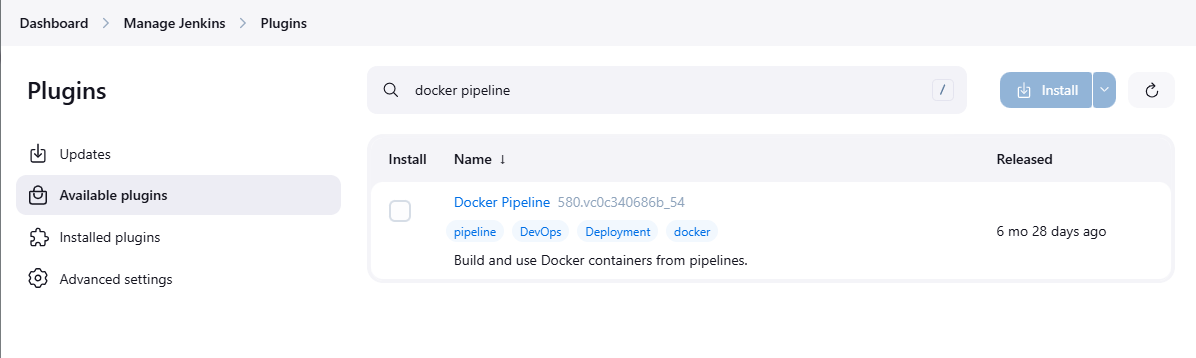
- Install Docker Plugin for Jenkins: In Jenkins, go to "Manage Jenkins" > "Manage Plugins" and install the "Docker Pipeline" plugin if it’s not already installed.
Add Jenkins User to Docker Group: Allow the Jenkins user to run Docker commands without using sudo. You can do this by running the following command:
sudo usermod -aG docker jenkins
After running this command, restart Jenkins for the changes to take effect.
Install Docker: Ensure Docker is installed and running on your Jenkins server. You can verify this by running the command:
docker --version
4. Creating a Jenkins Pipeline with Docker
4.1 Using Docker with Declarative Pipelines
In a declarative pipeline, you can use the docker directive to define your Docker environment. Below is an example of a simple Jenkinsfile that uses Docker:
pipeline {
    agent {
        docker {
            image 'node:14'
            args '-u root:root' // Optional: Specify user if needed
        }
    }
    stages {
        stage('Build') {
            steps {
                sh 'npm install'
            }
        }
        stage('Test') {
            steps {
                sh 'npm test'
            }
        }
    }
}
4.2 Using Docker with Scripted Pipelines
In scripted pipelines, you can use the docker function to create and manage Docker containers. Here’s an example:
node {
    def myImage = docker.image('node:14')
    myImage.pull()
    myImage.inside {
        sh 'npm install'
        sh 'npm test'
    }
}
5. Building and Testing Applications in Docker Containers
5.1 Building Docker Images
You can build Docker images as part of your Jenkins pipeline. Below is an example of how to build a Docker image in a pipeline:
pipeline {
    agent any
    stages {
        stage('Build Image') {
            steps {
                script {
                    docker.build('my-app:latest')
                }
            }
        }
    }
}
5.2 Running Tests in Docker Containers
Running tests inside Docker containers is straightforward. Here’s an example that combines building and testing:
pipeline {
    agent any
    stages {
        stage('Build Image') {
            steps {
                script {
                    def appImage = docker.build('my-app:latest')
                }
            }
        }
        stage('Test') {
            steps {
                script {
                    docker.image('my-app:latest').inside {
                        sh 'npm test'
                    }
                }
            }
        }
    }
}
6. Best Practices for Using Docker in Jenkins
When using Docker inside Jenkins pipelines, consider the following best practices:
- Keep Docker Images Small: Use multi-stage builds and lightweight base images to minimize the size of your Docker images.
- Use Caching Wisely: Leverage Docker layer caching to speed up builds, especially for dependencies that don't change frequently.
- Clean Up Resources: Regularly clean up unused Docker images and containers to free up disk space on the Jenkins server.
- Use Environment Variables: Pass sensitive data and configuration through environment variables rather than hardcoding them in your pipeline scripts.
- Monitor Docker Usage: Keep track of Docker resource usage to avoid performance bottlenecks in your Jenkins server.
Conclusion
Using Docker inside Jenkins pipelines offers a powerful and flexible way to build, test, and deploy applications. By encapsulating your build environments in Docker containers, you ensure consistency and isolation, making your CI/CD processes more robust and efficient.
This post covered the essential steps for integrating Docker into your Jenkins pipelines, from setting up Docker in Jenkins to building and testing applications in containers. By following the best practices outlined, you can maximize the benefits of using Docker in your CI/CD workflows.
As you continue to explore Jenkins and Docker, you'll find that this integration unlocks new possibilities for automating your software delivery processes.