

Introduction
In the last few posts, we explored how to launch builds and create Ubuntu Docker Image or other Docker images. Today, we will dive into an advanced and powerful feature of Jenkins—the Cloud configuration. By leveraging the Cloud section in Jenkins, you can configure it to run builds inside isolated Docker containers. Jenkins will spin up Docker containers as agents (or executors) on demand to run your builds, ensuring a clean and consistent environment every time.
In this guide, I will show you step-by-step how to configure and use the Cloud section in Jenkins, focusing on running builds inside Docker containers.
1. Why Use Jenkins with Docker as Cloud?
Using Docker as a cloud resource in Jenkins provides numerous advantages, including:
- Consistent Environment: Builds always run in the same image, ensuring a reproducible and error-free build environment.
- Clean Workspace: After the build is complete, the Docker container is deleted, leaving no leftover artifacts, temporary files, or configurations.
- Reduced Maintenance: Admins no longer need to maintain or troubleshoot build agents. Docker containers are lightweight, ephemeral, and easy to manage.
- Scalability: New build agents can spin up on demand, reducing idle resource usage.
This approach aligns perfectly with CI/CD principles and enables a cleaner, more efficient Jenkins build pipeline.
2. Understanding the Jenkins Cloud Configuration
The Cloud feature in Jenkins allows you to:
- Dynamically provision build agents as containers when a job is triggered.
- Use Docker's API to interact with local or remote Docker hosts.
- Spin up containers on demand and tear them down after the build is completed.
To accomplish this, Jenkins requires access to Docker and its API, either through a local Docker socket or a remote Docker host.
3. Setting Up the Prerequisites
Before configuring the Cloud section in Jenkins, make sure you have the following:
- Jenkins Server Running in Docker:
- Follow my previous guide on how to set up Jenkins in a Docker container.
- Docker Installed on the Host Machine:
- If you need a guide on Docker installation, check out this post.
- Access to Docker Socket or Docker API:
- For simplicity, we will configure Jenkins to use the local Docker socket (
/var/run/docker.sock). Ensure the appropriate permissions are set. - If you need a guide about running Docker in Docker, check this post.
- For simplicity, we will configure Jenkins to use the local Docker socket (
- Jenkins Docker Plugin Installed:
- The Docker Plugin allows Jenkins to manage Docker containers as build agents.
- I will explain how to install it later in this guide.
- Docker CLI Tools:
- Docker CLI should be installed in the Jenkins container to interact with Docker.
4. Connecting Docker Socket to the Jenkins Container
Since my Jenkins server is running in a Docker container, we need to enable it to communicate with Docker on the host. To do this, follow these steps:
4.1 Mounting Docker Socket and CLI into the Jenkins Container
Update your docker-compose.yml or Docker run command to mount the Docker socket and CLI into the Jenkins container:
Example Docker Run Command:
docker run -d \
  -p 8080:8080 \
  -v /var/run/docker.sock:/var/run/docker.sock \
  -v /usr/local/bin/docker:/usr/local/bin/docker \
  --name jenkins-server \
  jenkins/jenkins:lts
-v /var/run/docker.sock:/var/run/docker.sockmounts the host's Docker socket into the container, allowing Jenkins to control Docker.-v /usr/local/bin/docker:/usr/local/bin/dockermounts the Docker CLI binary, enabling Jenkins to run Docker commands.
Note: Mounting the Docker socket grants Jenkins access to the host's Docker daemon, which may pose security risks. For local testing environments, this approach is sufficient. In production, use additional security measures like TLS or Docker-in-Docker.
4.2 Verifying Docker Access Inside Jenkins
After mounting the Docker socket and CLI, access the Jenkins container and verify Docker commands:
docker exec -it jenkins-server bash
Run the following command to verify:
docker ps
If successful, you should see a list of running containers from the host machine.
5. Installing the Docker Plugin in Jenkins
To configure Docker Cloud in Jenkins, you need the Docker Plugin. Follow these steps:
- Navigate to Manage Jenkins > Manage Plugins.
- Go to the Available tab and search for "Docker Plugin".
- Install the plugin and restart Jenkins.
Once installed, Jenkins can interact with Docker to create and manage containers as build agents.
6. Configuring Jenkins Cloud for Docker
6.1 Access the Cloud Configuration
- Log into your Jenkins instance.
- Go to Manage Jenkins > Manage Nodes and Clouds > Configure Clouds.
- Click on Add a new cloud and select Docker.
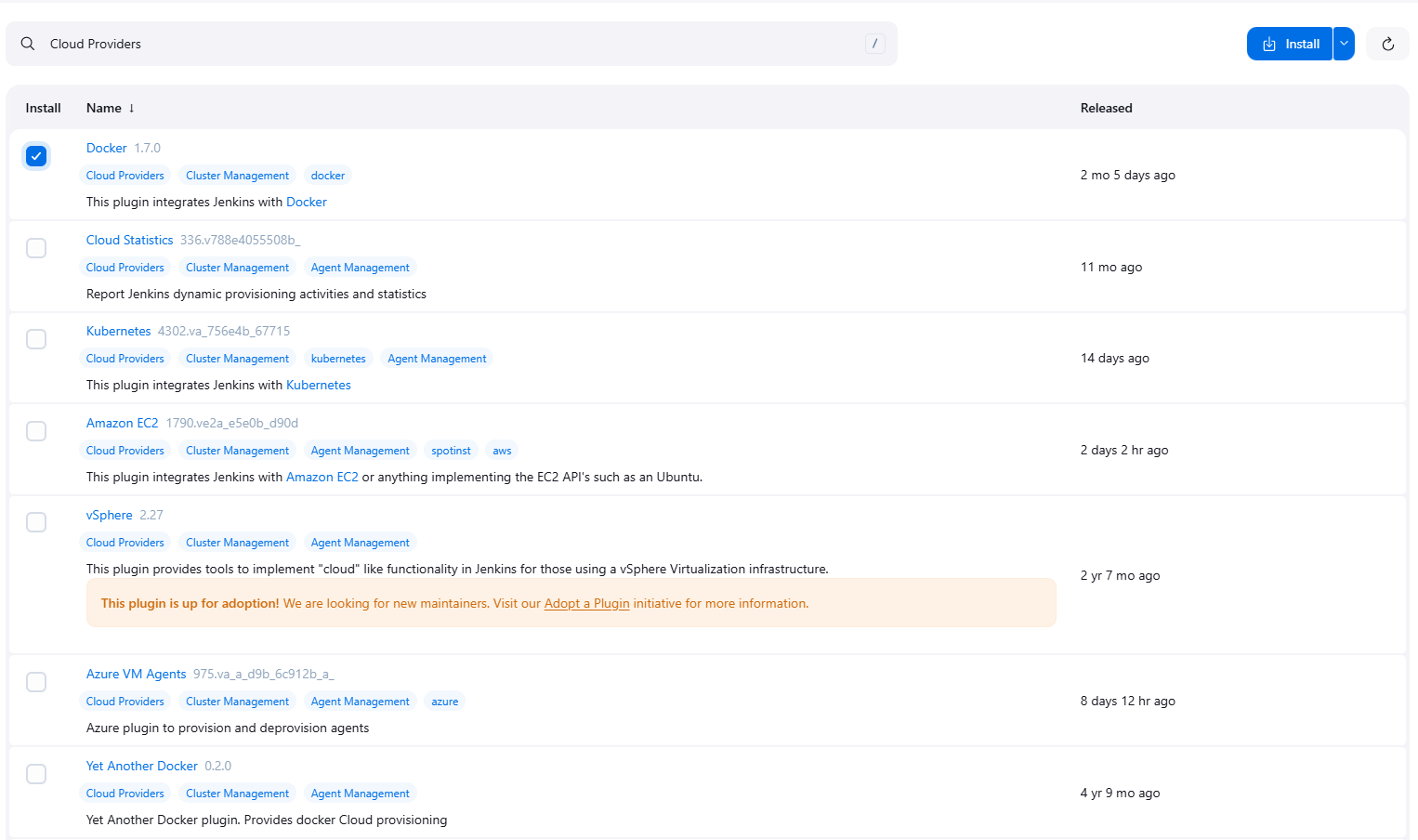
Note that here you may have to install additional plugins called "Cloud Providers"
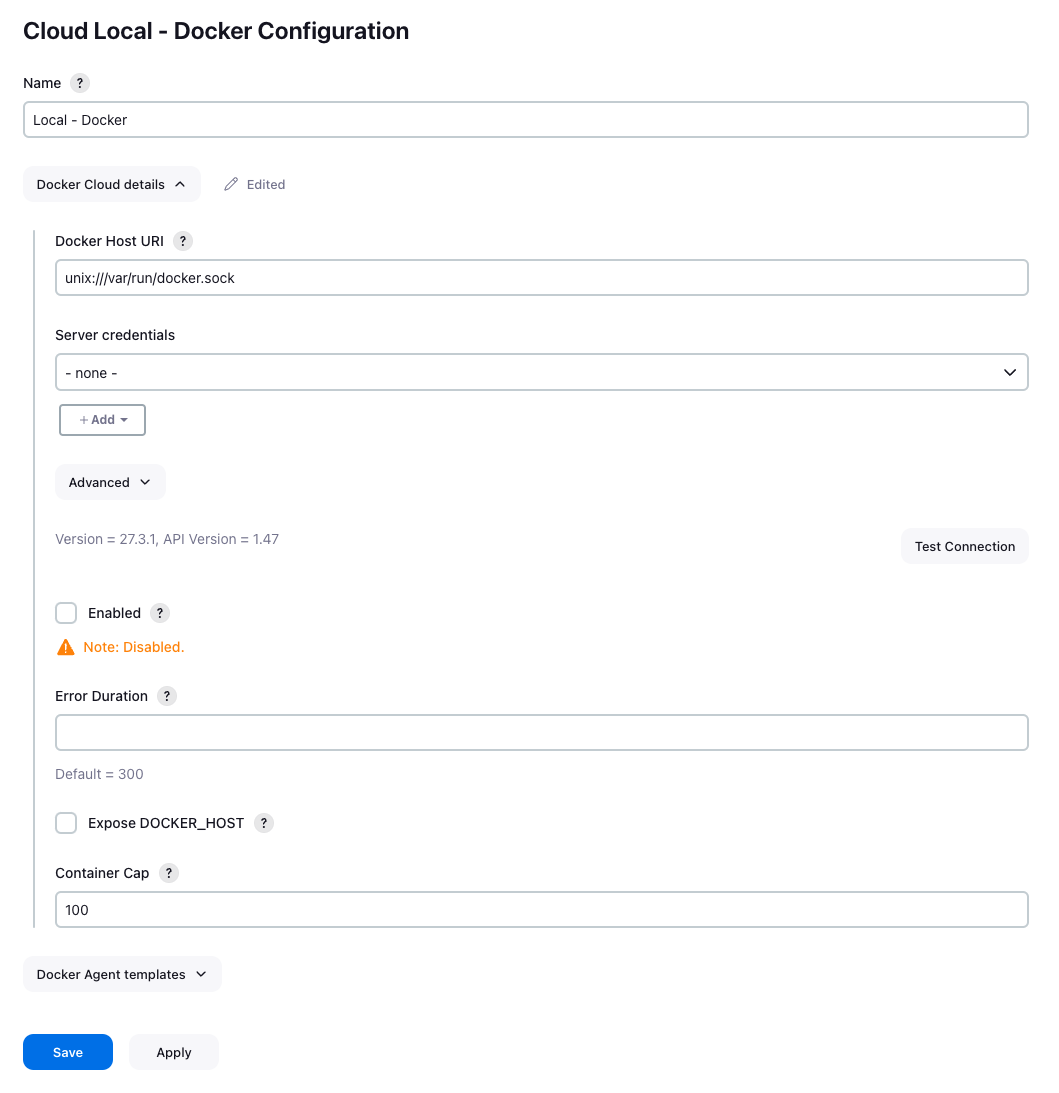
6.2 Docker Cloud Settings
- Name: Provide a name for your Docker Cloud, e.g.,
Local - Docker. - Test Connection: Click Test Connection to verify Jenkins can access the Docker daemon.
Docker Host URI: Use the following URI for local Docker socket:
unix:///var/run/docker.sock
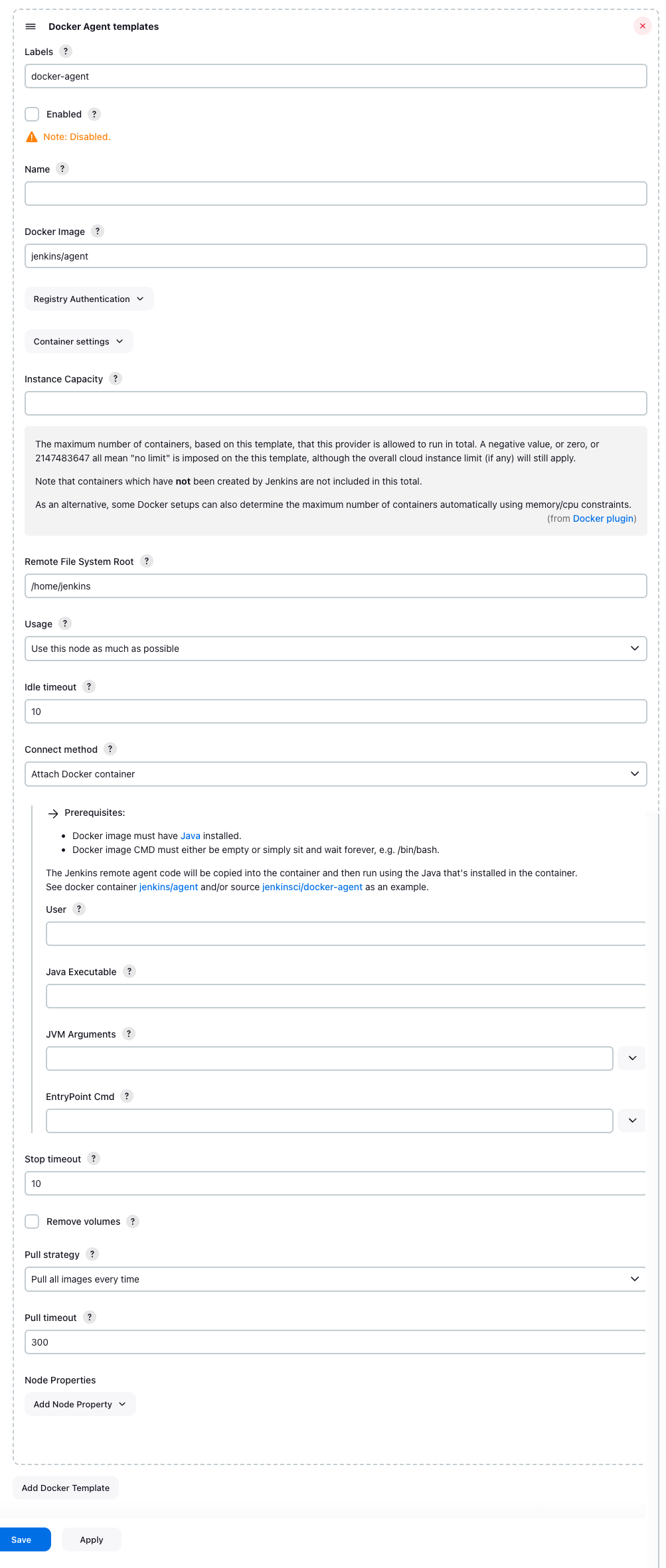
6.3 Add a Docker Agent Template
Docker agent templates define the container images that Jenkins will use to run builds.
- Under the Docker Cloud configuration, click Add Docker Template.
- Configure the following fields:
- Labels: Assign a label (e.g.,
docker-agent) to identify this template. - Check the Enabled box.
- Docker Image: Specify a Docker image, e.g.,
jenkins/agent. - Remote File System Root: Set this to
/home/jenkins. - Usage: Choose Use this node as much as possible.
- Labels: Assign a label (e.g.,
- Save the configuration.
6.4 Test the Configuration
Create a new Jenkins job and configure it to use the Docker agent:
- Go to Build Environment and select Restrict where this project can be run.
- Enter the label for the Docker agent (e.g.,
docker-agent).
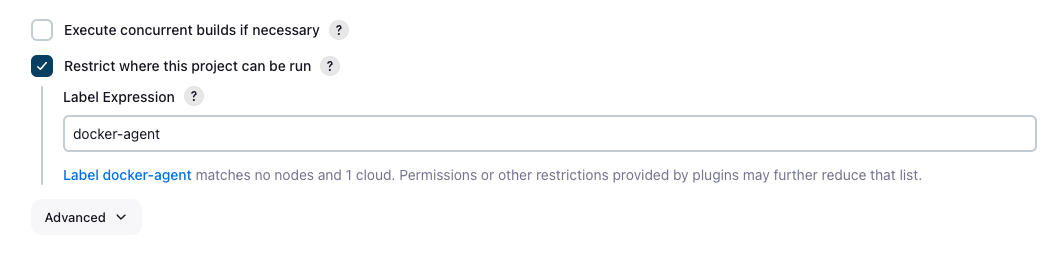
Save and run the job. Jenkins will spin up a Docker container as an agent and execute the build inside it.
7. Verifying the Build Execution
To verify that the build ran inside a Docker container:
- Go to the build logs.
- Confirm that the container was started and terminated after the build.
Look for messages indicating that a container was launched, such as:
Started by user admin
Running on docker-agent-xxxxx
Run docker ps on the host to verify no containers are left running.
8. Benefits of Running Builds in Docker Containers
Using Jenkins with Docker Cloud offers the following benefits:
- Consistency: All builds run in an identical environment.
- Isolation: Each build runs in its own container, avoiding conflicts.
- Clean Up: Containers are automatically removed after builds.
- Scalability: New agents can be provisioned on demand.
Conclusion
By configuring the Cloud section in Jenkins, you can dynamically provision Docker containers as build agents. This approach ensures clean, isolated, and consistent build environments, significantly simplifying Jenkins administration. We explored how to mount the Docker socket, install the Docker plugin, and configure Docker Cloud for seamless integration.
Happy building! 🚀