

Black Friday arrived, and as usual, Steam sales pulled me in again. I grabbed a few more games for my collection—because who can resist a good discount, right?
If you’ve been following my posts, you already know I’m not a “real” gamer. My passion is not the games themselves but the challenge of running modern Windows-only titles on Linux—and making them run well.
Performance. Visual quality. Hardware behavior. Tweaks.
That’s my playground.
Most recently, I’d been revisiting classics I played 10–15 years ago. But this time, I wanted to try something new. Something visually impressive. Something modern and demanding.
And what fits those criteria better than God of War (2018)?
This game is known for its incredible graphics and high system requirements. My GPU isn’t exactly cutting-edge anymore, so this challenge felt even more exciting. Could I run it smoothly? Could Linux handle it? Would Proton behave?
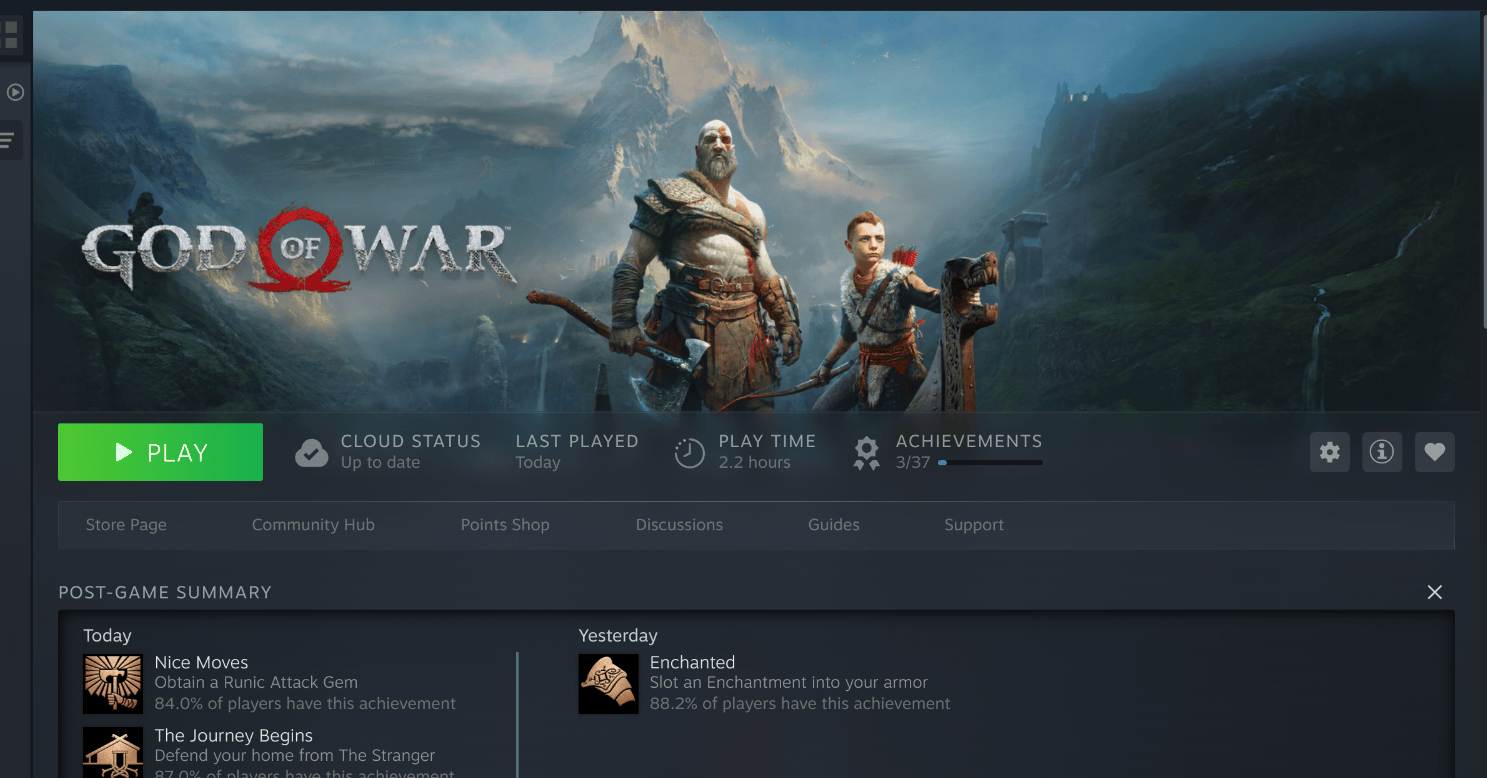
Let’s dive into the full story.
1. Checking Compatibility on ProtonDB
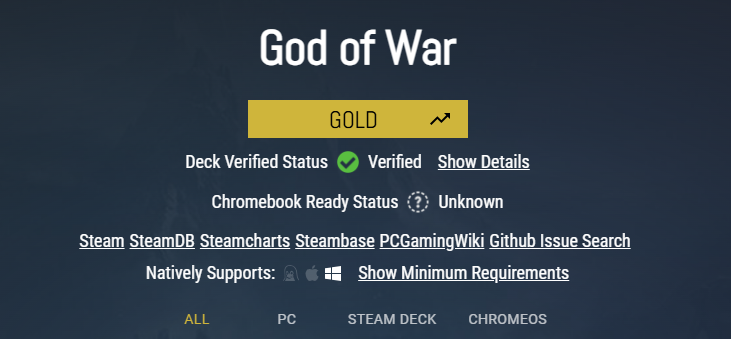
Before playing the game, the first thing I did was check ProtonDB, the community-driven database that tracks game compatibility on Linux (here).
God of War has a GOLD rating.
Translation:
It works out of the box with only minimal tweaks.
That was good enough for me.
The game typically launches successfully if you:
- Enable Proton
- Choose the correct Proton version (Proton-GE recommended)
- Add a couple of launch parameters
More on that soon.
2. Installing Proton-GE (Custom Proton Version)
Steam ships with official Proton versions, but many Linux gamers prefer Proton-GE (Glorious Eggroll). It includes:
- Newer patches
- Fixes not yet merged into official Proton
- Better game compatibility
- Improved performance in some titles
I won’t explain the whole ProtonGE installation process here because…
you already have a full, detailed step-by-step guide about that here.
So instead:
👉 ProtonGE installation guide here.
3. Configuring God of War in Steam
Once the game is installed:
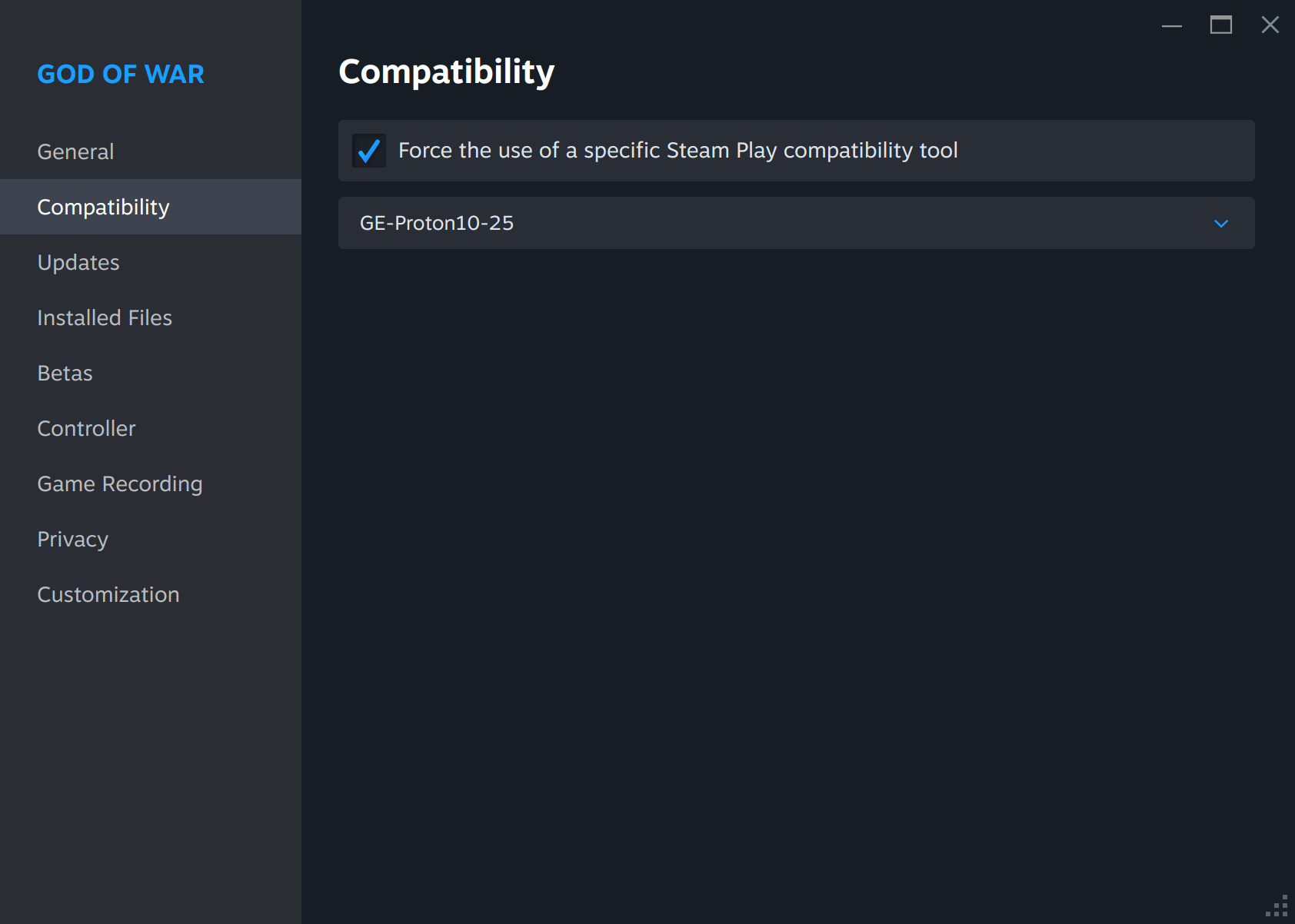
1. Enable Force Proton Compatibility
Steam → Library → Right-click God of War → Properties → Compatibility
✔ Force the use of a specific Steam Play compatibility tool
Select Proton-GE.
4. Add Required Launch Options
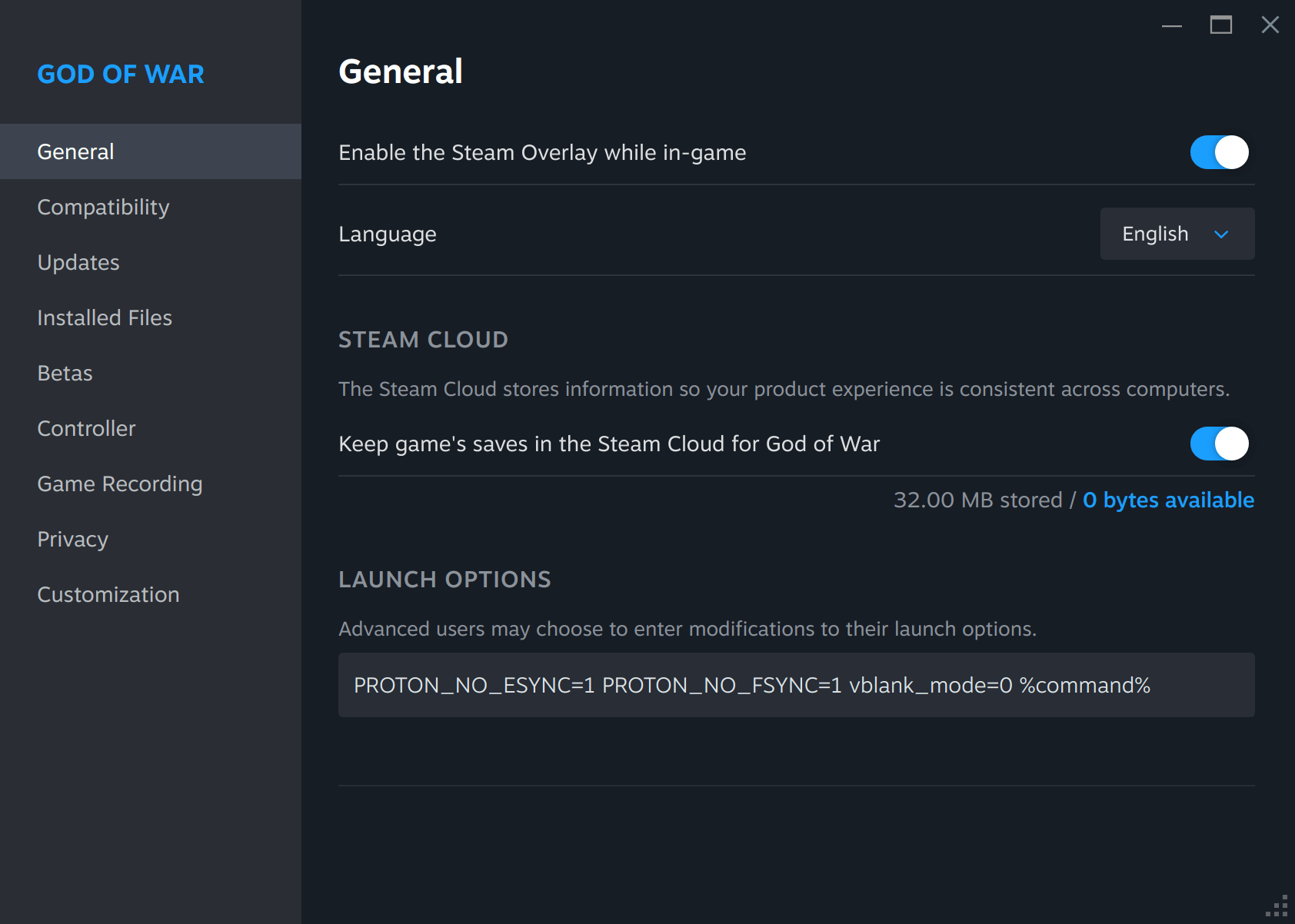
According to ProtonDB and my own testing, these parameters help stabilize rendering and reduce stuttering.
PROTON_NO_ESYNC=1 PROTON_NO_FSYNC=1 vblank_mode=0 %command%You may also experiment with:
DXVK_STATE_CACHE=1
RADV_PERFTEST=aco
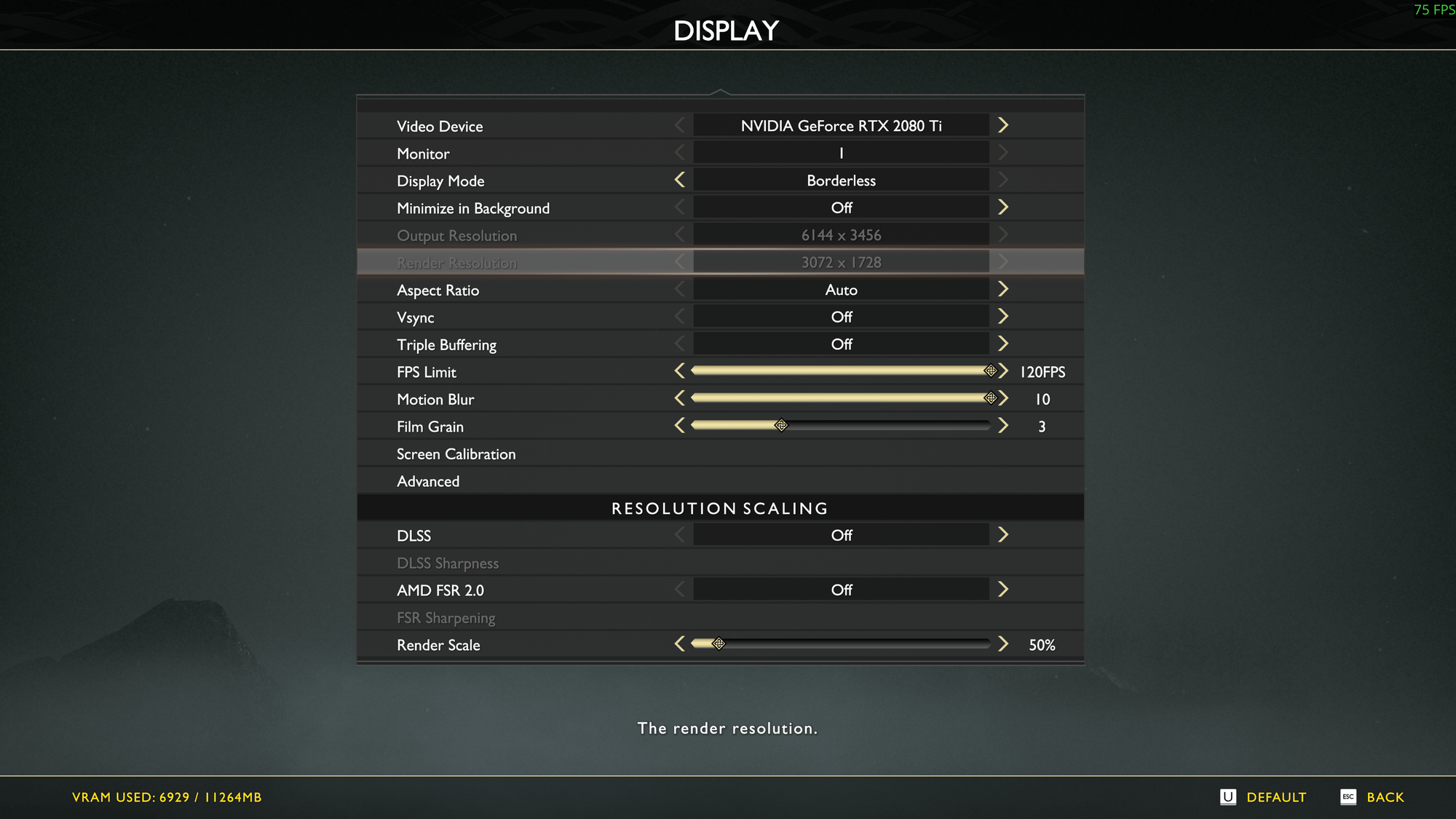
5. Graphic Settings: Rendering Resolution vs Output Resolution
One surprisingly awesome discovery was that God of War allowed me to choose any GPU for rendering—even if that GPU wasn’t connected to my monitor.
This means:
- You can run rendering on one card
- And send the final picture to another
- Or scale a lower-resolution frame to a higher-resolution display
In Linux, this is especially helpful for hybrid setups or weaker GPUs.
My Settings
Because my graphics card is not the most modern, I used this trick:
- Render resolution: lowest setting
- Output resolution: full display resolution with upscaling
This let me run:
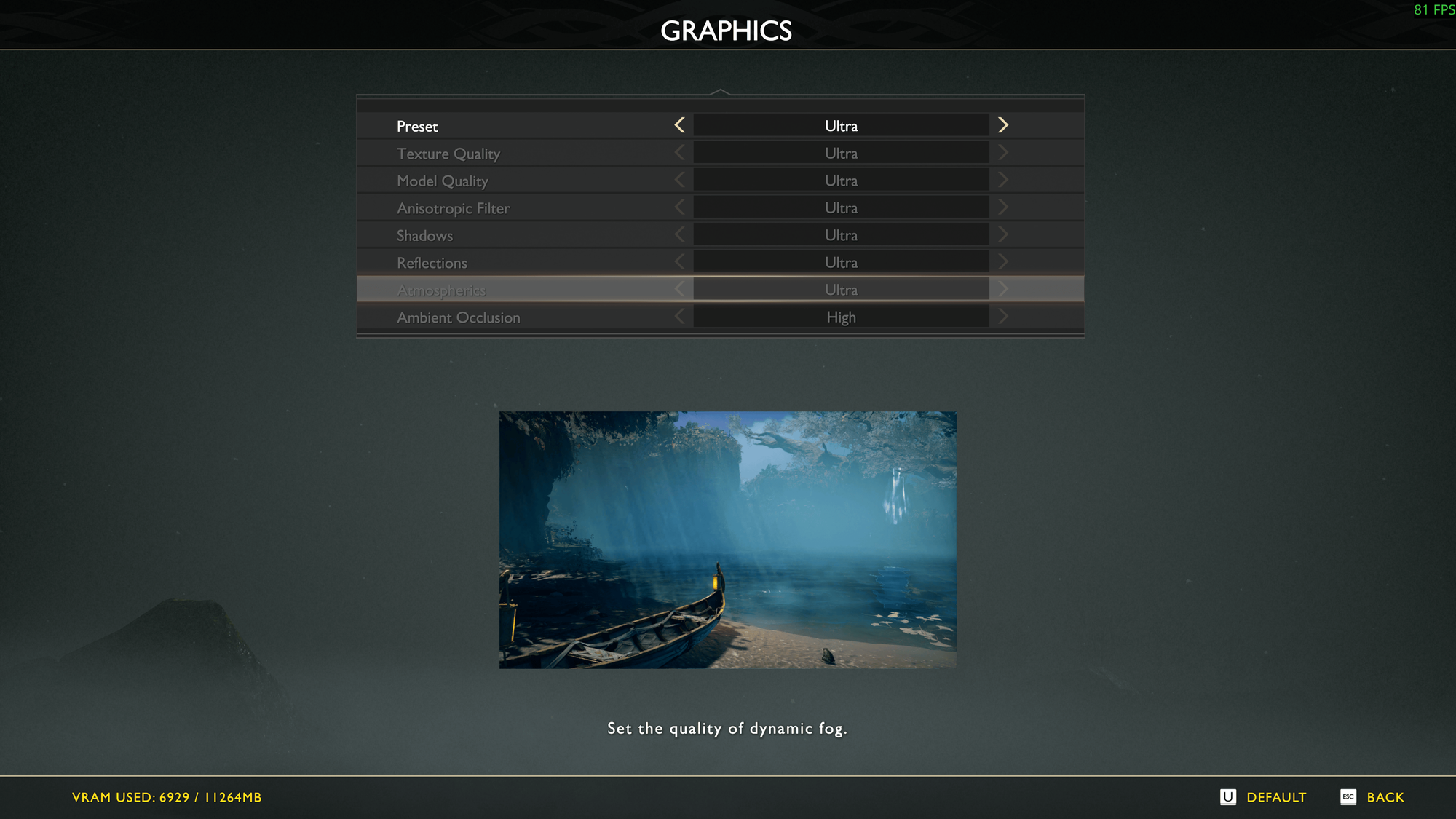
✔ Ultra graphics settings
✔ 45–50 FPS
✔ On a relatively weak GPU
✔ On Linux
✔ With great visual quality
And honestly?
It looked stunning.
Smooth, sharp, responsive.
And the Ultra Settings:
6. Performance on Linux: Real-World Results
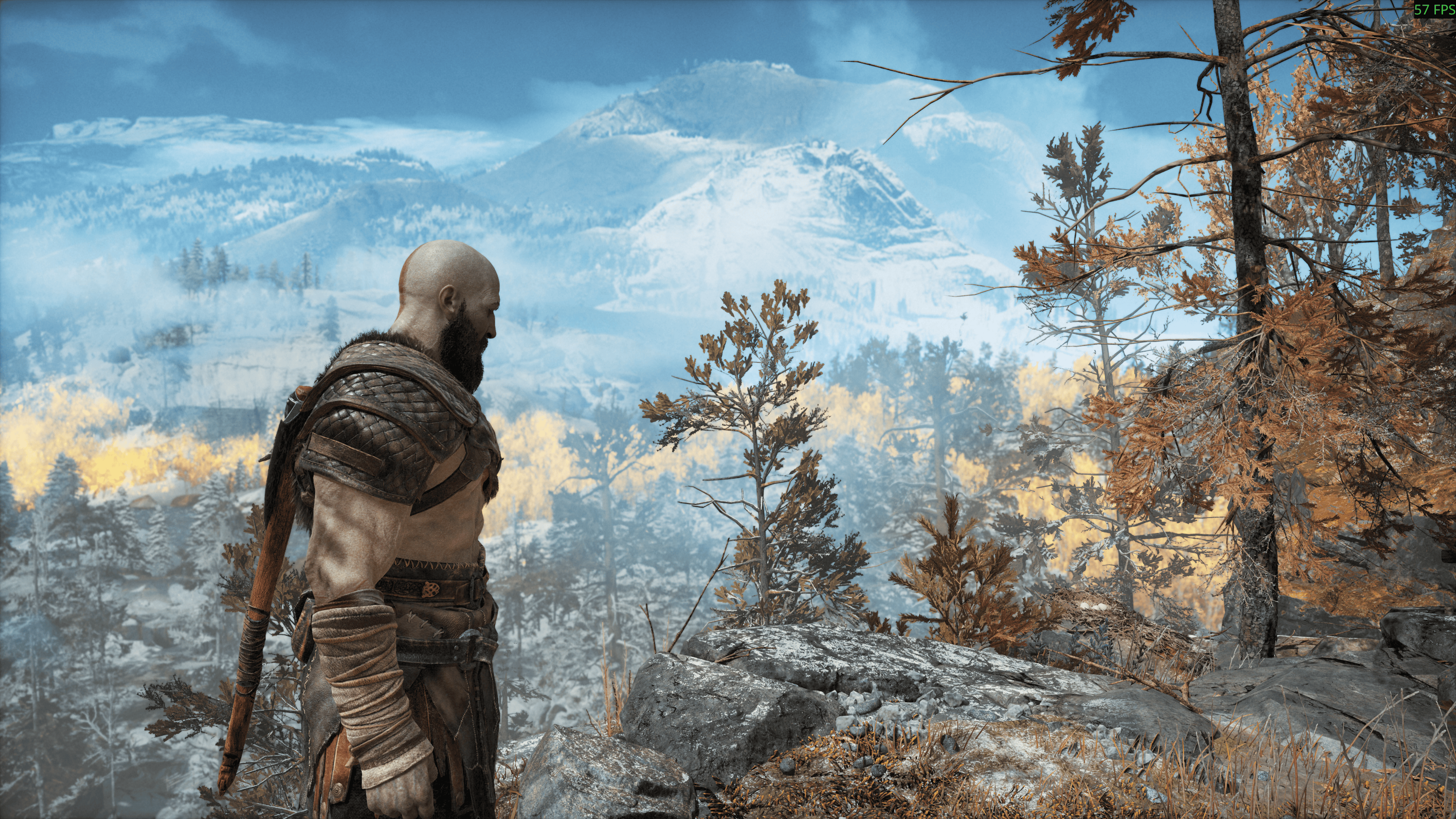
I’m not a professional God of War player, so I don’t know exactly how the game is supposed to look in maximum settings.
But from my perspective?
It looked beautiful. And it felt great.
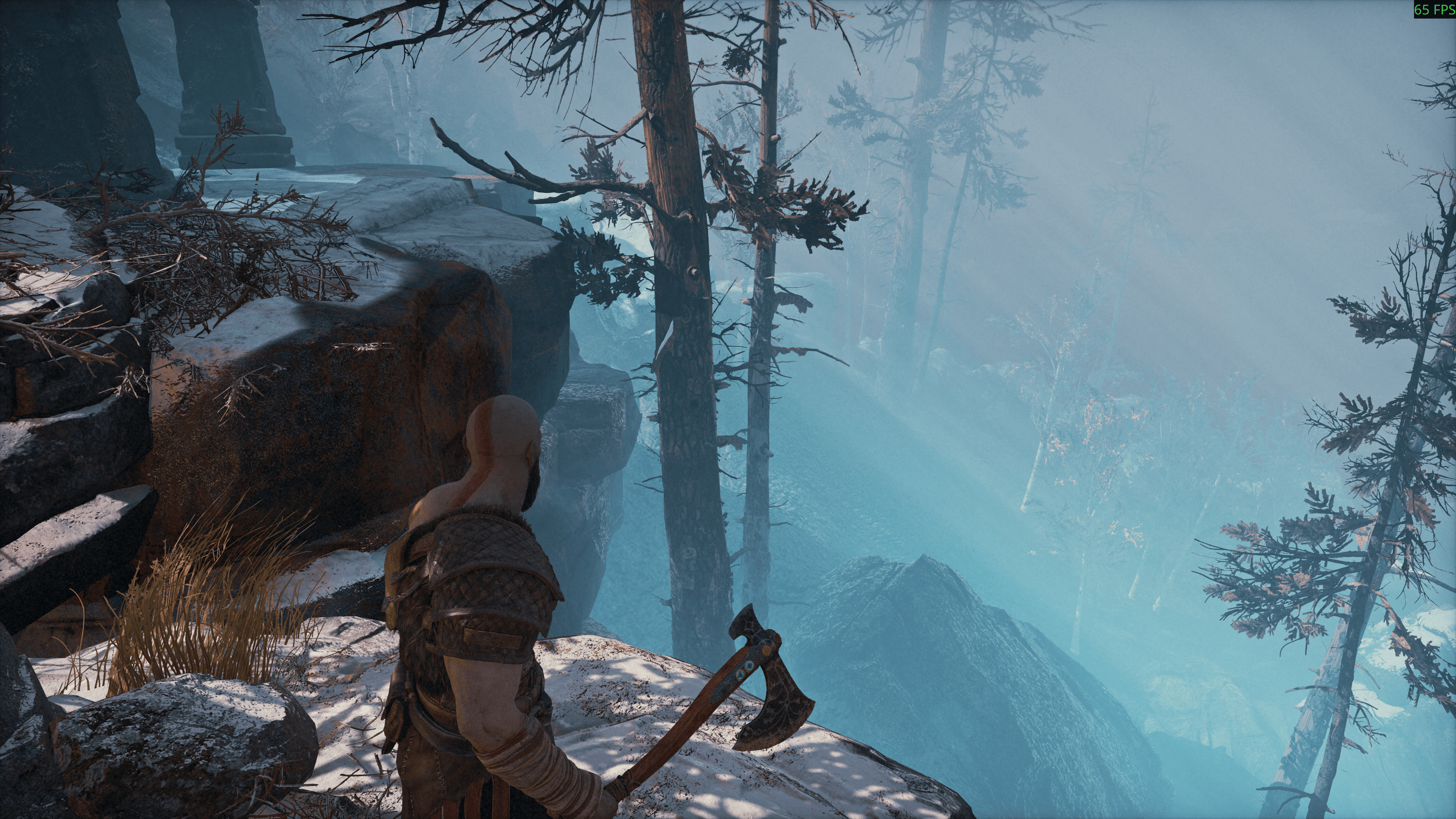
No major stutters
No crashes
No weird graphical glitches
No sound issues
Just solid gameplay.
The only thing I struggled with was…
the controls.
This game is clearly designed for a controller, not keyboard + mouse.
(If you have a PS4/PS5 controller — use it!!)
7. Recommended Additional Tweaks (Optional)
I will strongly recomend a few extras to your gaming setup:
Enable GameMode
sudo apt install gamemode
👉 The full Gamemode installation guide is here.
Enable MangoHud
Great for FPS monitoring.
sudo apt install mangohud
Enable VKBasalt (Optional)
Shader-based visual enhancements, available only on systems capable of handling heavy graphics workloads.
👉 The full VKBasalt installation guide is here.
9. Final Thoughts: Linux Gaming
What started as a casual Black Friday purchase turned into one of the most satisfying Linux gaming sessions I’ve had in years.
To summarize:
- God of War runs beautifully on Linux
- ProtonGE handles everything perfectly
- Performance is excellent even on a modest GPU
- Render-resolution scaling is a lifesaver
- Controls are better with a controller
If you ever wanted to test a demanding AAA title on Linux, this one is a fantastic choice.
And most importantly:
It works out of the box with just a couple of tweaks.
(Insert final screenshot or “victory moment” image)
8. Conclusion
This experience completely surprised me.
God of War is a demanding, visually rich AAA title, and yet it ran beautifully on Linux using Proton-GE. With the right settings, even my modest GPU handled the game at high quality and smooth frame rates.
Linux gaming has come a long way.
Proton has become magical.
And honestly?
Playing a modern blockbuster like God of War on Linux—without Windows—is a special kind of satisfaction.
If you haven't tried it yet…
Black Friday or not, it’s worth it.
Stay tuned — more Linux gaming experiments coming soon.
And as always: enjoy, and don’t panic!