

Introduction to Network Management in Ubuntu
One of the core features of any operating system is its ability to connect to and manage networks. Whether it's a wired Ethernet connection, wireless Wi-Fi access, or connecting to a secure network using a Virtual Private Network (VPN), Ubuntu provides a comprehensive set of tools and utilities to manage your network connections.
Ubuntu, like most Linux distributions, uses the NetworkManager service to make managing network interfaces simple and intuitive, especially for desktop users. NetworkManager works in conjunction with other tools and configuration files, providing both a graphical and a command-line interface to network management.
In this guide, we'll dive deep into how to set up and manage network connections in Ubuntu, covering wired, wireless, and VPN networks. You'll also learn how to configure your network interfaces manually, and troubleshoot any connectivity issues you may face.
1. Understanding Network Interfaces in Ubuntu
Before we jump into setting up and managing network connections, it’s important to understand the different types of network interfaces that Ubuntu handles:
1.1 Wired Connections (Ethernet)
Wired connections (typically Ethernet) provide the most stable and high-speed networking option. This is commonly used in offices, data centers, and homes where a physical cable connects the device to a router or switch.
Ethernet interfaces are automatically detected by Ubuntu, and by default, the system will attempt to automatically obtain an IP address using DHCP. However, you can manually configure the IP settings if needed.
1.2 Wireless Connections (Wi-Fi)
Wireless connections offer mobility and flexibility, allowing devices to connect to a network without the need for a physical cable. Most modern devices, including laptops, come equipped with built-in Wi-Fi adapters.
Wi-Fi connections in Ubuntu are also managed by NetworkManager. Ubuntu automatically detects available Wi-Fi networks and provides an interface for selecting and connecting to them. Additionally, you can manually configure wireless network settings.
1.3 Virtual Private Networks (VPN)
VPNs are used to securely connect to a private network over a public network, such as the Internet. This is particularly useful for remote work, allowing access to company networks, or for maintaining privacy and anonymity while browsing online.
Ubuntu supports a wide variety of VPN protocols, including OpenVPN, L2TP, and PPTP. NetworkManager provides a built-in interface to manage VPN connections easily, and you can also configure VPN connections manually via the command line.
2. Graphical Tools for Network Management
For users who prefer a graphical interface, Ubuntu provides easy-to-use tools for managing network connections. The default desktop environment, GNOME, comes with a Network Settings utility that integrates with NetworkManager to make it easy to set up and manage networks.
2.1 GNOME Settings (Network Manager)
To access network settings in GNOME, follow these steps:
- Click on the system menu in the top-right corner of the screen.
- Click on Settings.
- In the left-hand sidebar, select Network.
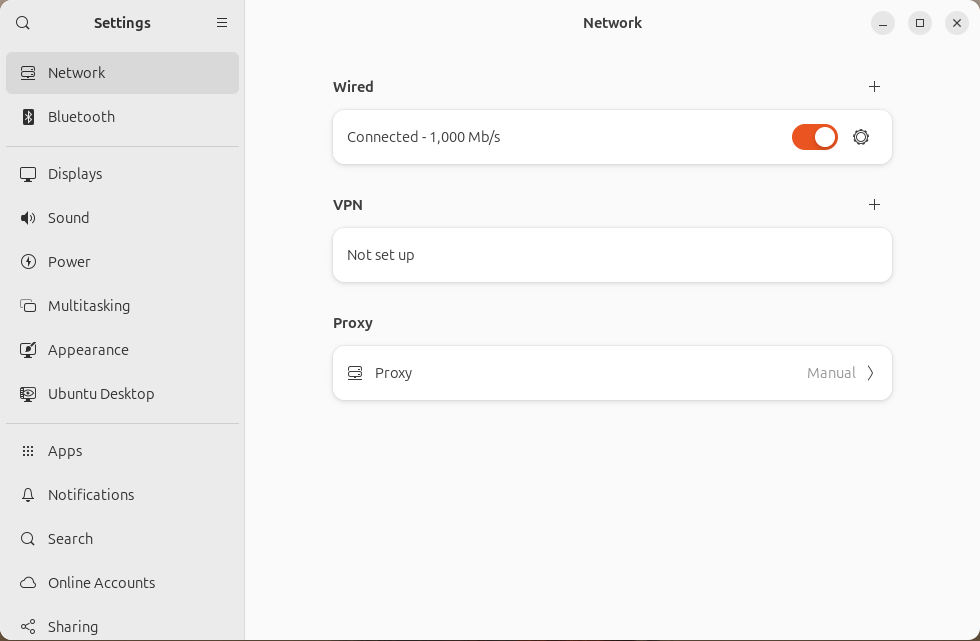
From here, you can manage both wired and wireless connections. GNOME provides options to connect to a Wi-Fi network, configure a wired connection, and manage VPN settings.
- Wired Connections: Wired connections should appear automatically in the "Network" section when an Ethernet cable is plugged in. You can click on the gear icon next to a wired connection to configure it manually, including setting static IP addresses and DNS servers.
- Wireless Connections: If your computer has a Wi-Fi adapter, available Wi-Fi networks will appear under the Wi-Fi section. You can select a network to connect to and configure additional security options (e.g., WPA2 passwords).
- VPN: In the "Network" settings, you can also add and configure VPN connections. This includes importing VPN configurations or setting up OpenVPN, L2TP, or PPTP.
3. Command-Line Tools for Network Management
If you're comfortable using the command line or need more fine-grained control over your network interfaces, Ubuntu offers several command-line utilities to manage network connections.
3.1 ip Command
The ip command is the modern replacement for the older ifconfig command. It is part of the iproute2 package and is used to view and configure network interfaces, routing, and other aspects of network management.
Basic examples of ip usage:
Bring down a network interface:
sudo ip link set eth0 down
Bring up a network interface (e.g., eth0):
sudo ip link set eth0 up
View all network interfaces:
ip addr show
3.2 nmcli Command
nmcli is a command-line client for NetworkManager. It allows you to manage network interfaces, connections, and configurations.
Basic nmcli usage:
Disconnect a network interface:
nmcli connection down id CONNECTION_NAME
Connect to a Wi-Fi network:
nmcli dev wifi connect SSID password YOUR_PASSWORD
View all available network connections:
nmcli connection show
3.3 ifconfig Command (Legacy)
While the ifconfig command has been deprecated and replaced by the ip command, it is still widely used and available on Ubuntu for managing network interfaces. It provides information about the system’s network interfaces and allows you to bring interfaces up or down.
4. Configuring Network Interfaces
Network configuration in Ubuntu can be done either through the graphical tools mentioned earlier or through manual configuration files. Below, we'll cover how to configure network interfaces, both wired and wireless, as well as how to manage VPN connections.
4.1 Configuring Static IP for Wired Networks
To configure a static IP address for a wired connection:
- Open the Network Settings window.
- Click the gear icon next to the wired connection.
- Select the IPv4 tab.
- Change the Method to "Manual."
- Enter the desired IP address, netmask, and gateway.
- Enter DNS server addresses if needed.
- Click Apply to save the changes.
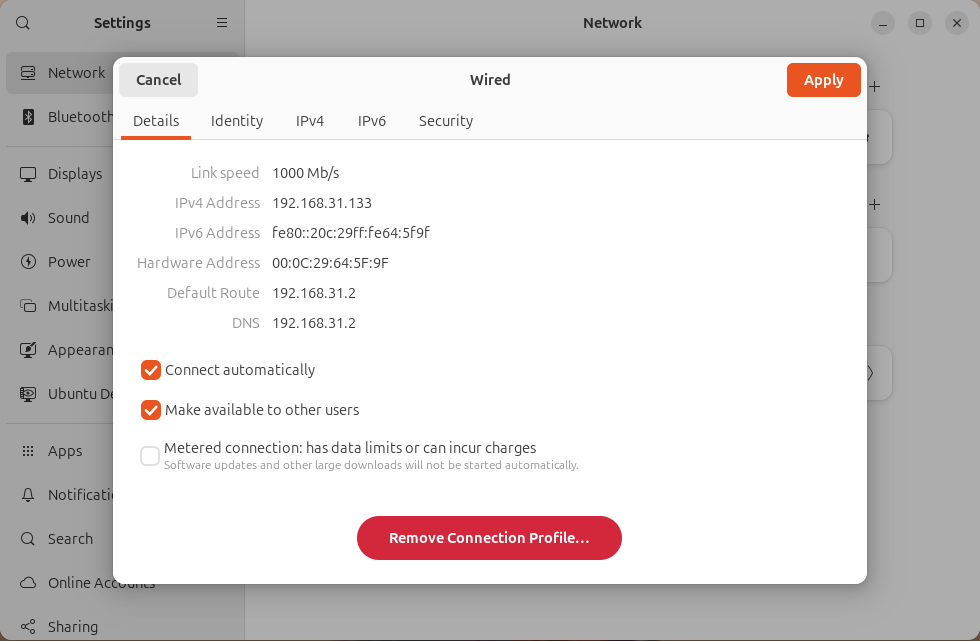
Alternatively, you can configure a static IP using the command line and the /etc/netplan/ configuration files.
4.2 Configuring Wireless Networks
For connecting to Wi-Fi networks, you can use the GNOME graphical interface or nmcli from the command line.
To connect to Wi-Fi using nmcli:
nmcli dev wifi connect SSID password YOUR_PASSWORD
To set a static IP for a wireless connection, follow the same steps as for wired connections, but modify the settings under the Wi-Fi section in Network Settings.
4.3 Managing VPN Connections
To configure a VPN connection in Ubuntu:
- Go to Settings > Network.
- Click VPN > Add.
- Select the VPN type (e.g., OpenVPN, L2TP, PPTP) and enter the required details (server address, authentication, etc.).
- Click Add to save the configuration.
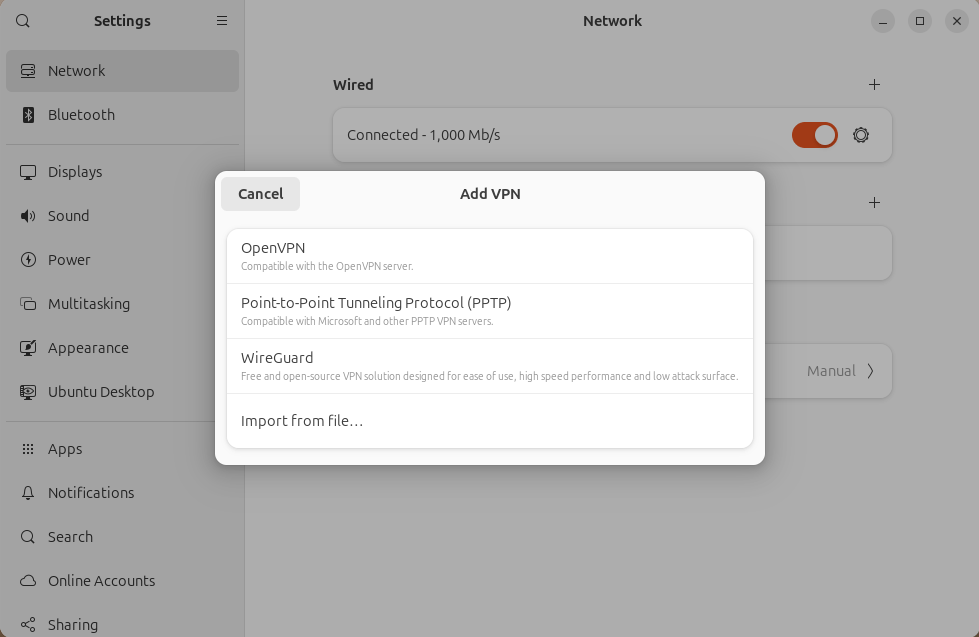
You can also manage VPN connections using nmcli:
nmcli connection import type openvpn file /path/to/config.ovpn
5. Troubleshooting Network Connections
Sometimes network connections may not work as expected. Here are a few steps to troubleshoot common issues:
- Check Network Interfaces: Use the
iporifconfigcommand to ensure that your network interfaces are active and properly configured. - DNS Issues: If you're having trouble resolving domain names, try changing the DNS servers to a known public DNS provider, such as Google's DNS (8.8.8.8, 8.8.4.4).
Ping Test: Use the ping command to check connectivity to a remote server or router:
ping 8.8.8.8
Check Logs: Network-related logs can be found in the /var/log/syslog file. Use tail or grep to check for errors:
sudo tail -f /var/log/syslog
Restart NetworkManager: If NetworkManager is behaving unexpectedly, restart the service:
sudo systemctl restart NetworkManager
Conclusion
Managing network connections in Ubuntu, whether it's wired, wireless, or VPN, is a fundamental skill for any user, whether beginner or advanced. Ubuntu provides both graphical and command-line tools to make network management straightforward and flexible.
With the information in this guide, you'll be able to configure network interfaces, troubleshoot network problems, and set up secure VPN connections to protect your privacy. Mastering these tasks will enhance your productivity and improve your overall networking experience on Ubuntu.
Whether you are connecting to a local network or the internet, you can rely on Ubuntu’s powerful networking tools to ensure a smooth and seamless experience.