

Everything you need to know – from the very first download to daily updates, multiple launchers, and troubleshooting.
1. What Is Proton‑GE?
| Feature | Official Proton | Proton‑GE |
|---|---|---|
| Source | Valve (based on Wine‑Staging) | Community‑maintained fork (Wine‑Staging + patches) |
| Goal | Provide a stable, well‑tested build for most games | Push the bleeding‑edge: newer Wine, DXVK, VKD3D, custom patches, experimental fixes |
| Update cadence | Roughly every 2–3 weeks (aligned with Steam client) | Every few days to weeks (depends on community contributors) |
| Where to get it | Built‑in Steam “Proton” tab | GitHub releases, ProtonUp‑Qt app, manual download |
| Best for | General users, “play‑any‑game‑out‑of‑the‑box” | Games that need newer DirectX / Vulkan support, or have special fixes (e.g., Baldur’s Gate 3, Final Fantasy XIV, Microsoft Flight Simulator) |
Proton‑GE is a drop‑in replacement for the official Proton. All you have to do is place the extracted folder in Steam’s ~/.steam/steam/compatibilitytools.d directory (or the system‑wide equivalent) and select it per‑game.
2. Prerequisites – “What You Need Before You Start”
| Requirement | Why It Matters | How to Install (Ubuntu/Debian‑based) |
|---|---|---|
| Steam | The launcher that will actually use Proton‑GE. | sudo apt (or use the official Valve .deb) |
| Vulkan drivers | Proton‑GE uses DXVK/VKD3D which rely on Vulkan. |
sudo apt install |
| 32‑bit libraries | Proton runs many 32‑bit Windows binaries. | sudo dpkg |
| Graphics driver (NVIDIA, AMD, Intel) | Must expose Vulkan. | NVIDIA: sudo apt install(or latest). AMD/Intel: mesa drivers are enough. |
| Optional: GameMode | Helps keep CPU at performance governor while a game runs. |
sudo apt install |
| Optional: Proton‑GE dependencies (DXVK, VKD3D, VKBasalt, etc.) |
Many games need these extra layers. |
sudo apt install(most are bundled, but you may want the latest standalone versions – see Section 6). |
Note for Arch/Manjaro – Replaceaptwithpacman -S(e.g.,sudo pacman -S steam vulkan-icd-loader lib32-vulkan-icd-loader).
Note for Fedora – Usednf(sudo dnf install steam vulkan vulkan-tools).
Verify Vulkan Is Working
vulkaninfo | head -n 20 # should show “Vulkan Instance Version” etc.
If you get “cannot find vulkaninfo” or errors about drivers, fix your GPU driver first.
3. Where Does Proton‑GE Live? (Directory Layout)
| Scope | Path (Linux) | Who can see it? |
|---|---|---|
| User‑only | ~/.steam/root/ (Steam’s native user dir) |
Only your user. |
| System‑wide | /usr/lib/steam/ or /usr/share/steam/ |
All users on the machine (requires root). |
| Flatpak Steam | $HOME/.var/app/ |
Only for the Flatpak install. |
| Snap Steam | $HOME/snap/steam/common/ |
Only for the Snap install. |
Why it matters: Most guides default to the user‑only location because you don’t need sudo and it works for all launchers (Steam, Heroic, Lutris).
4. Installing Proton‑GE – The Most Common Ways
4.1. Quick‑Start: ProtonUp‑Qt (GUI)
The recommended method for newcomers. It handles download, extraction, updates, and even installs the extra DXVK/VKD3D layers automatically.
4.1.1. Install ProtonUp‑Qt
| Distro | Command |
|---|---|
| Ubuntu / Debian | sudo add-apt-repository |
| Arch / Manjaro | yay -S protonup-qt |
| Fedora | sudo dnf install protonup-qt |
| Any distro (flatpak) | latpak install flathub |
4.1.2. Run ProtonUp‑Qt
protonup-qt # launches the GUI
- Select “Proton‑GE” from the dropdown list.
- Choose the latest version (or a specific older one if you need it).
- Click “Install/Update”.
- ProtonUp‑Qt will download the tarball from the official GitHub releases, extract it to the correct
compatibilitytools.dfolder, and (optionally) install the latest DXVK and VKD3D‑Proton binaries.
Tip: In the Settings tab you can enable “Automatically check for updates every X days” – this keeps Proton‑GE fresh without you lifting a finger.
4.1.3. Verify Installation
Open Steam → Settings → Steam Play. Under “Proton compatibility tools”, you should now see a list entry like:
Proton‑GE 9.23‑GE‑2 (or whatever version you installed)
Select it as default (or per‑game later).
4.2. Manual Download & Extraction
When you prefer total control, want to install a specific commit, or you’re on a distro that doesn’t have ProtonUp‑Qt.
4.2.1. Grab the Latest Release
- Go to the GitHub releases page:
https://github.com/GloriousEggroll/proton-ge-custom/releases - Find the latest
.tar.gzasset (e.g.,Proton-9.23-GE-2.tar.gz). - Download – either via a browser or using
wget/curl:
# Example – replace with the latest URL
wget -O ProtonGE.tar.gz "https://github.com/GloriousEggroll/proton-ge-custom/releases/download/GE-Proton9-23/Proton-9.23-GE-2.tar.gz"
4.2.2. Choose Destination
- User‑only (recommended):
mkdir -p ~/.steam/root/compatibilitytools.d/
DEST=~/.steam/root/compatibilitytools.d/
- System‑wide (requires sudo):
sudo mkdir -p /usr/lib/steam/compatibilitytools.d/
DEST=/usr/lib/steam/compatibilitytools.d/
4.2.3. Extract
tar -xzf ProtonGE.tar.gz -C "$DEST"
The folder will be named something like Proton-9.23-GE-2.
4.2.4. (Optional) Install Stand‑Alone DXVK & VKD3D
Proton‑GE bundles its own DXVK/VKD3D, but you can replace them with the latest builds for extra performance.
# Install the latest DXVK (requires glxinfo/vulkaninfo)
# Choose a directory for the binaries, e.g., ~/.local/share/dxvk
mkdir -p ~/.local/share/dxvk
cd ~/.local/share/dxvk

# Grab latest release from GitHub
wget -O dxvk.tar.gz "https://github.com/doitsujin/dxvk/releases/download/v2.2/dxvk-2.2.tar.gz"
tar -xzf dxvk.tar.gz

# Install into Proton‑GE
DXVK_DIR=~/.steam/root/compatibilitytools.d/Proton-9.23-GE-2
"$DXVK_DIR"/dist/install_dxvk.sh install "$DXVK_DIR"
(The script is inside the DXVK tarball; it copies the needed DLLs into Proton‑GE.)
4.2.5. Verify in Steam
Same as in 4.1.3 – open Steam → Settings → Steam Play → “Proton compatibility tools”. Your manual install should appear.
4.3. Installing via Lutris
Lutris is a game manager that can launch Windows games with its own Wine builds, but it also supports Proton‑GE for Steam titles or non‑Steam games via the “Run with Steam” option.
- Install Lutris
# Ubuntu/Debian
sudo add-apt-repository ppa:lutris-team/lutris
sudo apt update
sudo apt install lutris

# Arch
sudo pacman -S lutris
- Add Proton‑GE to Lutris
- Open Lutris → Preferences → Runners → Wine.
- Click “Download latest version” or the “Add custom version” button.
- In the custom version dialog, set:
- Name:
Proton‑GE - Path:
~/.steam/root/compatibilitytools.d/Proton-9.23-GE-2(or wherever you installed).
- Name:
- Lutris will treat this as a Wine runner.
- Create a new “Steam” game entry
- Click + → Add a new game → Steam → Enable “Run with Steam”.
- In the Runner options, select the Proton‑GE runner you just added.
- Save and launch – Lutris will call Steam with
PROTON_USE_WINED3D=0etc., using your custom Proton.
Why use Lutris?Centralizes non‑Steam games (e.g., Epic, GOG) that you still want to run under Proton‑GE.Gives you per‑game Wine/Proton version control without touching Steam’s UI.
4.4. Installing via Heroic Games Launcher (Epic/GoG)
Heroic can run Windows games through Proton (or Wine).
- Install Heroic
# Flatpak (most universal)
flatpak install flathub com.heroicgameslauncher.hgl
- Configure Proton‑GE in Heroic
- Open Heroic → Settings → Compatibility → Proton.
- Click “Add custom Proton”.
- Browse to the Proton‑GE folder (
~/.steam/root/compatibilitytools.d/Proton-9.23-GE-2). - Give it a friendly name (e.g., “Proton‑GE‑9.23”).
- Assign to a game
- In your library, click the three‑dot menu → Manage Compatibility → select the newly added Proton‑GE version.
Tip: Heroic automatically adds the environment variable PROTON_NO_ESYNC=1 for some titles that misbehave with esync. You can toggle it per‑game in Advanced Options.4.5. Installing for Steam Deck (Desktop Mode)
Even though the Deck ships with a built‑in Proton, you can still add Proton‑GE for experimental titles.
- Switch to Desktop Mode → open a terminal.
- Install ProtonUp‑Qt via the Discover Software Center or:
flatpak install flathub net.authorquantum.protonup
- Run
protonup-qtand install the desired Proton‑GE version. - In Steam → Settings → Steam Play, enable “Proton‑GE” as a compatibility tool.
The Deck automatically creates a per‑user compatibilitytools.d folder under $HOME/.local/share/Steam/, so the same steps as a regular PC apply.
5. Selecting Proton‑GE Per‑Game (Steam)
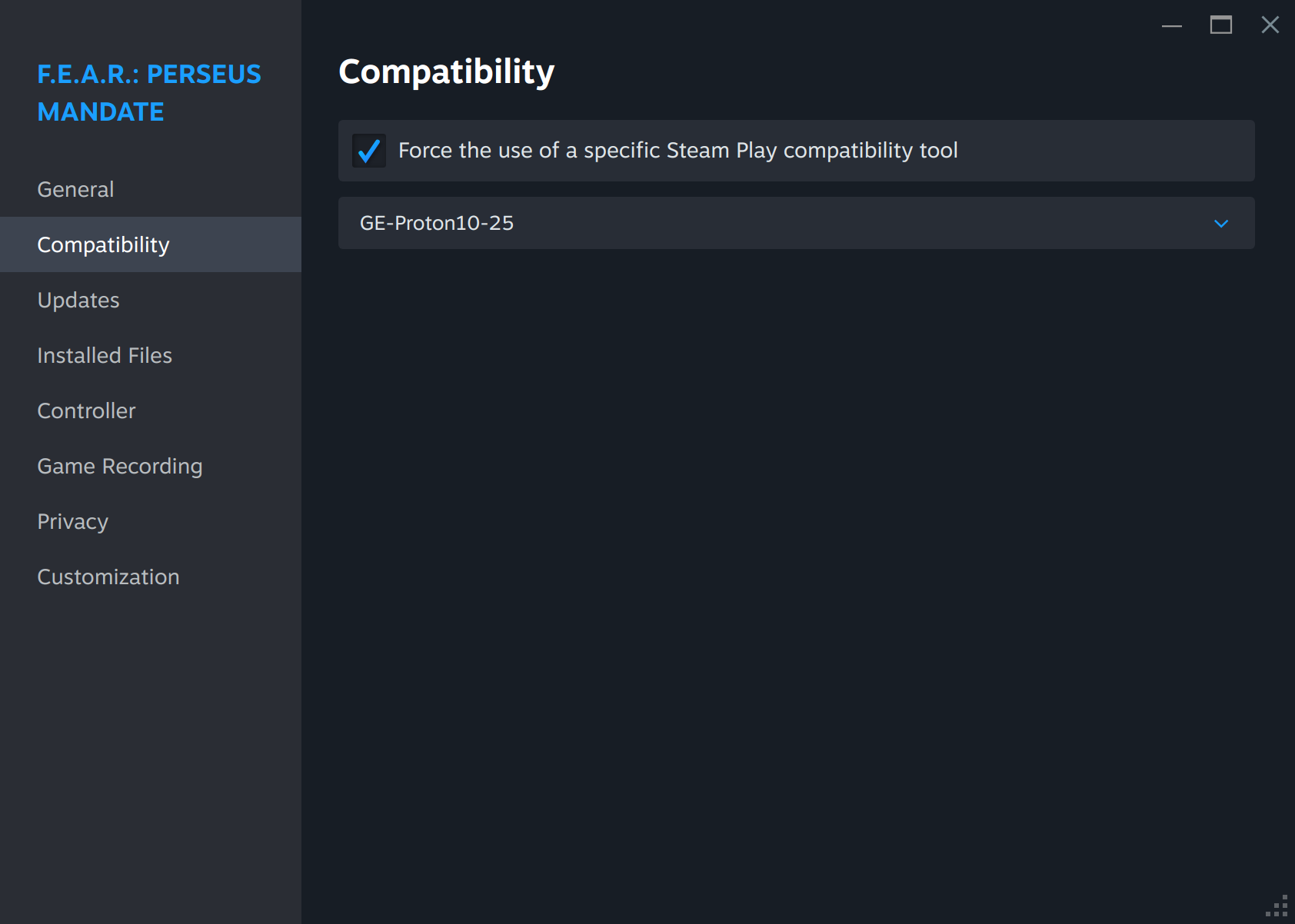
- Right‑click the game → Properties → Compatibility.
- Check “Force the use of a specific Steam Play compatibility tool”.
- Choose Proton‑GE X.Y‑GE‑Z from the dropdown.
Why per‑game?
Some titles work better on the official Proton (e.g., certain anti‑cheat enabled games), while others need the bleeding‑edge fixes in Proton‑GE.
6. Keeping Proton‑GE Fresh – Updates & Maintenance
| Method | How It Works | Pros | Cons |
|---|---|---|---|
| ProtonUp‑Qt auto‑update | Checks GitHub daily; one‑click install. | No terminal, auto‑installs DXVK/VKD3D. | Requires GUI. |
| Cron + script | Custom script that runs wget + extraction on schedule. |
Fully automated, works on headless servers. | You have to write/maintain the script. |
| Flatpak/Steam Deck “Community” Proton | Some community repos (e.g., steamos‑proton‑ge) push updates via Flatpak. |
Integrated with system package manager. | Limited to those repos, may lag behind. |
6.1. Example Cron Script (Linux)
Create ~/bin/update-proton-ge.sh:
#!/usr/bin/env bash
set -euo pipefail

# 1. Determine latest version via GitHub API
LATEST=$(curl -s https://api.github.com/repos/GloriousEggroll/proton-ge-custom/releases/latest | grep '"tag_name":' | cut -d '"' -f4)
URL="https://github.com/GloriousEggroll/proton-ge-custom/releases/download/${LATEST}/Proton-${LATEST}.tar.gz"

# 2. Destination
DEST="${HOME}/.steam/root/compatibilitytools.d"

# 3. Download if newer
if [[ ! -d "${DEST}/Proton-${LATEST}" ]]; then
    echo "Downloading Proton‑GE ${LATEST}..."
    wget -q -O "/tmp/ProtonGE.tar.gz" "$URL"
    echo "Extracting..."
    tar -xzf "/tmp/ProtonGE.tar.gz" -C "$DEST"
    echo "Installed Proton‑GE ${LATEST}"
else
    echo "Proton‑GE ${LATEST} already installed."
fi

# 4. (Optional) Clean old versions – keep only latest 3
cd "$DEST"
ls -1d Proton-* | sort -V | head -n -3 | xargs -r rm -rf
Make it executable:
chmod +x ~/bin/update-proton-ge.sh
Add to cron (run daily at 02:00):
crontab -e
# Add line:
0 2 * * * $HOME/bin/update-proton-ge.sh >> $HOME/proton-ge-update.log 2>&1
7. Advanced Performance Tweaks (Optional but Powerful)
| Goal | Setting / Tool | How to Apply |
|---|---|---|
| Higher CPU frequency | gamemode (see Section 1) |
Install gamemode; add gamemoderun %command%to Steam launch options. |
| Force DXVK v-sync off | DXVK_ASYNC=1or DXVK_DISABLE_PRESENT=1 |
Add to Steam → Launch Options: DXVK_ASYNC=1 |
| Use Vulkan async compute (if supported) |
VKD3D_CONFIG=async |
Launch option: VKD3D_CONFIG=async |
| Add a custom Vulkan layer (e.g., VKBasalt for post‑process) |
Install VKBasalt, set VK_LAYER_PATH |
VK_LAYER_PATH= |
| Reduce stutter from Linux scheduler |
schedtool -R -n |
Wrap launch: schedtool -R -n 99 |
| Limit FPS (to save battery / avoid tearing) |
PROTON_FPS_LIMIT=60 |
PROTON_FPS_LIMIT=60 |
| Enable Esync / Fsync | PROTON_USE_ESYNC=1 (default) or PROTON_USE_FSYNC=1 |
Add as env‑var in launch options. |
Tip: You can combine many of these in a single launch line, e.g.:
PROTON_USE_ESYNC=1 DXVK_ASYNC=1 gamemoderun %command%
8. Common Problems & Fixes
| Symptom | Likely Cause | Fix |
|---|---|---|
| Game crashes instantly (SIGSEGV) | Mismatched 32‑bit libraries, outdated Vulkan driver. | Re‑install libgl1-mesa-dri:i386 (or lib32-vulkan-icd-loader). Update GPU driver. |
| Black screen / “Failed to create swap chain” | DXVK version incompatible with GPU driver. | Update to latest DXVK (via ProtonUp‑Qt or manual). Ensure vulkaninfo shows your GPU. |
| Audio crackles / stutters | pulseaudio latency or Esync disabled. |
Install pipewire + pipewire-pulse (better latency). Enable Esync: PROTON_NO_ESYNC=0. |
| Anti‑cheat (e.g., Valorant, Fortnite) says “Proton not supported” | Anti‑cheat blocks Proton (Valve’s official Proton sometimes works, but Proton‑GE is considered “unofficial”). | Switch to Official Proton for that title, or use a Windows-native client (if allowed). |
| Game runs at 30 fps on NVIDIA, but works fine on AMD | NVIDIA driver’s NVIDIA‑Vulkan layer missing or using the NVK driver incorrectly. | Ensure nvidia-driver includes nvidia-vulkan-icd. For older GPUs, set PROTON_DISABLE_NVAPI=1. |
| Steam does not list Proton‑GE | Wrong compatibilitytools.d path (e.g., using Flatpak Steam but installing into native Steam folder). |
Locate the correct compatibilitytools.d for your Steam installation (see Section 3). |
| ProtonUp‑Qt says “No permission to write to compatibilitytools.d” | Running as root Steam (rare) or using the Snap version. | Use the Flatpak version of ProtonUp‑Qt (flatpak run) which writes to the correct Snap/Flatpak path, or manually extract with sudo. |
| Game shows “Wine error: cannot find L"\.\pipe... | Esync or Fsync not enabled. | Add PROTON_USE_ESYNC=1 (or PROTON_USE_FSYNC=1). |
| Epic or GOG games launched from Heroic lag heavily | Heroic is using Wine instead of Proton‑GE. | In Heroic → Settings → Compatibility → select your Proton‑GE custom version. |
| Steam says “Proton is disabled” after a system upgrade | Steam Play checkbox got unchecked. |
Re‑enable “Enable Steam Play for all titles” and set default tool again. |
8.1. Diagnosing with PROTON_LOG
Set PROTON_LOG=1 before launching a game:
PROTON_LOG=1 %command%
A file steam-<appid>.log appears in your home folder. Look for lines containing error, failed, or missing.
8.2. Using PROTON_DEBUG=fixme
If a game reports many FIXME messages (e.g., “FIXME: wine:src/…: not implemented”), you can enable verbose logging:
PROTON_DEBUG=fixme %command%
Search the log for the specific fixme that’s causing trouble; often the community has already added a patch in a newer Proton‑GE commit.
9. Back‑Up & Restore Your Proton‑GE Install
Because Proton‑GE lives in a single folder, backing it up is trivial.
# Backup the whole user folder
tar -czvf proton-ge-backup.tar.gz -C ~/.steam/root/compatibilitytools.d/ Proton-9.23-GE-2
Restore on a new machine:
tar -xzf proton-ge-backup.tar.gz -C ~/.steam/root/compatibilitytools.d/
If you use ProtonUp‑Qt, you can also export the list of installed tools via File → Export and import later.
9. Frequently Asked Questions (FAQ)
| Question | Answer |
|---|---|
| Do I need to uninstall the official Proton before using Proton‑GE? | No. Proton‑GE lives side‑by‑side with official Proton. You can switch back anytime. |
| Can I use Proton‑GE with anti‑cheat (e.g., EasyAntiCheat, BattlEye)? | Most anti‑cheat systems only support official Proton (or a specific version). If a game refuses to launch, try the official Proton first. |
| Is Proton‑GE safe to use on a production workstation? | Yes, but it is bleeding‑edge. Keep a stable fallback (official Proton) for critical work. |
| Will Proton‑GE work on Wayland? | Yes – Proton‑GE runs on Vulkan, which works on both X11 and Wayland. Some games still need XWayland, but that’s handled automatically. |
| Why does my flatpak Steam not see Proton‑GE? | Flatpak has its own sandboxed path. Use $HOME/.var/app/. ProtonUp‑Qt automatically detects Flatpak and extracts there. |
| How do I uninstall a specific Proton‑GE version? | Delete its folder from compatibilitytools.d.If you used ProtonUp‑Qt, you can also open the app → Installed → click the trash icon next to the version. |
| Can I run multiple Proton‑GE versions side‑by‑side? | Absolutely. Steam’s dropdown will list each folder, e.g.,Proton‑GE‑9.21‑GE‑1,Proton‑GE‑9.23‑GE‑2.Choose per‑game. |
9. Summary Cheat‑Sheet (One‑Liner Commands)
| Task | Command |
|---|---|
| Install ProtonUp‑Qt (Ubuntu) | sudo add-apt-repository |
| Run ProtonUp‑Qt | protonup-qt |
| Manual download + extract (user‑only) | wget -O /tmp/GE.tar.gz "URL"; |
| Set per‑game Proton‑GE in Steam | Right‑click → Properties → Compatibility → “Force specific tool”. |
| Add launch options for extra performance | PROTON_USE_ESYNC=1 |
| Cron updater | See script in Section 6.1. |
| Force default Proton‑GE for all games | Steam → Settings → Steam Play → “Force the use of a specific tool for all titles”. |
| Remove old Proton‑GE versions (keep 2 newest) | cd ~/.steam/root/ |
10. Final Thoughts
- Proton‑GE is a fantastic way to stay ahead of the curve for the most demanding Windows titles.
- ProtonUp‑Qt abstracts the messy parts, but understanding the manual method gives you the confidence to troubleshoot, script, or even build your own custom Proton from source.
- Keep your Vulkan drivers up‑to‑date; they are the single biggest factor for stability.
- Use per‑game selection wisely – you can mix official Proton and Proton‑GE on the same library without conflict.
Happy gaming! May your frames be high and your crashes be none.
11. Further Reading & Community Resources
- Official Proton‑GE GitHub – https://github.com/GloriousEggroll/proton-ge-custom
- ProtonUp‑Qt GitHub – https://github.com/Davidoff/ProtonUp-Qt
- DXVK Wiki – https://github.com/doitsujin/dxvk/wiki
- VKD3D‑Proton Wiki – https://github.com/HansKristian-Work/vkd3d-proton/wiki
- ProtonDB – Community compatibility database: https://www.protondb.com/ (filter by “Proton‑GE”).
📌 Quick‑Start Recap (One‑Line Command)
# 1️⃣ Install ProtonUp‑Qt (Ubuntu example)
sudo add-apt-repository ppa:tkashkin/ppa -y && sudo apt update && sudo apt install -y protonup-qt

# 2️⃣ Launch GUI & install latest Proton‑GE (click button)

# 3️⃣ In Steam → Settings → Steam Play, select “Proton‑GE” as default.

# 4️⃣ (Optional) Add launch options for extra performance:
#    Example for a game: PROTON_USE_ESYNC=1 DXVK_ASYNC=1 gamemoderun %command%
You’re done – any game you launch now will use the bleeding‑edge Proton‑GE!
Prepared by a longtime Linux gamer and open‑source contributor. Feel free to open issues on the GitHub repos if you encounter edge‑case bugs.