

If you’ve been following my small adventures with Ubuntu on my aging laptop, you probably already know that my system and I occasionally enjoy solving puzzles together. Usually, the puzzles involve kernel warnings, bootloaders behaving strangely, or some obscure configuration option that suddenly decides to matter.
This time, however, the mystery started with something much smaller.
A single icon. The Dropbox icon. At least that’s how it started.
One morning, I logged into my Ubuntu 24.04 system. The desktop loaded normally, the wallpaper appeared, and the top panel looked exactly as it should. The usual icons were sitting there quietly in the tray area: network, Bluetooth, sound, battery. Everything looked perfectly normal.
Then Dropbox started. And suddenly every icon in the tray doubled. Not just Dropbox. Everything.
Where I expected to see one ULauncher icon, there were two. The CPU-frequency icon appeared twice. The sound icon had a twin. Even the tray-aria indicators were duplicated. The entire tray area looked like someone had pressed Ctrl+C and Ctrl+V on it.
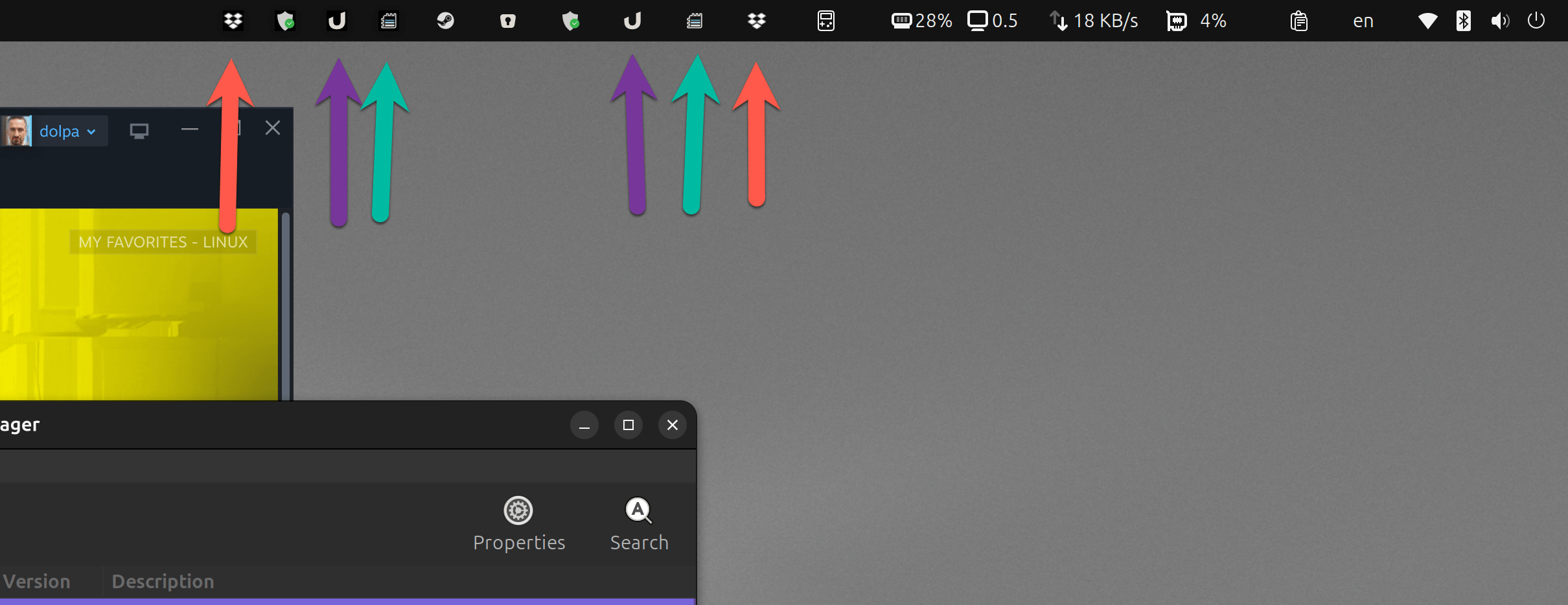
Even stranger, the icons were not identical. One looked perfectly normal, matching the theme and background of the panel. The second version looked slightly different — darker, almost as if it belonged to another layer of the desktop.
At first glance, it felt like some sort of graphical glitch. Maybe GNOME had simply failed to redraw the panel correctly. But the duplicates didn’t disappear. They stayed there, calmly staring back at me.
The natural suspect was Dropbox itself. After all, the problem appeared the moment Dropbox started running. So the first thing I did was disable its autostart entry. I logged out, logged back in, and watched the tray carefully as the desktop loaded.
Everything was normal again. Only one icon for each service. So far, so good.
Then I started Dropbox manually from the Application Menu, and the duplication returned instantly.
That was the moment I knew two things for certain. First, Dropbox was somehow triggering the problem. Second, the problem wasn’t limited to Dropbox. Something deeper inside the desktop environment was reacting badly when Dropbox appeared.
At this point, I started experimenting. The goal was simple: find something that resets the tray back to normal.
Eventually, I stumbled on a surprisingly effective command. I restarted the GNOME extension responsible for system tray icons — the Ubuntu AppIndicator extension. I did it directly from the terminal:
/usr/bin/gnome-extensions disable ubuntu-appindicators@ubuntu.com
/usr/bin/gnome-extensions enable ubuntu-appindicators@ubuntu.com
The effect was immediate. As soon as the extension restarted, the duplicates vanished. The tray looked perfectly normal again, and Dropbox continued running without any problems.
Mystery partially solved. But only partially.
Because now I had a new problem: every time Dropbox started, I had to manually restart the extension to fix the icons.
That’s not exactly a permanent solution.
Like many Linux users confronted with a repetitive task, my first instinct was to automate it. If restarting the extension fixes the issue, then a small script should be able to do it automatically. So I created a quick workaround script in my home directory that simply waited a few seconds and then restarted the extension. Like this
#!/bin/bash
# Wait 10 seconds for everything to load
sleep 10
# Refresh the AppIndicator extension
gnome-extensions disable ubuntu-appindicators@ubuntu.com
sleep 2
gnome-extensions enable ubuntu-appindicators@ubuntu.com
I stuck it into /home/pavel/.local/share/.fix-dropbox-icons.sh and added it to Startup Applications.
Technically, it worked. The script would run during login, wait a few seconds for Dropbox to appear, toggle the extension off and on again, and the tray would fix itself.
But something about that solution bothered me. It felt wrong. How long should I wait, and what if I restart Dropbox during the workday?
Most explanations I found online suggested that the problem was caused by a startup timing issue — something along the lines of Dropbox initializing before GNOME finished loading its extensions. According to those explanations, the duplicate icon was essentially a race condition.
The theory sounded reasonable. But it didn’t match what I was seeing.
To test it, I disabled Dropbox autostart completely. Then I logged into the desktop and waited until everything had fully loaded. The tray icons were stable and normal. Only after the system was completely idle did I manually start Dropbox.
And yet the duplicates appeared again.
That experiment proved something important. The problem had nothing to do with the login sequence or startup timing. The system was already fully initialized when Dropbox triggered the duplication.
So the “wait until everything loads” explanation simply didn’t fit.
At this point, I started looking more closely at the icons themselves. The darker background on one of them wasn’t random. It hinted that the two icons might actually be coming from two different systems inside GNOME.
Modern Linux desktops support something called AppIndicators — a standard mechanism for tray icons used by many applications. But there is also an older mechanism, the so-called legacy system tray. Some applications still try to register themselves through both methods for compatibility reasons.
And that is when the puzzle finally started making sense.
GNOME’s extension was displaying both versions at the same time.
Somehow, when Dropbox registered its tray icon, the extension responded by duplicating the entire tray layer. Every icon that existed suddenly appeared twice: once through the modern indicator system and once through the legacy mechanism.
The darker icons were the legacy layer.
Once I understood that, the next step was obvious. I needed to see what configuration options the extension itself provided.
So instead of continuing to fight the problem from the terminal, I installed the GNOME Extension Manager and opened the settings for the Ubuntu AppIndicator extension.
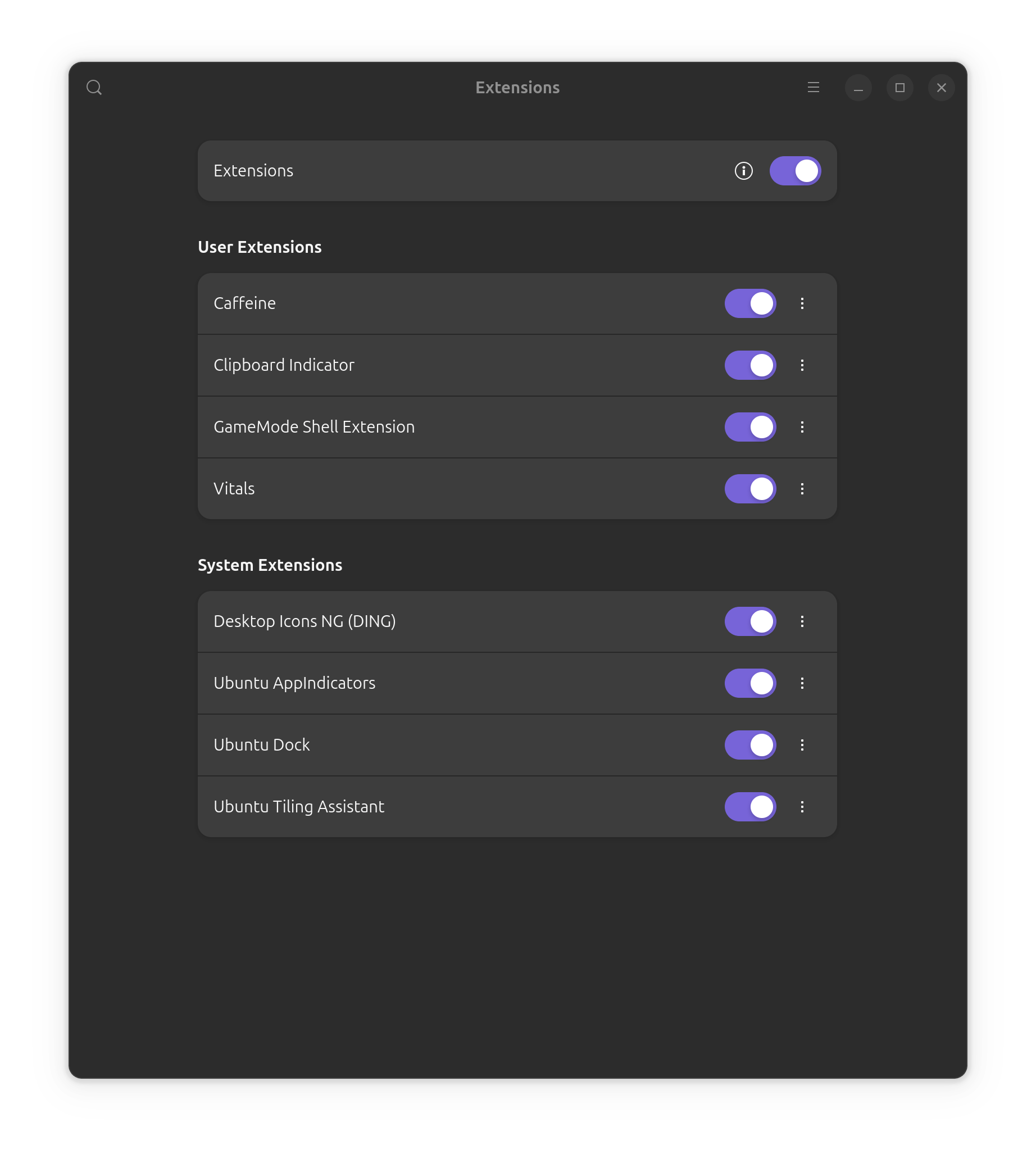
Inside its configuration window I found something interesting: a small toggle labeled “Legacy Tray Icons Support.”
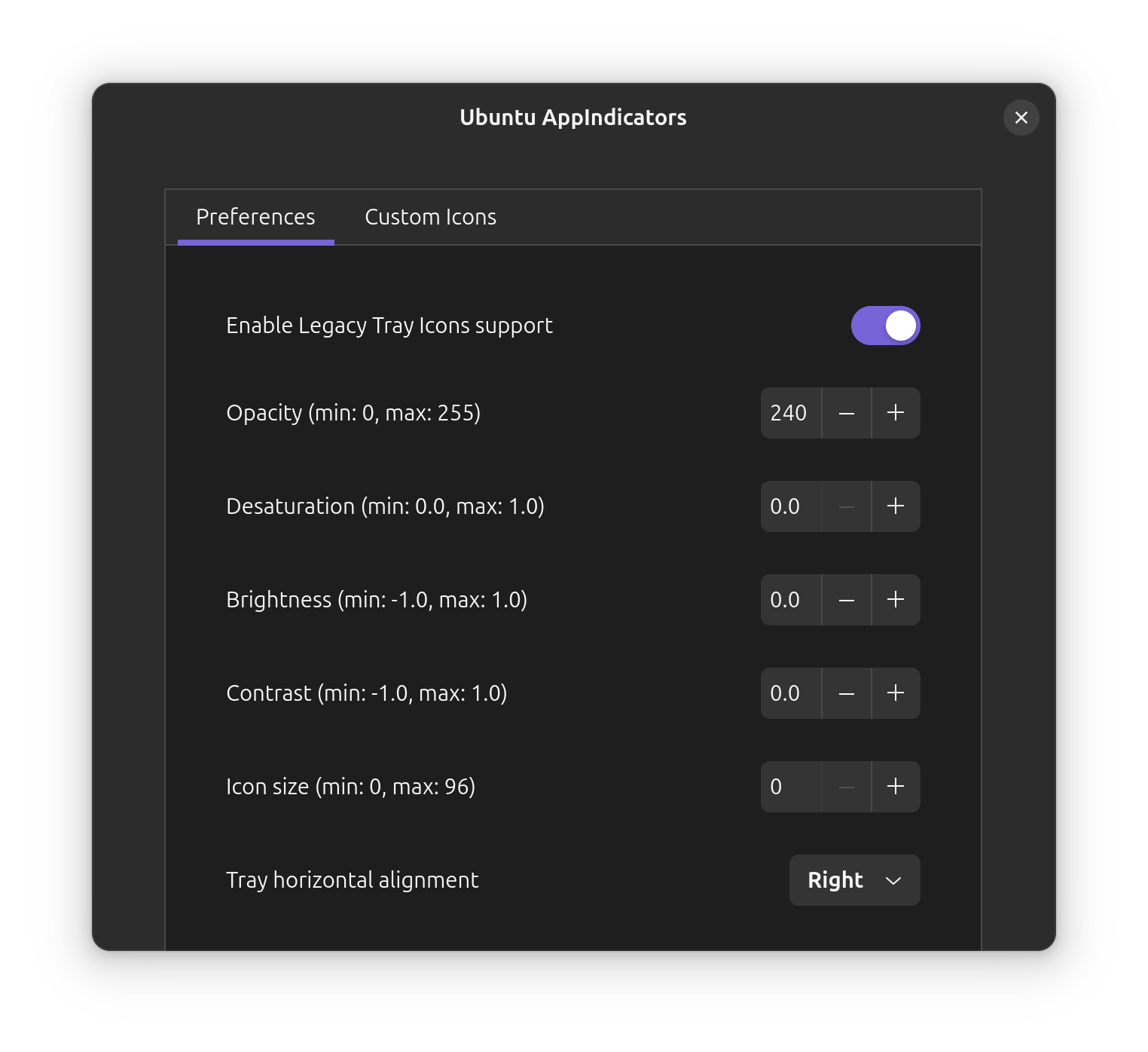
Suddenly the entire story clicked into place.
If the extension was trying to support both modern indicators and legacy tray icons simultaneously, and Dropbox triggered both registration methods, then disabling legacy support might stop the duplication entirely.
I turned the option off.

Then I logged out and logged back in to ensure the change applied cleanly.
When the desktop loaded again, the tray area looked normal. One icon per service. Nothing unusual.
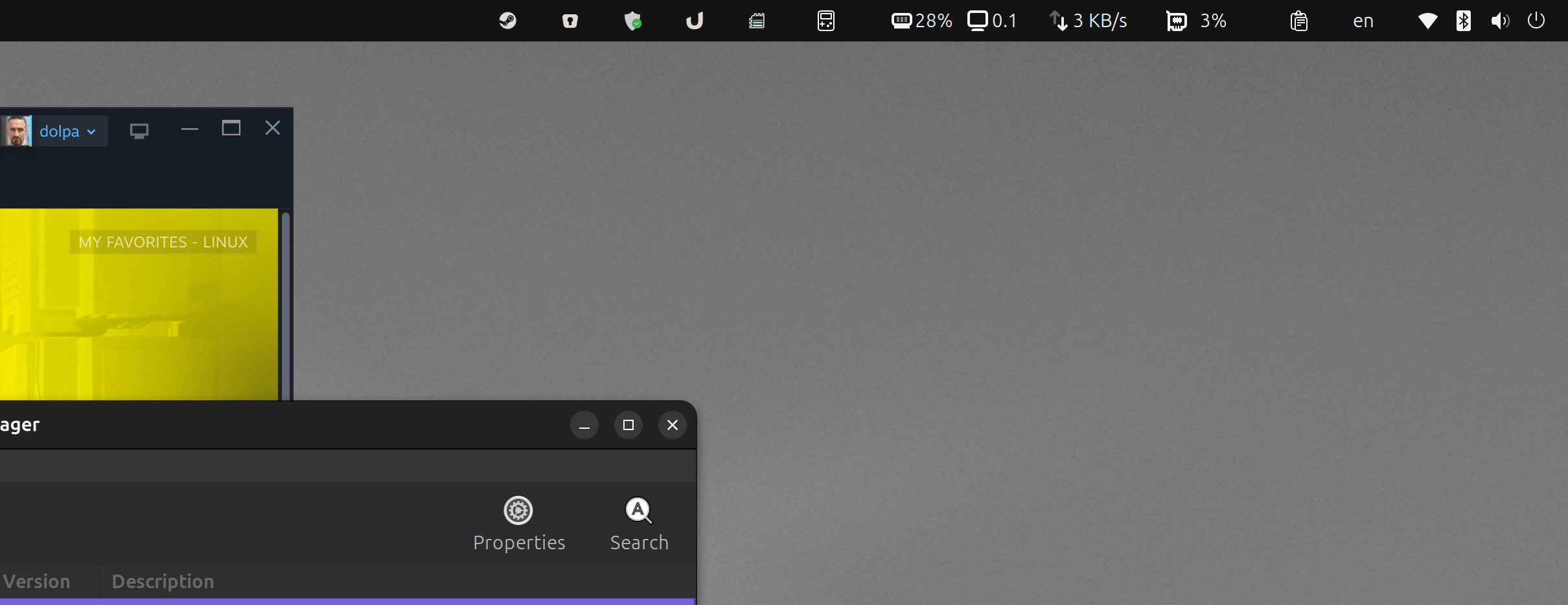
I started Dropbox and watched the panel carefully. Nothing duplicated. The tray remained exactly as it should be.
After all the scripts, terminal commands, and theories about startup timing, the real solution turned out to be a single checkbox hidden inside the extension settings.
The irony was almost funny.
In the end the problem wasn’t really Dropbox. It wasn’t Wayland either. And it certainly wasn’t a race condition during login. It was simply a configuration detail inside the GNOME extension that tried to support an older tray system that modern desktops rarely need anymore.
Once that legacy support was disabled, the duplication disappeared completely.
And that is how a tiny cloud icon managed to turn into a full-scale desktop debugging adventure.
Just another quiet day in the life of a Linux user.